7 Best Scientific Calci for Casio 991ES/991EX Users | CalcES
Compare seven online scientific calci choices for Casio 991ES/991EX users. CalcES adds familiar keys, natural input, worked steps and graphing for free.
If your usual calci is a Casio fx-991ES PLUS or fx-991EX, familiarity matters. You want to enter a fraction, change DEG to RAD, use SHIFT and ALPHA, or solve an equation without first learning a new interface. A good online scientific calculator should make that practice comfortable. Worked steps and a graph are useful when the answer alone is not enough.
We compared seven established options for study on 24 September 2026. The ranking favours familiar scientific-calculator use first, then how easily you can understand and check your answer. CalcES is made by MathDa, the publisher of this article; no position here is paid for and there are no affiliate links.
The real CalcES view below uses an EX-style keypad and shows a definite integral in natural textbook layout. CalcES has separate ES PLUS and CW-style keypad choices; this image shows the EX view, not those other layouts.
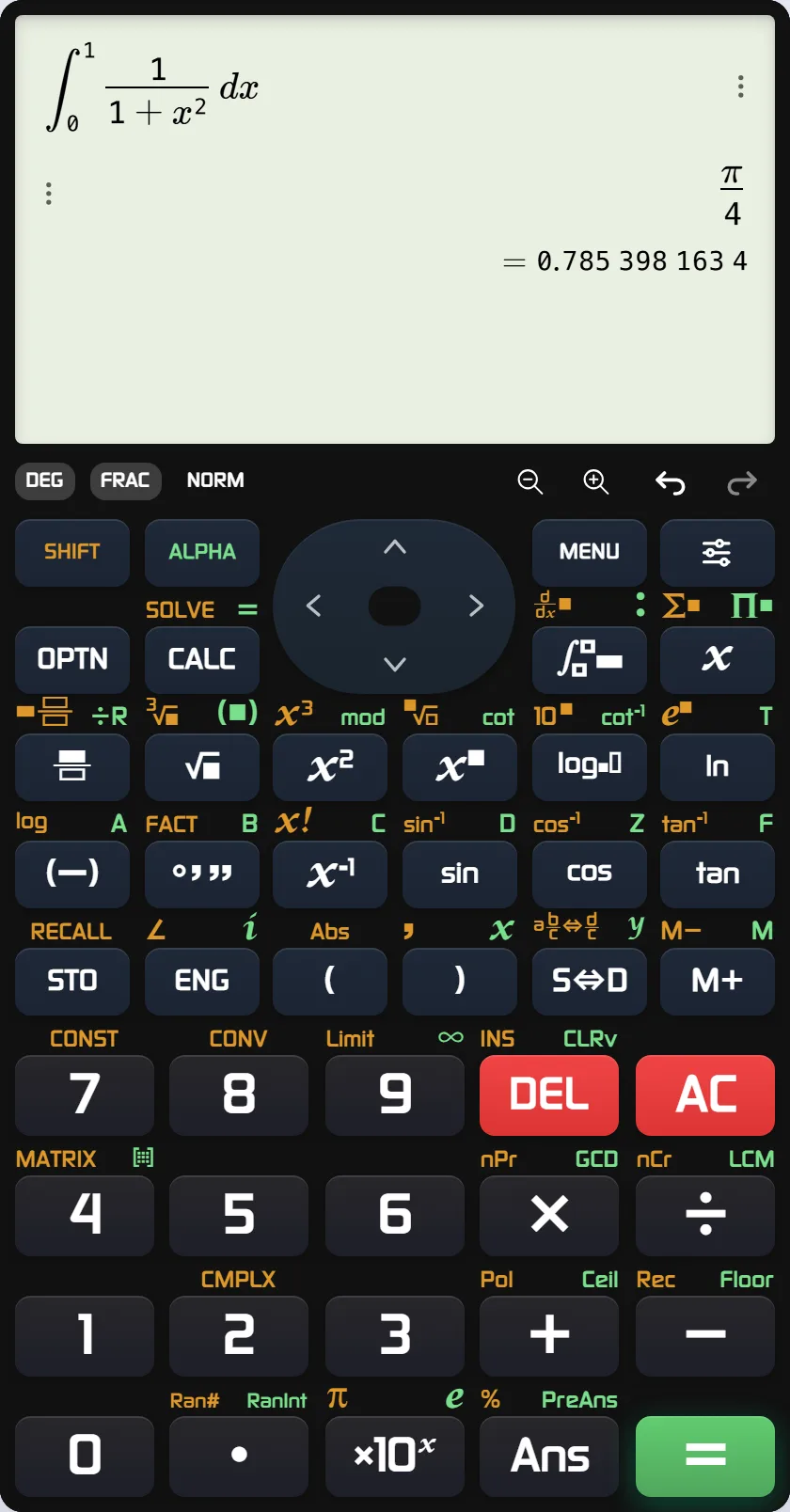 Real CalcES EX-style input: a stacked fraction inside an integral, with exact and decimal answers.
Inspect the natural-input calculation at full size.
The seven choices at a glance
| Rank | Tool | Best reason to open it |
|---|---|---|
| 1 | CalcES | Familiar ES PLUS, EX or CW-style keys with free browser access, steps and a graph handoff |
| 2 | Casio's own emulators | ClassWiz EX/CW in a browser; separate ES PLUS software for Windows |
| 3 | Desmos Scientific | Fast, clean scientific input without a physical-calci layout |
| 4 | GeoGebra Calculator Suite | Visual mathematics, graphs and linked algebra |
| 5 | Symbolab | Following a worked algebra or calculus method |
| 6 | WolframAlpha | Broad technical and scientific questions |
| 7 | Mathway | Moving among school and college subjects |
How to choose: if exact key-by-key practice on one Casio model is the whole task, its official emulator is the most faithful option. If you want a familiar calci for everyday B.Tech work, with a way to open the working and graph from your result, CalcES is our overall pick. The other tools are stronger when their specialist job is your main job.
First check the way you work, not a giant answer
A 991ES or 991EX user often starts with ordinary tasks: a stacked fraction, a root, a trigonometric value in the right angle unit, or an equation from an exercise sheet. In CalcES you can choose the ES PLUS or EX-style keypad, enter mathematics in textbook form and see an exact result when the calculation supports it. There is also a CW-style choice for fx-991CW users. These are CalcES layouts for familiar model families, not Casio software.
That distinction matters more than a table of large numbers. Enter and you want a usable for the next line. For an engineering-calculator session, you may then need a matrix, a system of equations or a definite integral. CalcES keeps those tasks in the same scientific-calculator workflow. It also offers Indian lakh/crore digit grouping in settings when you are reading large figures.
The integral pictured above is . CalcES shows its exact result and a decimal approximation. That is useful range for later study, without making calculus the starting point.
Where the extra help becomes useful
Take a familiar quadratic, . Its roots are and . On a tablet, CalcES keeps the scientific keypad visible after calculating them. The Solve equation action under the result opens the supported working in Tales Math Solver beside it. The Graph action opens the same problem in the graph panel; the curve crosses the horizontal axis at and . There is no need to re-enter the equation for either handoff.
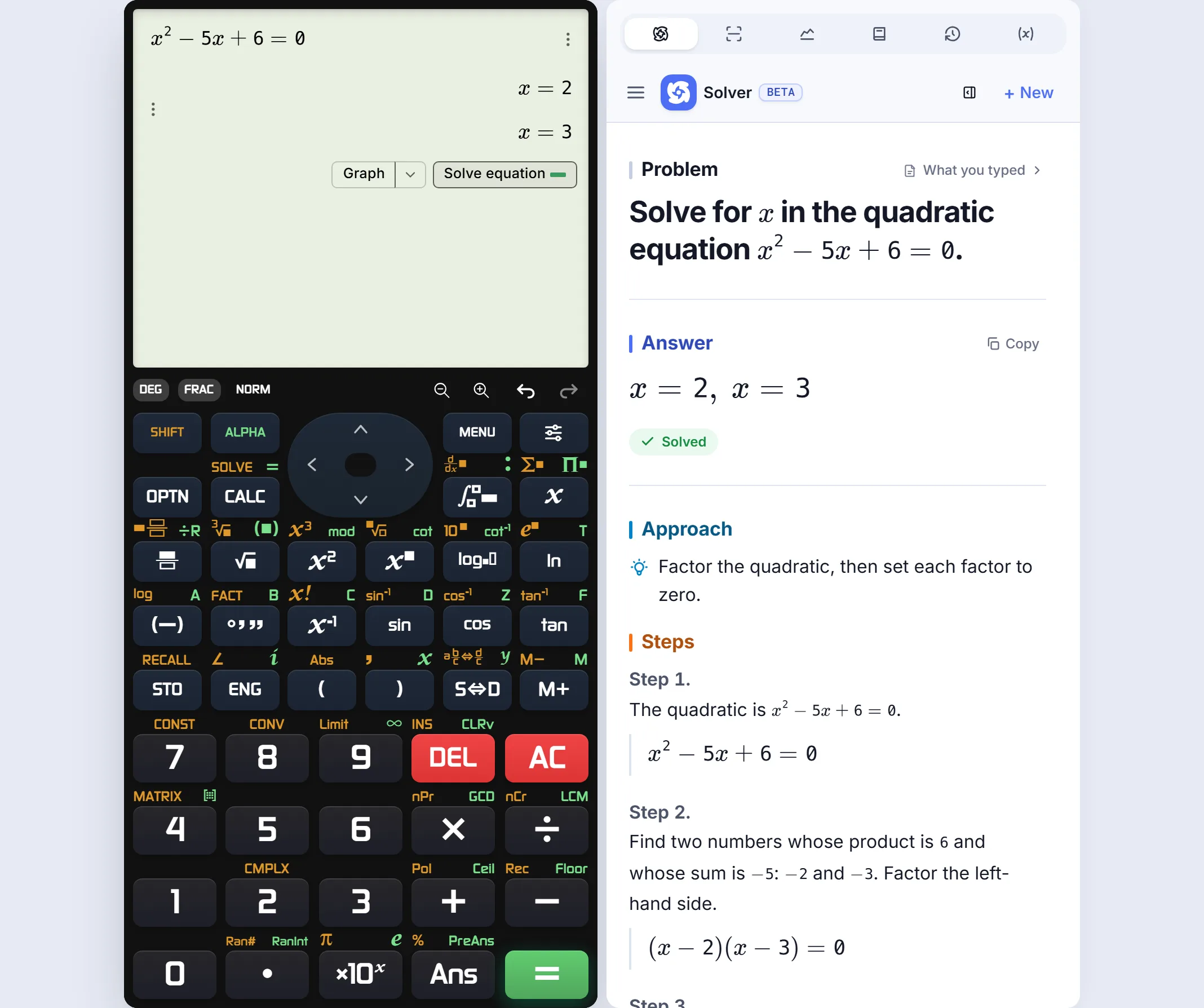 A supported solution opens next to the calculator from the result row.
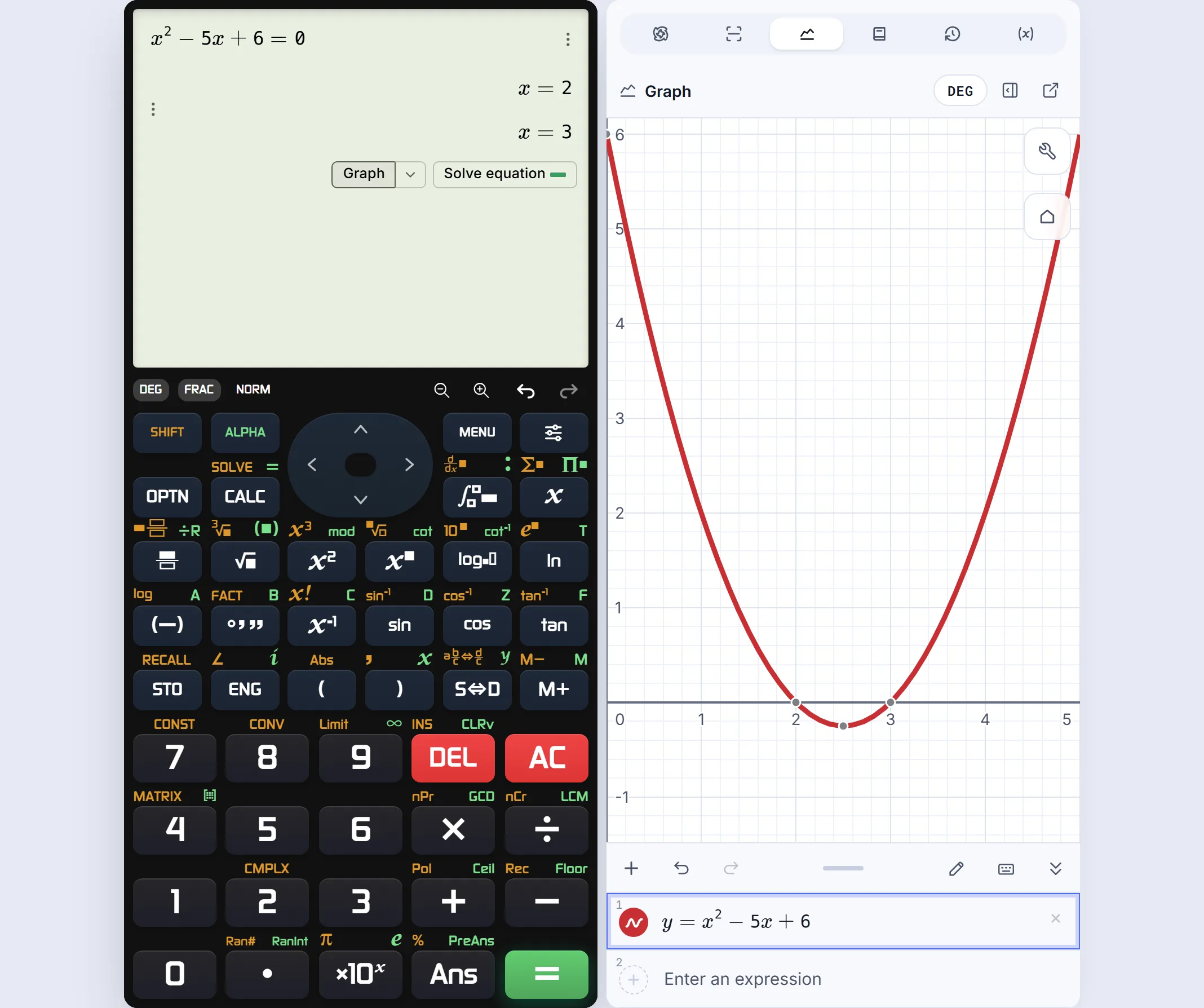 The Graph action carries the equation into the adjacent panel.
You can inspect the solution panel and inspect the graph panel at full size. Worked-step depth depends on the problem; the screenshot shows the quadratic checked here.
1. CalcES — best overall for familiar keys plus study tools
CalcES is our best overall fit for someone who wants to use an online scientific calci with familiar keys and follow-up study tools. Choose the ES PLUS, EX or CW-style keypad family you know. Fractions and integrals retain natural mathematical layout; SHIFT and ALPHA remain part of the keypad experience. For engineering work at home, you can move from basic scientific functions to equations, matrices, complex numbers and supported symbolic calculus.
The extra value appears after pressing the equals key: a supported result can lead to worked steps or an interactive graph in the same calculator view. Skins let you change the look of the keypad without changing the task. They are a personal preference, not a substitute for the familiar controls.
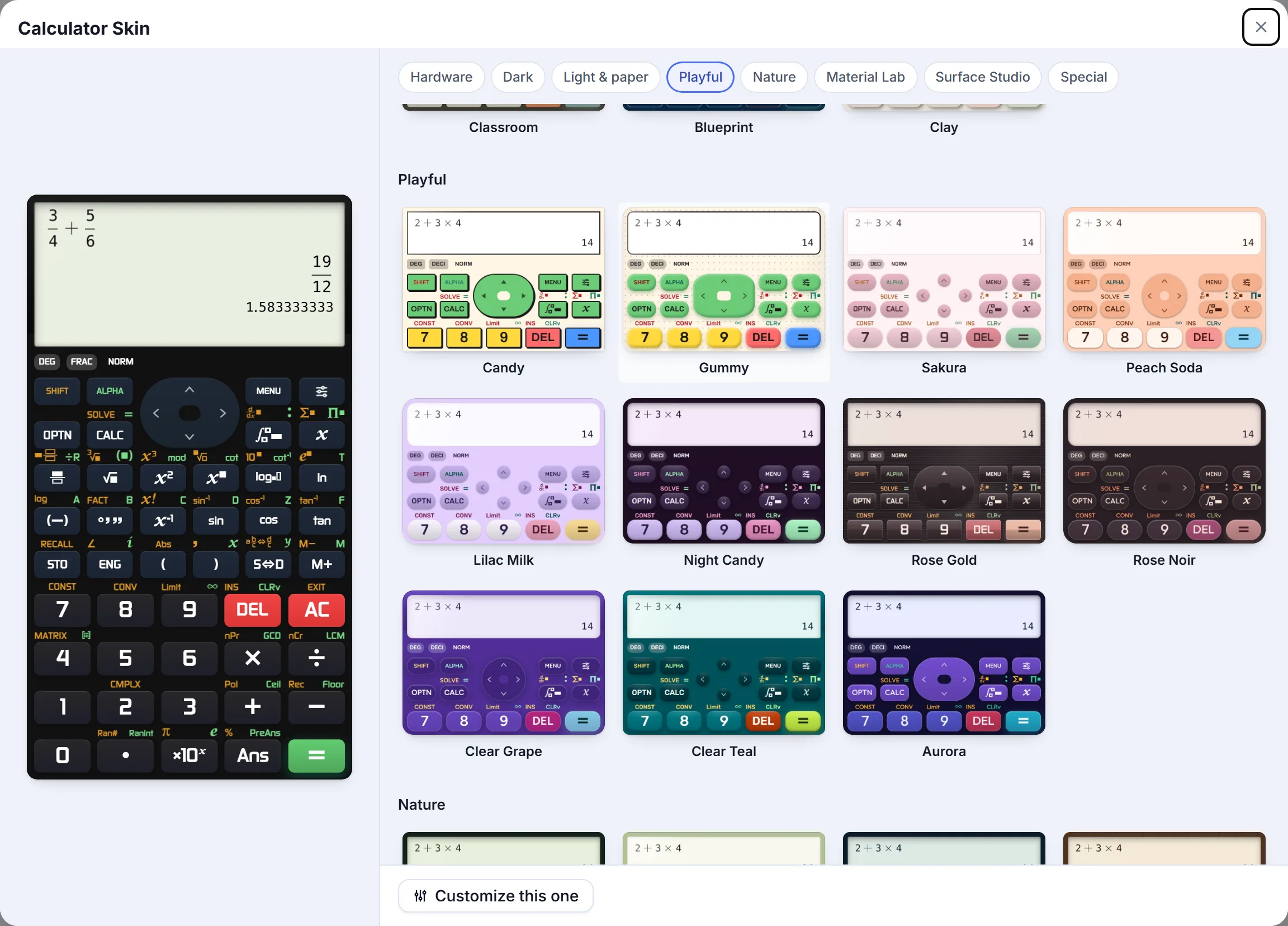 Different CalcES skins for the same scientific-calculator workflow.
Choose it when: you want a free engineering calculator online that starts with handheld-style input and continues into explanation or graphing.
2. Casio emulators — best for exact model practice
Casio lists two different routes. For the fx-991EX and fx-991CW families, its ClassWiz Emulator runs through ClassPad.net in a browser and uses an account/licence. For fx-991ES PLUS practice, Casio lists a separate ES PLUS Emulator as a Windows download, including the fx-570/991ES PLUS second edition; it is not an online calci. Casio advertises a 90-day trial for its emulator software. Check the current model list and licence terms before choosing.
This is the clear choice when a teacher demonstrates a particular sequence and you must reproduce that model's operation. CalcES offers a familiar style and more connected browser study tools, but it is an independent calculator, not a replacement for the official model's exact interface.
3. Desmos Scientific — best for a quick clean calculation
Desmos Scientific has a clear expression editor for fractions, roots, trigonometry and functions. Its user guide documents a Fraction control, so a decimal result for can be converted to . For plotting, open the separate Desmos Graphing Calculator.
Choose it when: you want to type a question quickly and the Casio-style key sequence is unimportant.
4. GeoGebra — best when the graph leads
GeoGebra Calculator Suite links algebraic and graphic views and offers CAS and geometry tools, as its app guide explains. It suits a lesson about curves, intersections or changing parameters. Its broader interface is different from practising on a 991ES-style calci.
Choose it when: visual exploration is the main task.
5. Symbolab — best when you need the method
Symbolab puts algebra and calculus solving at the centre. In our focused check it showed with fraction steps and differentiated exactly. Step detail can vary by question and service level, so check the actual solution you need.
Choose it when: following a method matters more than practising scientific keys.
6. WolframAlpha — best for a broad technical question
WolframAlpha handles far more than a pocket calci. Its mathematics examples cover calculus, matrices, equations and plots, alongside scientific data and units. Some step-by-step features are described under Pro.
Choose it when: the question is wider than a normal calculator mode.
7. Mathway — best for switching subjects
Mathway offers guided solvers across algebra, trigonometry, calculus and science subjects. In our basic check it returned and a brief method cue for the fraction. Its Premium terms cover fuller step access.
Choose it when: you need a subject-specific solver more than a familiar keypad.
Which calci fits your study session?
| Your priority | Start with |
|---|---|
| Familiar 991ES/991EX-style keys, then steps and graph | CalcES |
| Reproduce one physical Casio model's exact operation | Casio's official emulator |
| Type a quick scientific expression | Desmos Scientific |
| Explore a curve or geometry | GeoGebra |
| Read a worked method | Symbolab |
| Investigate a broad technical question | WolframAlpha |
| Switch among subject-specific solvers | Mathway |
For JEE or GATE revision and B.Tech coursework, use an online calculator to practise and check your understanding; follow the current rules for your actual exam. Open CalcES, choose the keypad family that feels familiar and try one of your own problems before deciding whether you need a specialist.
CalcES is an independent MathDa product. It is not affiliated with or endorsed by Casio. Casio, fx-991ES PLUS, fx-991EX and fx-991CW are trademarks of their respective owners.
Frequently asked questions
Which online calci feels most like a Casio 991ES or 991EX?
Casio offers a browser-based ClassWiz emulator for listed EX/CW models; its separate ES PLUS emulator is Windows software. For free browser-based study, CalcES offers familiar ES PLUS, EX and CW-style keypads with steps and graphing.
Is CalcES a Casio fx-991ES PLUS or fx-991EX?
No. CalcES is an independent MathDa product with keypad layouts for people familiar with those model families. It is not made or endorsed by Casio.
Can I use a scientific calci for B.Tech engineering maths?
CalcES covers familiar scientific-keypad work such as fractions, trigonometry, equations and matrices, and also handles supported symbolic calculus. Check your course requirements for any specialist software.
Can I see steps and a graph without typing the question again?
For a supported equation, CalcES can open the worked solution in Tales Math Solver and send the same problem to its Graph panel from the result row. The available steps depend on the problem.
Can I use an online calculator in JEE, GATE or a college exam?
Use an online tool for study and revision. Follow the current rules of your examination or institution for equipment in the exam room.