7 Best Free Online Scientific Calculators for Casio Users
Compare seven free online calculators for fx-115ES PLUS, fx-991EX and fx-9910CW users: familiar keys first, then steps, graphing and exact math.
The calculator you know is on another desk, but tonight's Algebra II homework still has fractions and roots. If you use a Casio fx-115ES PLUS, fx-991EX or fx-9910CW-family device, you probably want more than a blank “enter your problem” box. You want keys and math entry that let you continue the way you learned.
We compared seven free online scientific calculators on September 24, 2026 with that situation in mind. Familiarity came first; accuracy, worked steps and graphs helped separate tools that were useful after the first answer. CalcES is made by MathDa, which publishes this article. There are no paid rankings or affiliate links.
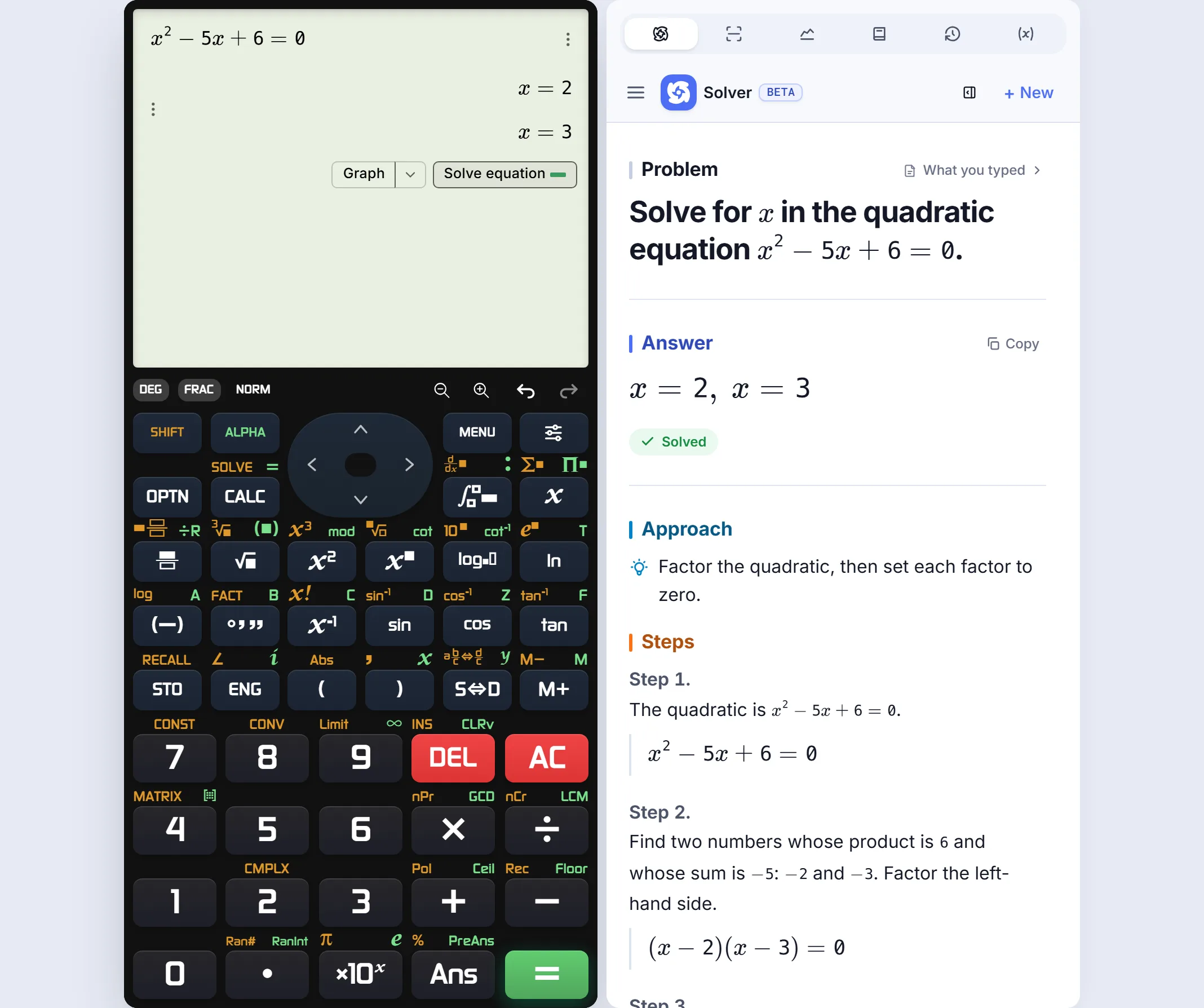 Real CalcES EX-style board: the answer and worked steps share one tablet session; choose the ES PLUS or CW keypad separately.
The seven picks for US study
| Rank | Calculator | Best fit |
|---|---|---|
| 1 | CalcES | Familiar ES PLUS, EX and CW-style boards plus natural entry, supported steps and graphing |
| 2 | Calculator.net Scientific | A conventional button grid for quick math |
| 3 | Desmos Scientific | Clean keyboard input and excellent accessibility |
| 4 | GeoGebra Calculator Suite | Graphs, algebra and geometry in linked views |
| 5 | Symbolab | Worked algebra and calculus methods |
| 6 | Mathway | Help organized by school subject |
| 7 | WolframAlpha | Broad computation and scientific information |
This order favors a student who needs an online substitute for their usual scientific calculator, not the largest possible menu of mathematical functions. If the assignment is specifically about building graphs or exploring a difficult symbolic problem, a specialist lower in this list may be your first choice.
Begin with the keys you already know
For a user of the fx-115ES PLUS, an ES PLUS-style board is the relevant reference. The fx-991EX points to an EX-style board; the fx-9910CW points to the later CW-style family. CalcES lets you select among these three supported families. Those model names describe who the layouts are for. CalcES is not a Casio product or a promise of identical hardware behavior.
When you enter a fraction, the question is practical: can you see a numerator over a denominator and edit the expression before calculating? For roots and powers, can you see the mathematical structure rather than decode a line of commands? CalcES keeps natural math entry in a calculator interface. Calculator.net offers recognizable scientific buttons without model-family layouts. Desmos Scientific gives you clean mathematical entry but uses its own main, letter and function keypads. GeoGebra, Symbolab, Mathway and WolframAlpha are valuable workspaces or solvers; they do not begin with practice on the key sequence of your handheld.
| Start with this need | Strongest fit here | Limitation to know |
|---|---|---|
| Practise an ES PLUS, EX or CW-family keypad style | CalcES | It is an independent approximation of familiar workflows, not model-specific firmware. |
| Click conventional scientific buttons | Calculator.net | Its grid does not match a specific supported model family. |
| Type readable expressions with accessibility options | Desmos Scientific | Its three keypad tabs are a different routine. |
| Explore a graph or construction | GeoGebra Suite | This is a math workspace rather than a handheld stand-in. |
| Ask for a worked method | Symbolab or Mathway | The solver, not the keypad, is the starting point. |
What about CASIO's own software? Its ClassWiz Emulator runs on ClassPad.net for listed EX and CW models, with an account and license setup. For fx-115ES PLUS users, CASIO separately lists a Windows fx-ES PLUS Emulator for the fx-115ES PLUS-2. Its emulator page advertises a 90-day trial; check the exact model version and current license terms. We did not test the licensed software or rank it among these free browser tools.
1. CalcES — familiar study routine, more room to grow
CalcES ranks first for the student who wants to pick up their usual calculation routine again. Choose the ES PLUS-style board if you use an fx-115ES PLUS, the EX-style board if you use an fx-991EX, or the CW-style family if your handheld is newer. Enter a fraction, power or root in natural notation and work from a scientific keypad instead of a solver prompt. You can use the physical keyboard on a laptop, revisit history and choose a visual skin without changing the mathematical functions.
A skin is optional, but it makes a tool you spend a long homework session with feel like your own. The board can be dark and restrained or bright and playful; the calculation workflow stays familiar.
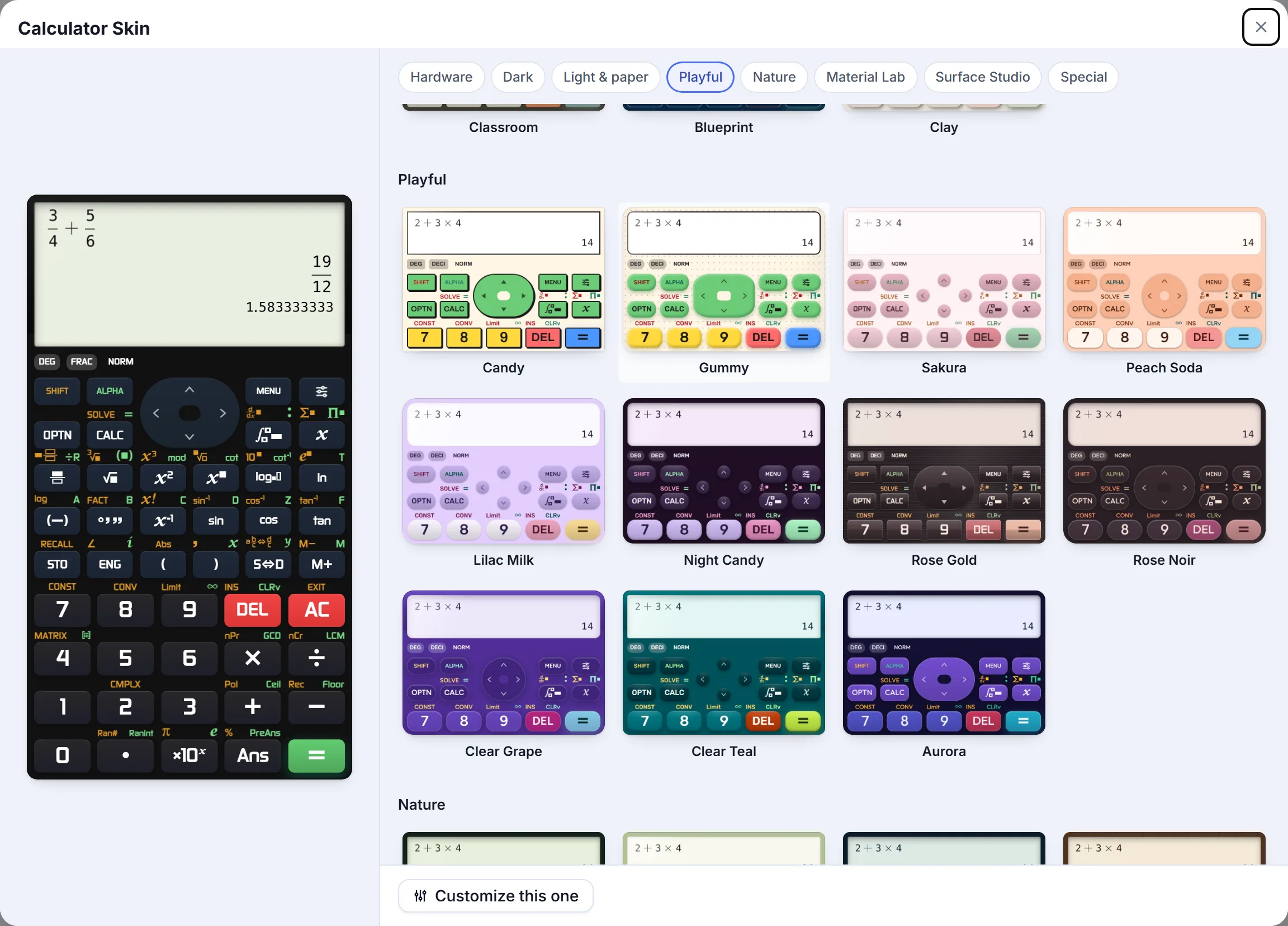 Real CalcES skin gallery: change the look while keeping the calculator's functions.
The extra value appears when one of those ordinary exercises gets harder. In Algebra II, enter . CalcES returns roots and . Press Solve equation under the result and Tales Math Solver opens supported factoring steps beside the tablet calculator. Press Graph in the same result row and the graphing panel plots the quadratic, crossing the horizontal axis at those two roots. The equation remains on the calculator while the panel changes, so you can move between result, explanation and visual check without retyping it. On a phone, the solver opens in a sheet over the calculator.
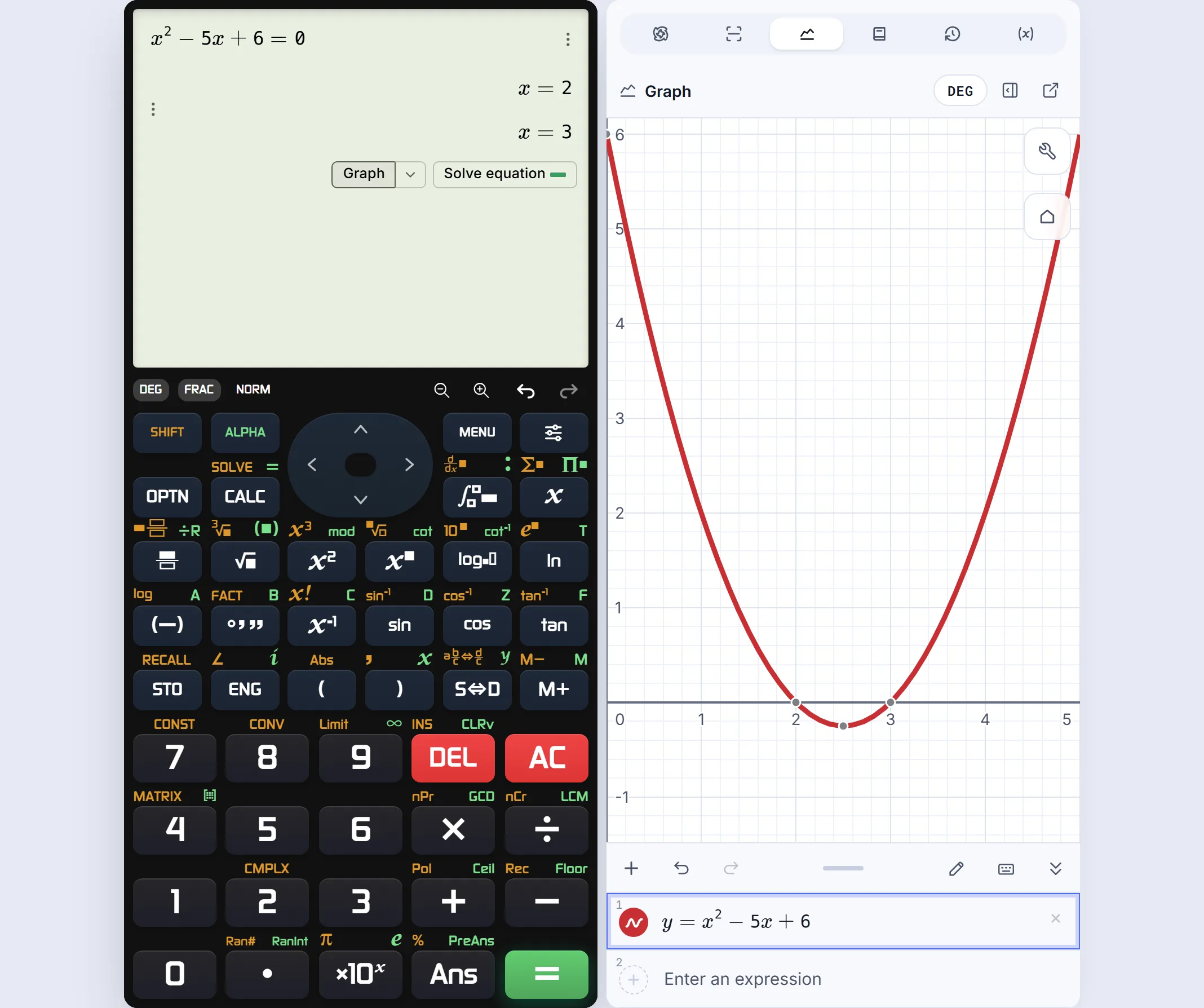 The Graph handoff shows the curve and its roots beside the original input.
Open the steps screenshot or graph screenshot to see the handoff controls. Then try the equation yourself.
For precalculus, college STEM or engineering work, CalcES also handles exact fractions and roots, equation solving, symbolic calculus, matrices and complex numbers. Those abilities make the familiar keypad useful beyond a short homework exercise; they are not the only reason to pick it.
Choose CalcES when: you want a familiar keypad today and support for an explanation or graph when you need one.
2. Calculator.net — a quick conventional keypad
Calculator.net Scientific has clickable buttons for trig, inverse trig, powers, roots, logs, factorials, constants, memory and DEG/RAD. Its own description says you can click or type calculations as you would on a physical calculator.
That makes it a reasonable choice when you left your device at home and need a quick numerical result. Its button arrangement is general rather than an fx-115ES PLUS or fx-991EX-style family. In our fraction check, displayed the correct decimal instead of in the tested view. Worked equation steps and an integrated graph are outside this scientific page.
Choose it when: the answer is all you need and a conventional button grid feels comfortable.
3. Desmos Scientific — clear entry and accessibility
Desmos Scientific supports fractions, roots, powers, trigonometry, lists and complex mode. Its official guide documents keyboard entry, adjustable text, reverse contrast and Braille mode. Those options may matter more than keypad imitation for some students.
Desmos does not try to reproduce the key sequence of a particular handheld. It has separate main, letter and function tabs. In our check, appeared as first; its Fraction control showed . For plotting, open the separate Desmos Graphing Calculator.
Choose it when: legible mathematical input or accessibility is your top priority.
4. GeoGebra — when the graph is the lesson
GeoGebra Calculator Suite links algebra, graphing, geometry, CAS and other mathematical views. The official suite guide describes how changes in one view update the others.
That is powerful for studying how an equation behaves. It is a different activity from practising the keys on the calculator you will use in class. GeoGebra's Math Solver is a separate learning tool; the Suite itself is strongest here as a visual mathematics workspace.
Choose it when: the graph, table or geometric construction is central.
5. Symbolab — worked methods first
Symbolab makes sense when the problem, not the keypad, is your sticking point. Its mathematical input covers algebra and calculus, with worked information for supported problems. In our public checks it kept for and returned exact derivative and integral results.
The page feels like a solver rather than a physical scientific calculator. Some explanation depth varies with the problem and service level, so check the particular working you need.
Choose it when: you want help understanding a method more than practising a familiar keypad.
6. Mathway — help across subjects
Mathway organizes its calculators and solver by school subject, from Algebra to calculus and statistics. In our basic fraction check, it returned , showed a repeating decimal and gave a short cue to find a common denominator. Fuller steps may require its optional subscription.
That breadth is useful when you need a subject-specific entry point. It is less useful as a stand-in for the physical scientific calculator you already know.
Choose it when: guided problem solving across several classes is the priority.
7. WolframAlpha — broad computation
WolframAlpha covers mathematics along with units and scientific reference questions. Its mathematics examples include equations, calculus, matrices and plots. Detailed step-by-step features depend on its Pro offering.
For an unusual STEM question, this range is valuable. The input feels like asking a computational knowledge service, not using a handheld scientific keypad.
Choose it when: the problem extends beyond the usual calculator workflow.
A few accuracy checks after the usability test
Once the keys and entry feel right, check the answer. We tested a progression from fractions to calculus on September 24, 2026. These are focused observations, not a claim that one tool solves every possible problem.
| Expression | Expected form | What it tells you |
|---|---|---|
| An exact fraction can be more useful than a rounded display in Algebra II. | ||
| Simplified roots preserve the structure expected in precalculus. | ||
| A symbolic derivative is different from a numeric value at one point. | ||
| An exact integral remains useful in later STEM work. |
CalcES returned those exact forms in our checks. Desmos returned a correct decimal for the fraction and converted it to with its Fraction control. Calculator.net showed the correct decimal in the tested view. Symbolab returned exact fraction and calculus results. We did not run every row on every site; missing observations are not failures.
The last integral was entered as a natural expression on CalcES, and the result showed exact beside its decimal approximation.
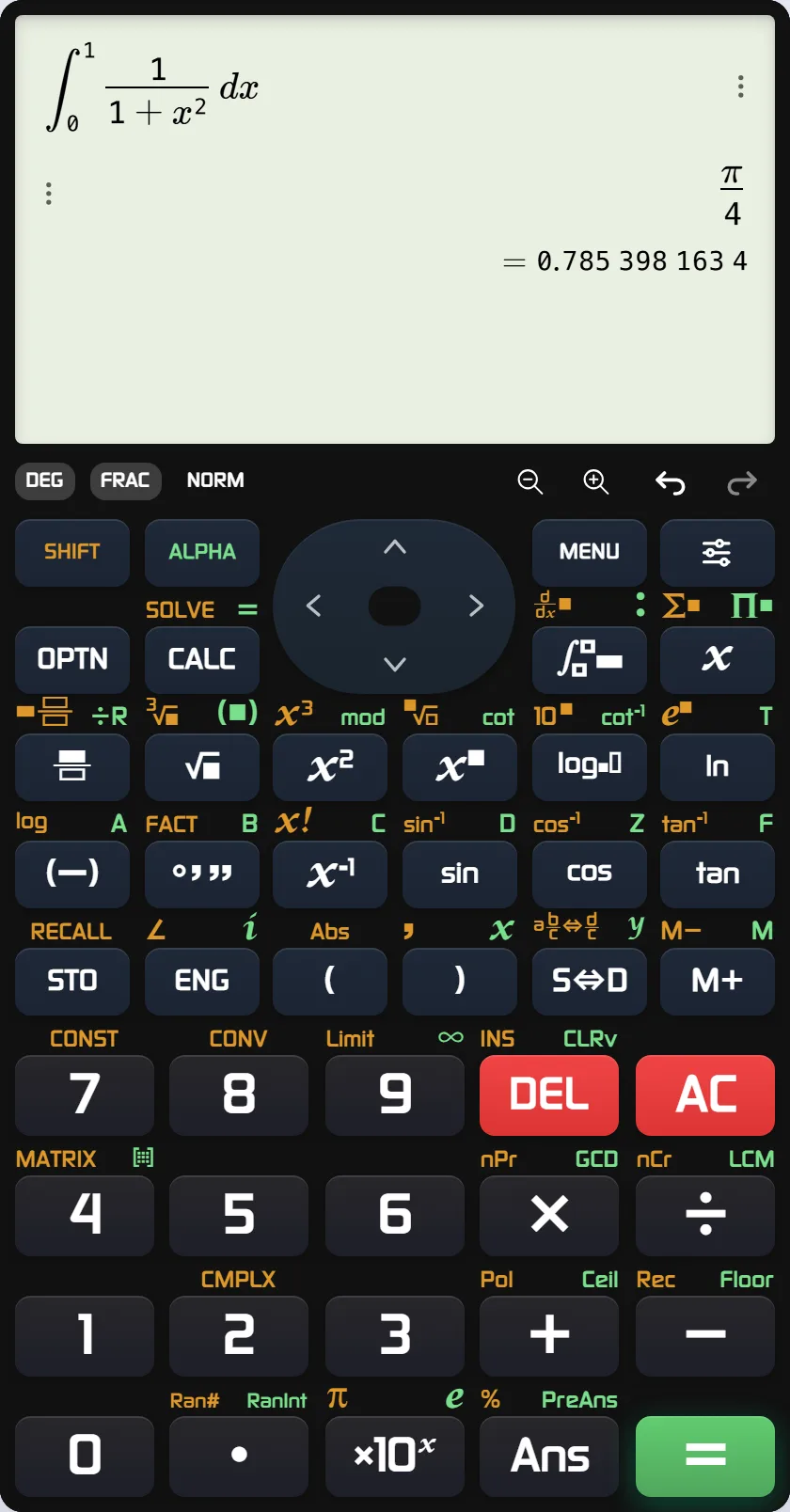 Real CalcES check: textbook-style integral and exact result.
Inspect the full-size integral screenshot.
Make the choice for your next assignment
If your fx-115ES PLUS, fx-991EX or fx-9910CW-family handheld is unavailable, open CalcES and pick the supported keypad style you recognize. Try the fraction or quadratic you were already doing. If you get stuck, the supported steps and graph are in the same calculator session. Desmos and GeoGebra remain strong choices when accessible expression entry or visual exploration is the main job; Symbolab and Mathway lead when a worked method is what you need.
CalcES is an independent MathDa product. It is not affiliated with or endorsed by Casio. Casio, ClassWiz and the model names mentioned are trademarks of their respective owners.
Frequently asked questions
Which free online scientific calculator feels familiar to Casio fx-115ES PLUS users?
CalcES is our pick for users who want a familiar ES PLUS-style keypad, natural expression entry and a free browser calculator. It also has EX and CW-style boards for supported model families. CalcES is an independent MathDa product, not a Casio calculator.
Is CalcES the same as a Casio fx-991EX or fx-9910CW?
No. CalcES offers keypad styles for supported EX and CW-family users, but it is not made or endorsed by Casio. Do not assume every secondary key, menu or result matches a particular physical model.
What if I need an exact model-specific Casio emulator?
CASIO has separate options: the ClassWiz Emulator on ClassPad.net for listed EX/CW models, and a Windows fx-ES PLUS Emulator listing fx-115ES PLUS-2. CASIO advertises a 90-day emulator trial; check the precise model and license terms. Neither manufacturer tool is in this free browser-tool ranking.
Can a free scientific calculator show steps and a graph?
For supported problems, CalcES passes a result directly to Tales Math Solver or its integrated graph panel without retyping the input. GeoGebra connects algebra and graphics in its Suite; Desmos Scientific and Desmos Graphing are separate tools.
Does Desmos Scientific show exact fractions?
For eligible results, yes. In our check, 1/2 + 1/3 appeared as 0.8333333333 at first; its Fraction control changed the display to 5/6.
Can I use an online calculator on a US test?
Use these sites for study and practice, not as exam-room equipment. Check your school's or exam provider's current calculator rules and practise with the physical device you will use.