Check, change or clear a stored variable before the next problem
Find a variable's stored value, replace it or clear that variable without disturbing the others.
Tento návod zatím není k dispozici v češtině. Zobrazuje se celá anglická verze.
You used as the radius in one problem; the next problem uses . Before putting into a new calculation, how can you tell what the calculator still holds? And if you no longer need , how do you clear just that variable?
CalcES shows stored values in two places. The Variables panel is the quick way to inspect or change one variable. The Variables mode lets you scan the whole list and edit with the calculator keypad. Choose one route for your situation; you do not have to use both to change one value.
Fix one variable from the panel
Below each step is the screen you should see after pressing.
Next to each step is the screen you should see after pressing.
-
Step 1
Open the Variables tab beside the calculator. On a phone, tap the (x) Variables icon in the header to open the Variables sheet. Find the row: in this example it still shows from the previous problem.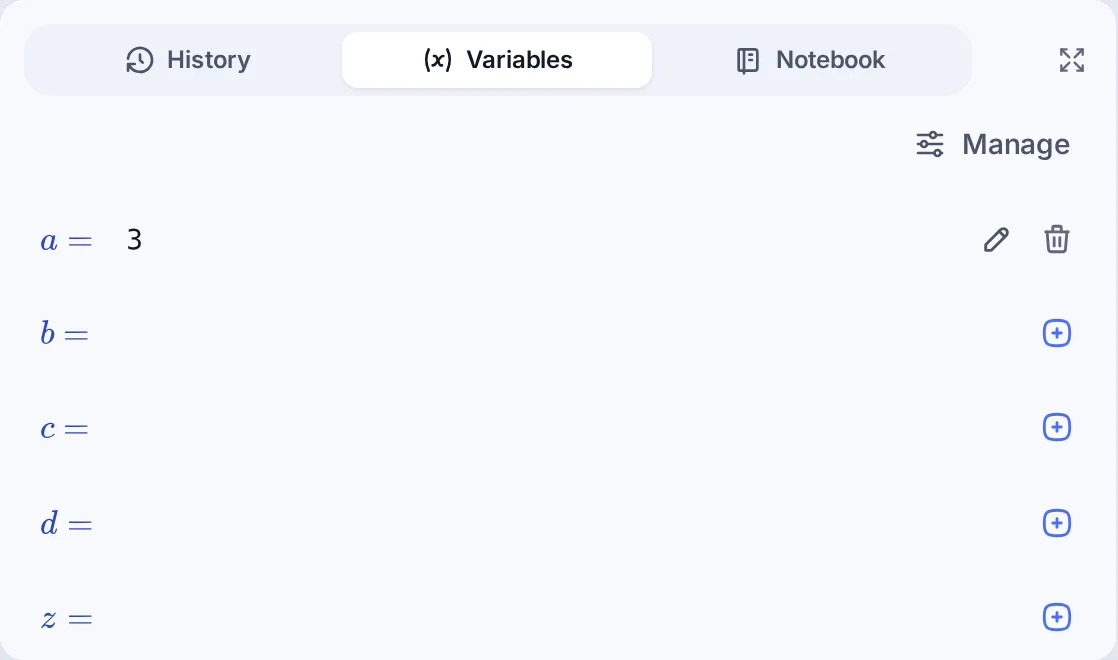
-
Step 2
Tap the edit icon on the row. A separate entry line shows and the previous value. Enter to replace it, then press the equals key. Back in the panel, check that now shows .Press: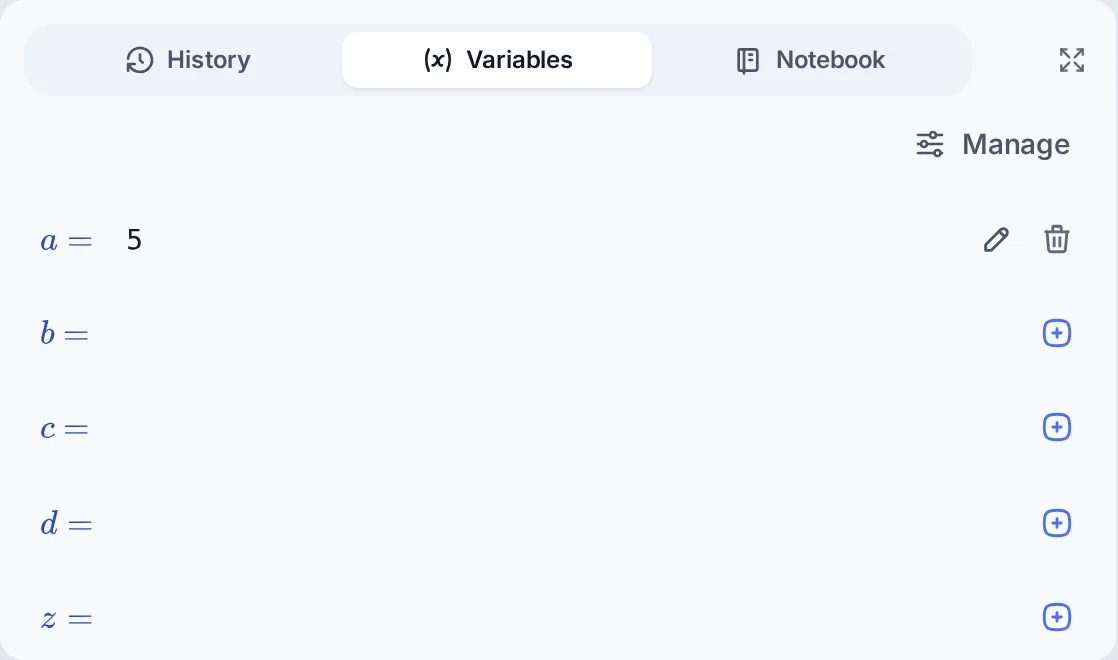
-
Step 3
If the next problem does not need at all, tap the clear icon on its row. That row becomes empty; the other variables stay as they were. This is an alternative to changing to , not a required step after step 2. -
Step 4
To review several stored values together, tap Manage at the panel's top right; on a phone, it is beside the close button. The Variables mode opens with the variable list and one selected row. The illustration keeps because it skips the optional clear in step 3. On a phone, the panel closes so the list is visible.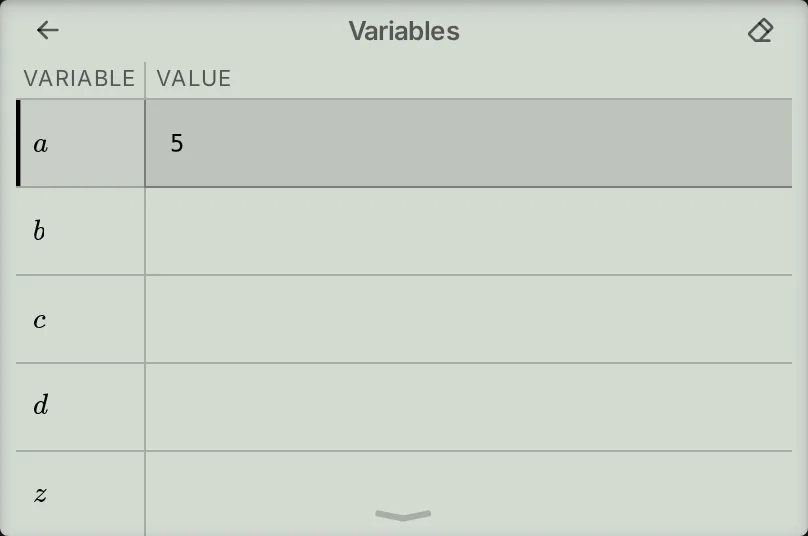
Tapping the name or value in a panel row inserts the variable symbol into your expression; it does not edit the row. Use the edit icon to change its value or the clear icon to remove it.
Edit or clear from the Variables mode
You can also open the Variables mode directly from its tile in the mode menu.
Tap the row you need, or use the up/down keys while browsing the list. With selected:
- Replace its value: type to replace the old value, then press the equals key. Both the list and the panel show the new value.
- Clear only : press AC to empty the entry line, then press the equals key. After AC alone, the stored value is still there; equals on the empty line clears it. Pressing AC again instead restores the old value to the line.
The eraser in the list header clears all variables and asks for confirmation. Do not use it to remove one value. When finished, use the back arrow to return to the calculation screen; leaving the Variables mode does not clear stored values.
If you want to keep one formula and substitute several values in sequence, use CALC as shown in the related article. The panel and the mode are for checking what is stored, correcting a value or removing one you no longer need.
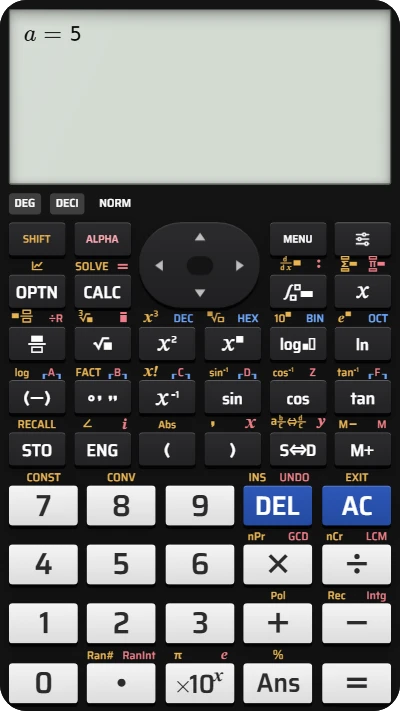
Check and change a stored variable on your fx-991EX
Open the Variables panel, change a from 3 to 5, and confirm the update — no download required.