Save an answer in a variable without STO
Tap the Save icon to keep an exact answer in a letter, then use that letter in your next calculation.
This article is not available in your language yet, so the English version is shown.
You want to keep an answer for the next calculation without using STO. Tap the floppy-disk Save icon under the answer to store it in a letter.
For example, a ribbon is m long and you cut it into equal pieces. Save the length of one piece in , then check that three pieces make the original length:
Save the answer in the letter a and use it again
Below each step is the screen you should see after pressing.
Next to each step is the screen you should see after pressing.
-
Step 1
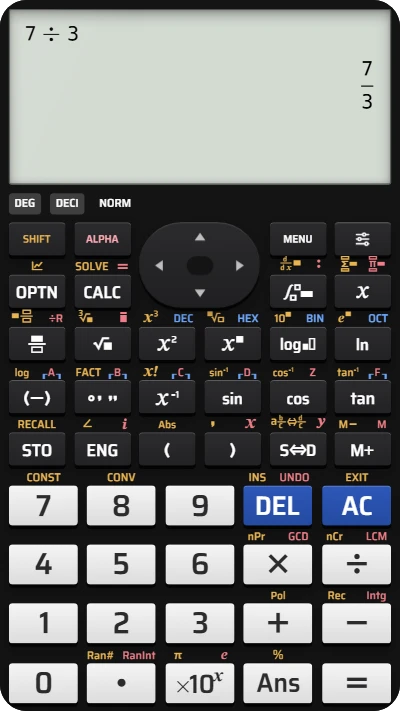
Enter and press the equals key. The answer is , with underneath.Press: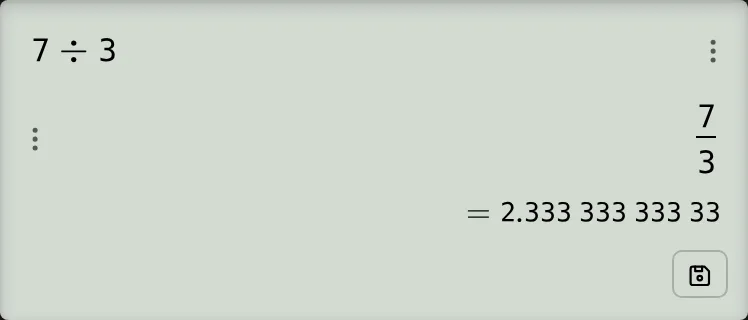
-
Step 2
Tap the floppy-disk Save icon under the answer. The Save to a variable popover opens with a choice of letters, each showing the value it already holds.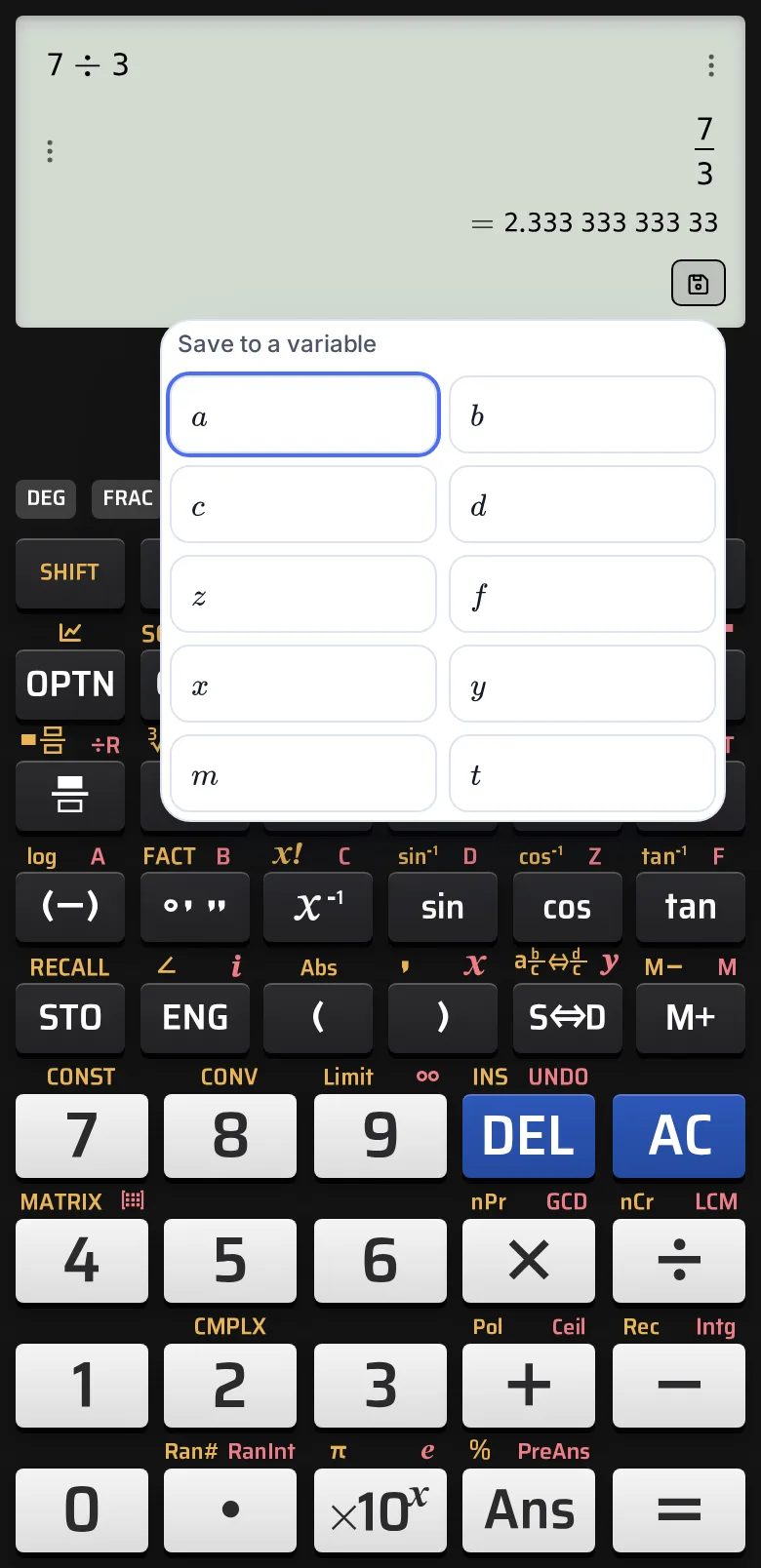
-
Step 3
Tap a. The popover closes and Saved to a appears at the top of the calculator. The calculation on the screen stays the same.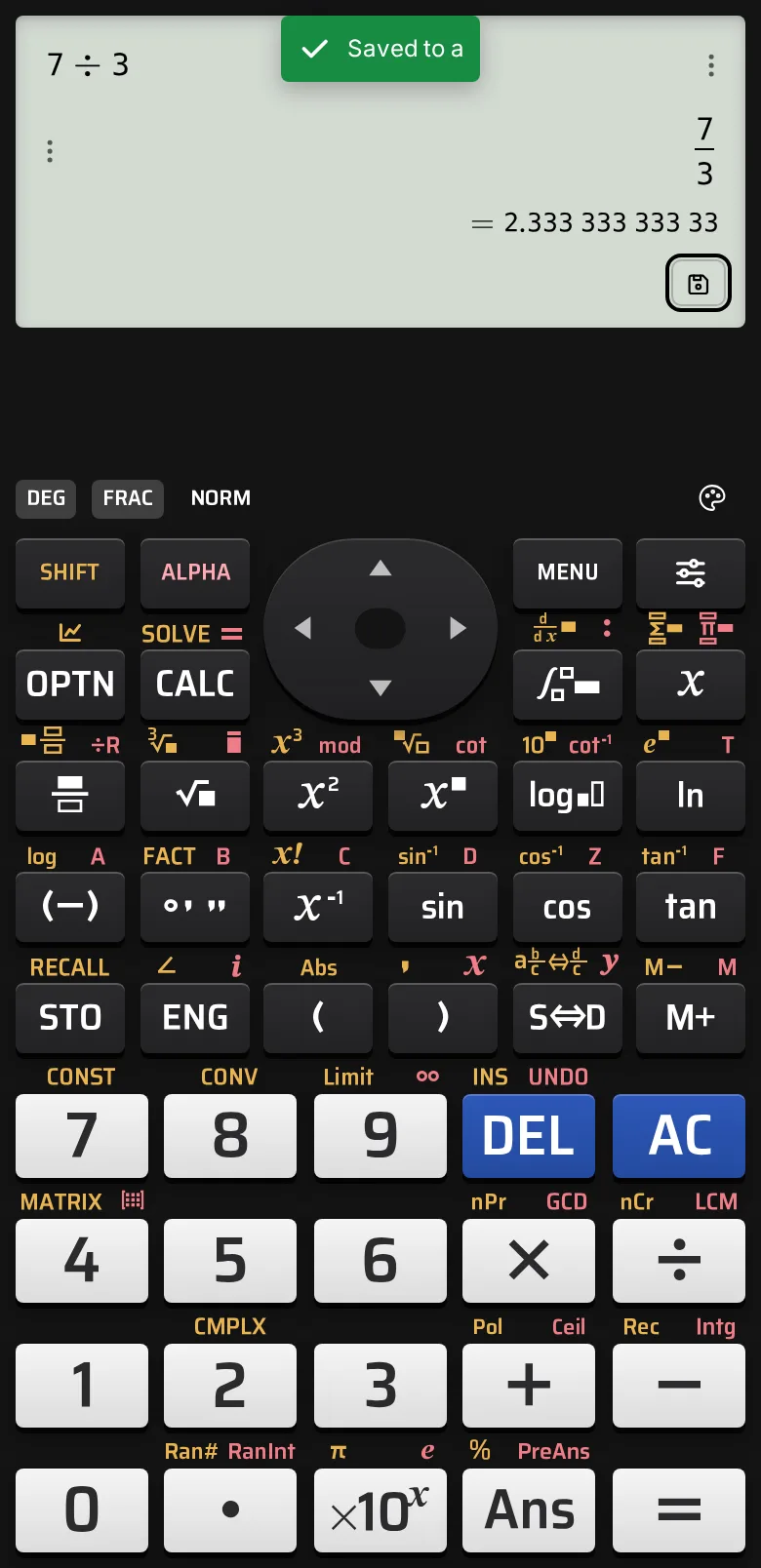
-
Step 4
Clear the input line and enter using the keys shown. The preview underneath reads .Press: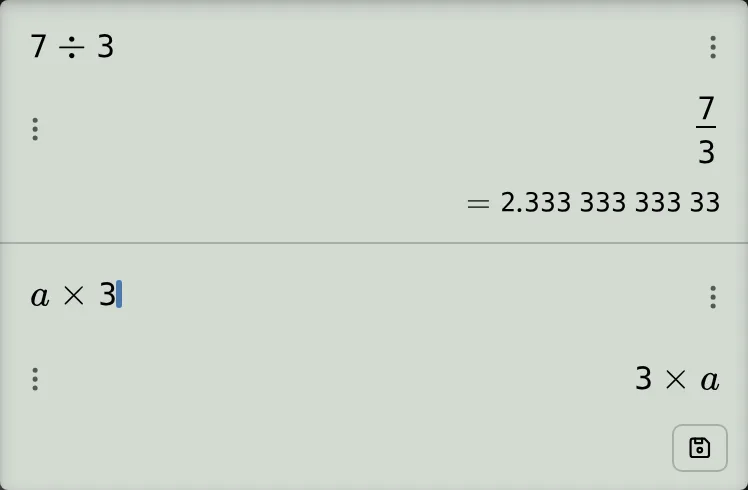
-
Step 5
Press the equals key. The answer is .Press: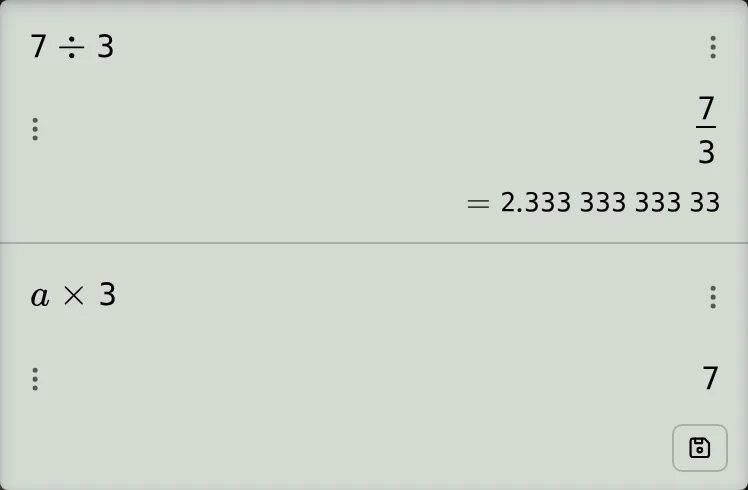
Check that the exact answer was saved
Getting back shows that holds the exact fraction , rather than a rounded copy of the decimal shown underneath. After this check, still holds . Saving also leaves Ans unchanged.
The preview answer shown under the line before you press the equals key has a Save icon too, so you can save from there as well.
When the answer has several values
Tap the Save icon under the answer to open a table, then tap the Save icon beside the value you want and choose a letter.
For example, after the quotient and remainder of and (the ÷R division), tapping the Save icon opens the Quotient and Remainder table: Q is and R is . Tap the icon beside Q, then a, to save in .
For the solved equation , the Save to a variable sheet lists the roots and along with the minimum's coordinates. Tap the icon beside , then b, to save in . STO on the keypad is refused in the equation and inequality modes, so the Save icon is the way to keep one root. To get a solved equation on the screen, follow solve a quadratic equation.
If something goes wrong
- No Save icon: the icon is absent on some screens, including Distribution and Base-N. On an ordinary answer such as , open Settings → Smart features. Set both Buttons under the result and Save button on results to On.
- You tapped the wrong letter: save the answer again into the intended letter. The first letter keeps the value you saved there. Saving replaces a letter's previous value without asking, so read the value shown beside the letter before you tap it. To see a long value in full, check the stored variable.
- Save an earlier answer: tap ⋮ beside that answer in the history. Then choose Save to a variable.
Save a calculator answer in a variable without STO
Try 7 divided by 3 on your fx-991EX keypad, tap the Save icon, and reuse the exact answer in a calculation.