What Steps and Graphs Add to a Calculator Answer
A quadratic can have the right roots without telling you why. See what a worked solution and a graph reveal, and where each check stops.
The equation has two roots: and . A calculator can return them in a moment. That settles the arithmetic, but a student may still have two questions: Why those numbers? and what does the equation look like? Worked steps and a graph answer different parts of that question.
CalcES is made by MathDa, which publishes this article. The screen captures below show a real supported calculation in CalcES; the mathematical checks apply whichever tool you use.
The answer tells you where; the steps tell you why
For this example, the explanation factors into . Set either factor to zero and the roots follow. The steps are valuable because they expose the method that a bare pair of numbers conceals. They also give you something to inspect if your handwritten result differs.
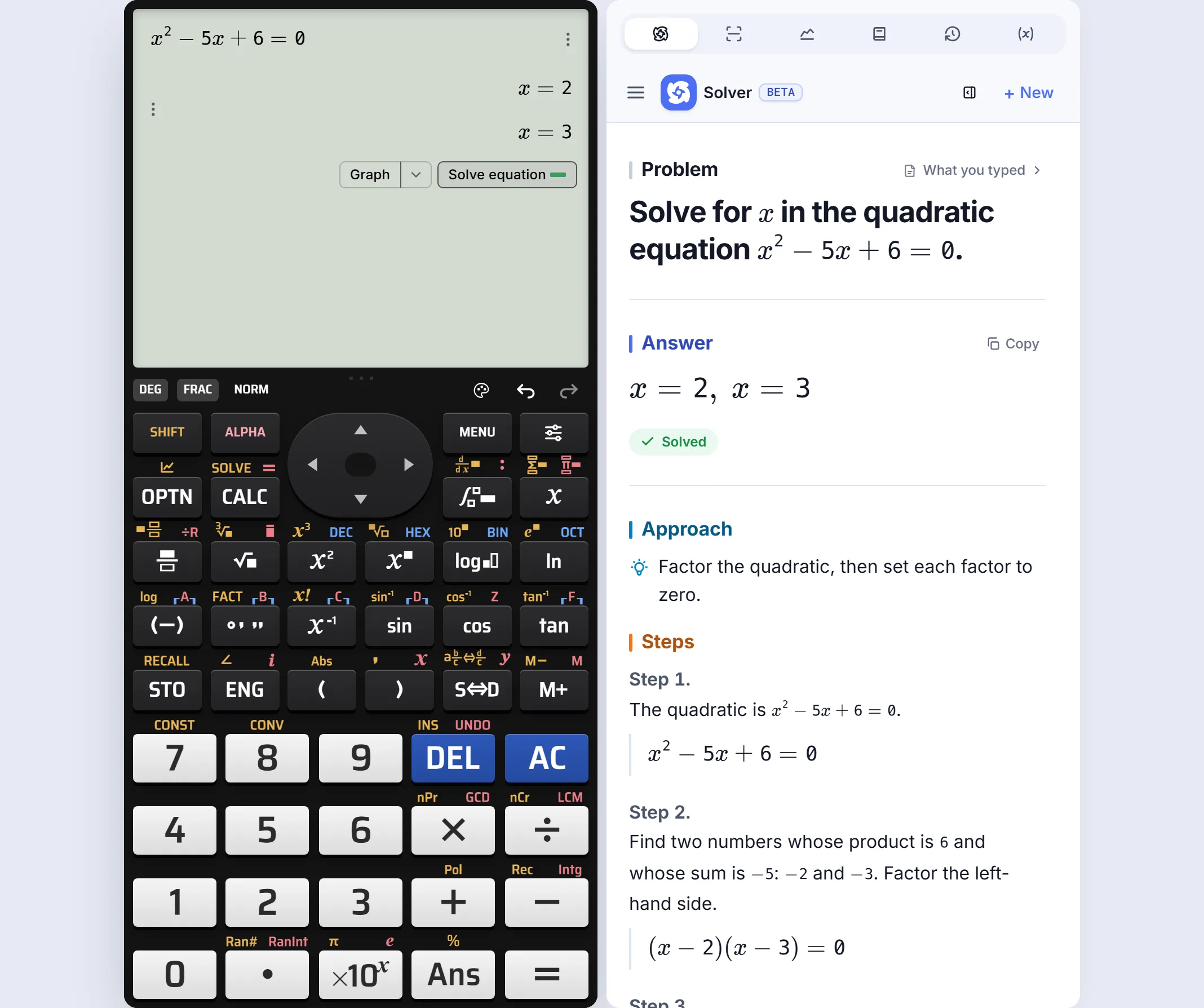 The same equation remains visible while a supported solution opens alongside it.
This is also a limit worth keeping in mind: an explanation generated from a mistyped equation can be internally consistent and still answer the wrong assignment. Read the expression on the screen against the question before trusting the result.
The graph adds shape, not another proof
On the graph of , the curve crosses the horizontal axis at and . You can see that it opens upward and falls below the axis between the two roots. Those features are hard to get from a two-number answer alone.
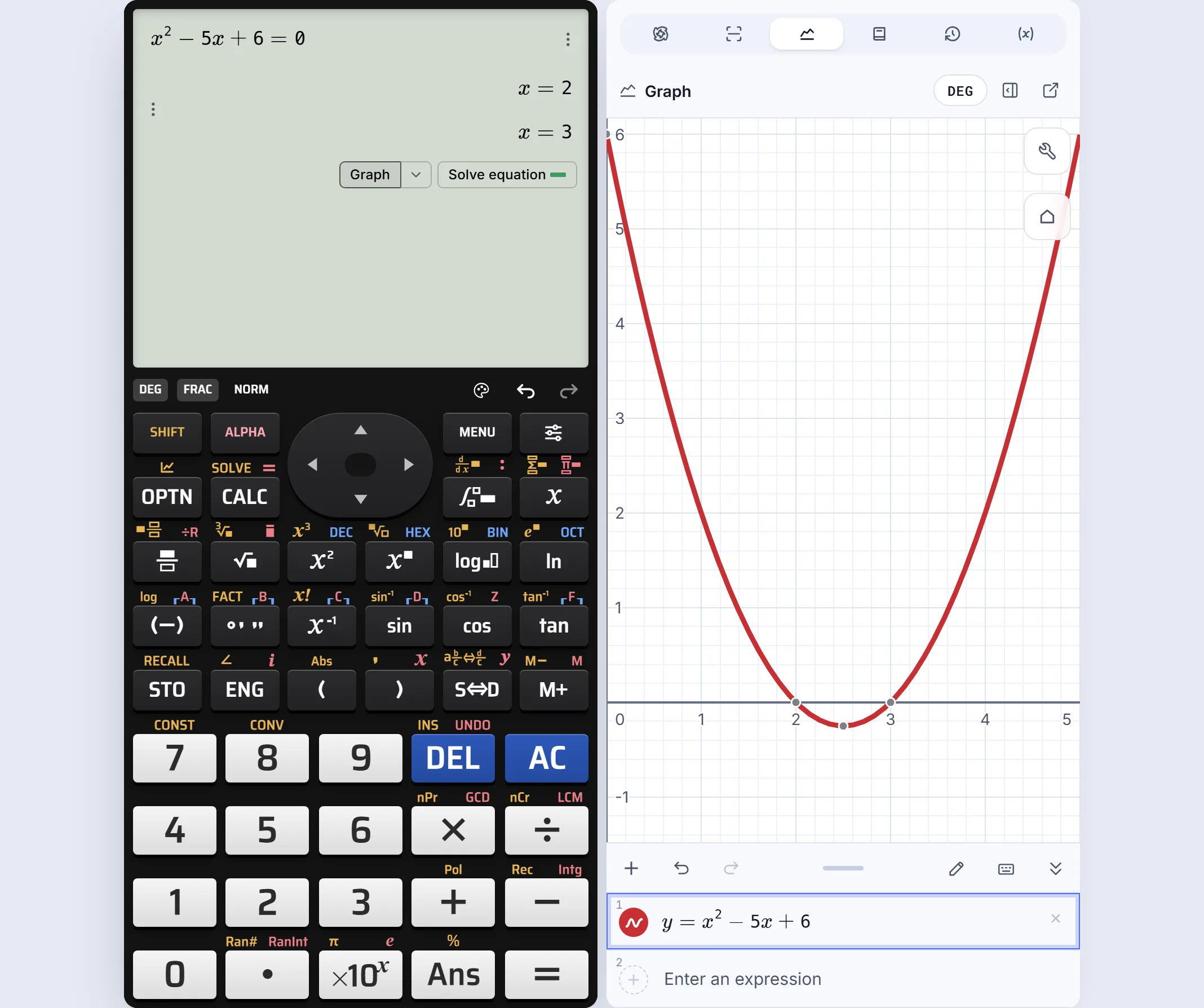 The graph shows the two x-axis crossings for the equation already on the calculator.
A graph is particularly helpful when the question asks about intervals, turning points or how an answer changes as moves. It does not replace the algebra: a plot has a finite viewing window and pixel resolution. The factorization explains exactly why the crossings are at and .
Two mistakes these views catch differently
Suppose you copy the question as . A calculator will correctly return and for what you entered. The graph will also cross the axis at negative values. Neither screen knows that the original worksheet said minus . The useful habit is to compare the input with the printed question first, then use the other views to check the mathematics. More output does not fix a wrong input.
Now consider . It factors as , so there is only one distinct root, , even though a quadratic solver may show the value twice. Its graph touches the axis at and turns upward; it does not cross. The graph tells you something the root list alone may obscure, while the square in the factorization explains why it happens. This distinction matters when a question asks how many solutions an equation has, or whether a function changes sign.
For , the turning point is halfway between the roots, at . Substitution gives . So the graph's lowest point should be just below the axis. If a graph window shows a flat-looking line or no crossings, adjust the view before deciding the algebra is wrong.
The useful connection is the handoff
Many tools can calculate roots. The experience changes when the answer, explanation and plot stay tied to the same expression. In CalcES, supported results offer actions beneath the answer that open worked steps or the graph in the integrated panel. The tablet captures above show that handoff in one session. You can compare the three views without copying the equation into another page.
That connection has a practical boundary. CalcES does not promise steps or a graph for every expression its calculator can evaluate. Some problems need a numerical answer; others need a symbolic method or a different kind of diagram. Choose the view that addresses the question in front of you.
An efficient routine is to ask one question of each view: Does the result answer the equation I entered? Do the steps justify it? Does the curve agree with its number and location of roots? A disagreement gives you a place to investigate; agreement is reassurance, not a substitute for reading the original problem.
If you want the exact controls and model-specific sequence, use the CalcES Guide for solving a quadratic. If you are still choosing a tool, our scientific calculator comparison weighs familiar keypads alongside explanations and graphing. You can open CalcES to inspect the workflow with your own equation.
Related articles
- 10 Best Online Scientific Calculators for Casio Users
Compare 10 free scientific calculators by familiar fx-991ES PLUS, fx-991EX and fx-991CW-style keys, natural input, worked steps and graphs.