10 Best Online Scientific Calculators for Casio Users
Compare 10 free scientific calculators by familiar fx-991ES PLUS, fx-991EX and fx-991CW-style keys, natural input, worked steps and graphs.
Your scientific calculator is in your bag, on another desk or out of battery. The question on the page still expects fractions, roots and the key sequence you know. Opening a blank equation solver is not quite the same as picking up the fx-991ES PLUS, fx-991EX or fx-991CW-style calculator you learned on.
That is the starting point for this comparison of ten free online scientific calculators. Which one lets you get back to your usual way of working? We looked first at the keys and natural math entry, then at what happens when you need help with a result. CalcES is published by MathDa; we say so up front because this is an editorial ranking of a product we make. There are no paid positions or affiliate links. We checked the public tools and CalcES calculation service on 24 September 2026.
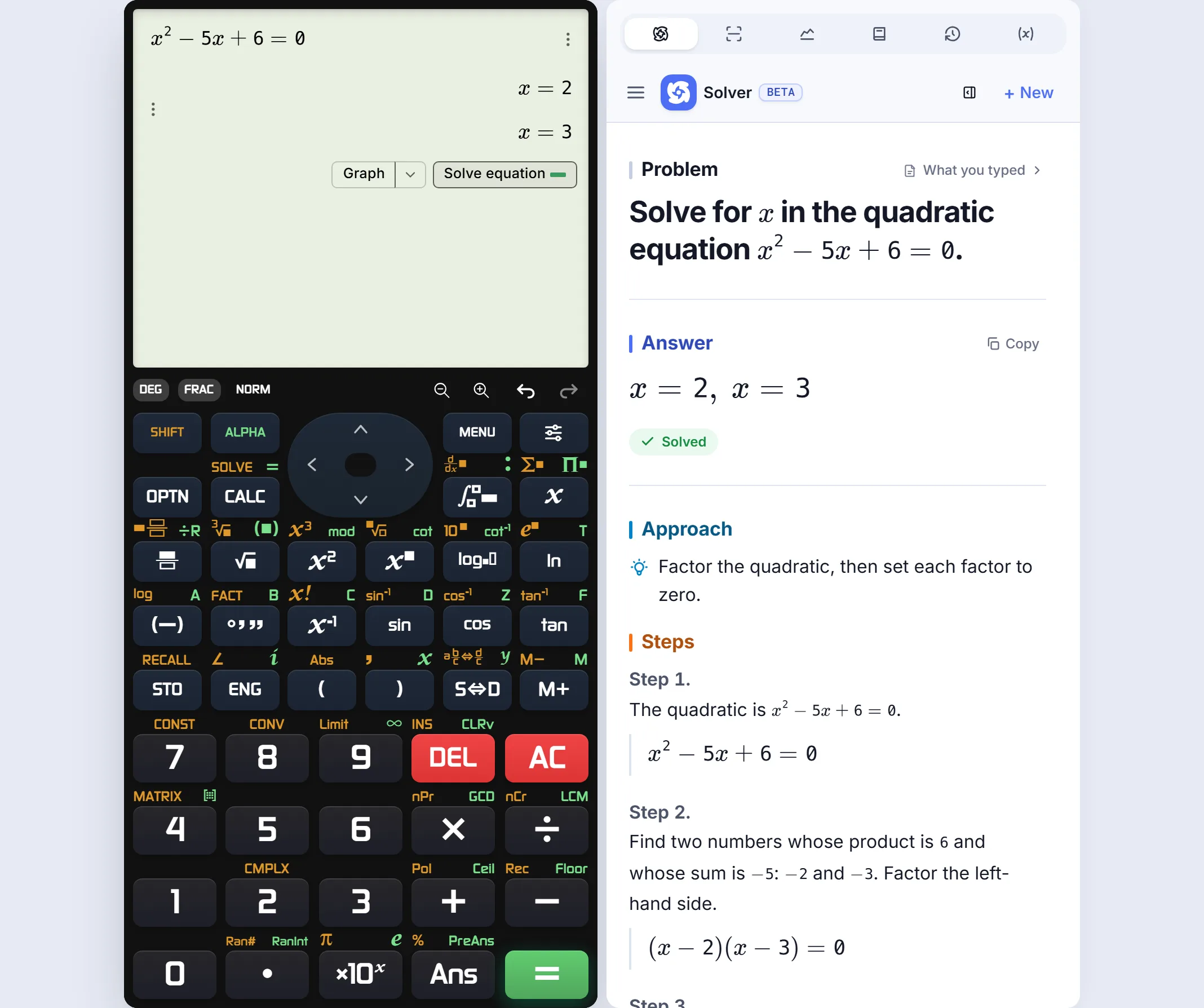 Real CalcES EX-style board: the equation and supported steps share one tablet session; other keypad families are selected separately.
The shortlist: which one fits your work?
The ranking below is for someone who wants a usable online stand-in for a familiar scientific handheld. A solver or graphing specialist may be stronger for a different job.
| Rank | Calculator | Why you might choose it |
|---|---|---|
| 1 | CalcES | ES PLUS, EX and CW-style keypads, natural input, then supported steps and graphing from the result |
| 2 | Calculator.net Scientific | A straightforward scientific button grid for quick calculations |
| 3 | Desmos Scientific | Clear on-screen input and strong accessibility, with a different keypad layout |
| 4 | Math is Fun Scientific | Simple keys and explanations while learning scientific functions |
| 5 | GeoGebra | An interactive suite when graphs or geometry matter most |
| 6 | Symbolab Scientific | Worked methods for algebra and calculus |
| 7 | Mathway | A broad, established multi-subject solver |
| 8 | WolframAlpha | Powerful computation and scientific reference queries |
| 9 | Web2.0Calc | Fast typed commands for people who know its syntax |
| 10 | SageMathCell | Programmable mathematics rather than handheld practice |
What “like my calculator” actually means
A grid of digits is a start, but it is not enough to reproduce a student's working rhythm. We used these questions before judging the harder math:
- Familiar keys: can you choose a layout associated with the ES PLUS, EX or CW family you know, or is it a generic set of buttons?
- Familiar entry: do fractions, roots and powers appear naturally on the display, where you can see what you entered before pressing
=? - Useful everyday flow: can you revisit an answer, change angle mode and continue a calculation without learning a command language?
- Help when you get stuck: can the same problem lead to supported working or a graph, and must you type it again?
- Practical access: is there a useful free path on a phone or computer?
This is a comparison of online experiences, not a claim that any site is identical to a particular physical model. Hardware menus, secondary functions and exam rules vary. We assessed the current public pages, not every product made by these companies.
| Tool | What the input feels like | What happens beyond an answer |
|---|---|---|
| CalcES | Selectable ES PLUS, EX and CW-style keypad families; natural fraction and root entry | Supported result → Tales steps or the graph panel in the same calculator session |
| Calculator.net | Conventional scientific buttons, without model-family key selection | Quick numerical answer; broader solving belongs outside this page |
| Desmos Scientific | Clean keypad split into main, letters and functions | Strong expression entry; Desmos Graphing is a separate tool |
| Math is Fun | Simple scientific buttons with a function reference | Helps explain the keys; advanced solving needs another tool |
| GeoGebra | Expression and tool views across a connected suite | Excellent linked graphs, geometry and CAS; less like a handheld key sequence |
| Symbolab / Mathway | Math input aimed at getting a solution | Worked problem solving is the attraction, rather than practising familiar keys |
| WolframAlpha / Web2.0Calc / SageMathCell | Query, typed command or code | Broad computation; a different habit from using a school calculator |
Need the manufacturer's software for a specific model? CASIO offers two distinct options: its ClassWiz Emulator runs through ClassPad.net for listed EX and CW models, with account and license activation; the separate fx-ES PLUS Emulator is a Windows download that lists fx-570/991ES PLUS-2 and fx-115ES PLUS-2. CASIO advertises a 90-day emulator trial. Check your exact model and current access terms. We did not test either licensed workflow or include these manufacturer tools in this ranking of free browser calculators. The descriptions of Desmos's keypad, GeoGebra's connected suite and Calculator.net's button layout are also available from the makers. This matters because a product can be excellent at mathematics yet still feel wrong when you are trying to practise the keys taught in class.
1. CalcES — best overall for a familiar keypad
Open CalcES and choose the ES PLUS, EX or CW-style board that looks closest to the supported calculator family you use. If you learned on an fx-991ES PLUS or fx-991EX, that is more useful than being handed an unfamiliar formula box. You can enter a stacked fraction, a root or a power as a mathematical expression, see the input on screen and keep working with the keys. These are styles and workflows for those models' users; CalcES is an independent product, not a Casio device or an exact model emulator.
That familiarity is the core advantage. The extra capabilities are there when an ordinary calculation turns into a question about why. Enter and get roots and . On a tablet-sized view, Solve equation under the result opens Tales Math Solver beside the calculator, with supported factoring steps. Graph sends that same quadratic to the adjacent graph panel, where its crossings at and give a visual check. The equation and the handoff buttons remain on the calculator; you do not rebuild the problem in another tab. On mobile, the solver opens in a sheet over the same page.
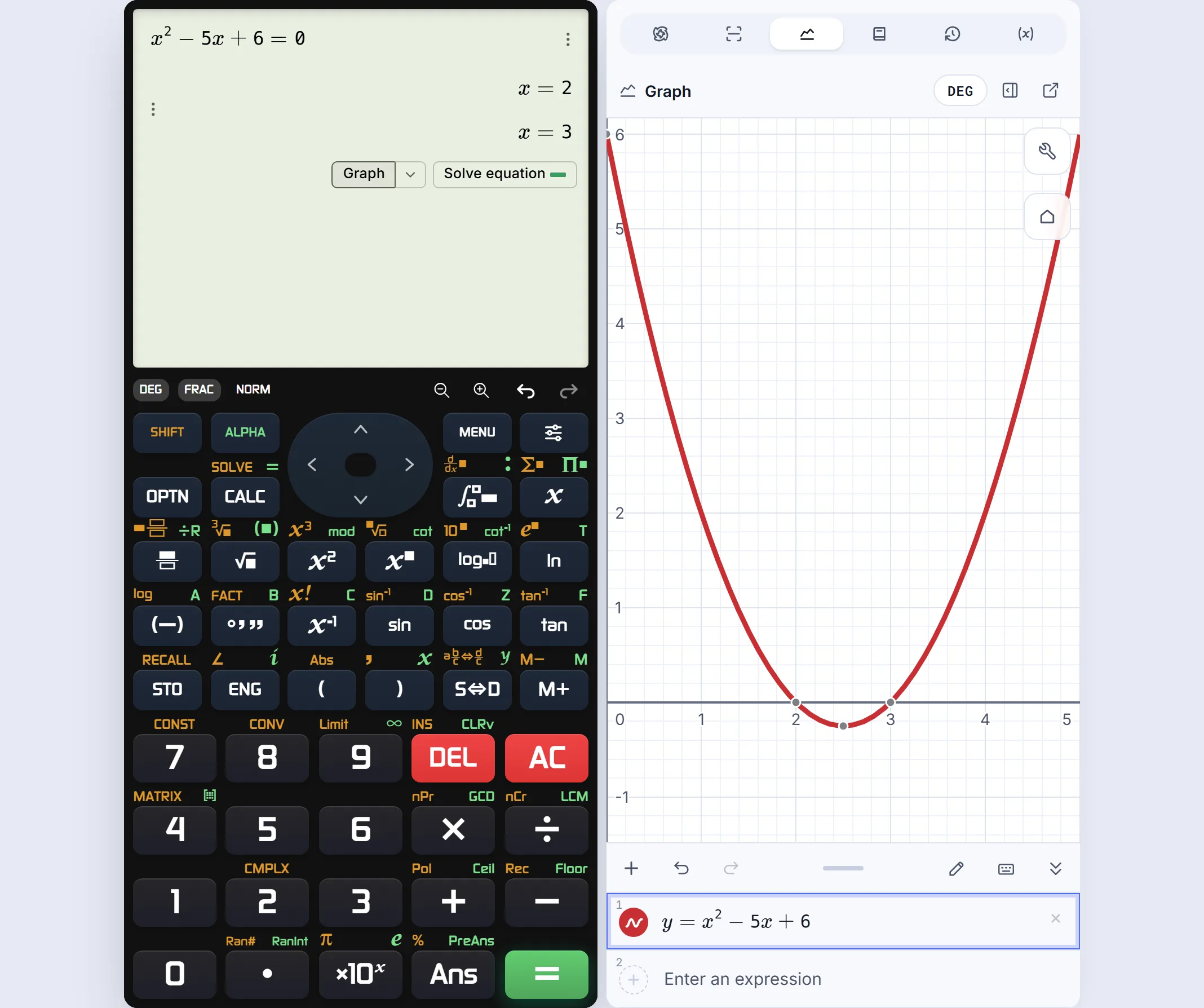 The Graph handoff keeps the equation on the calculator and opens the graph in the adjacent panel.
You can inspect the step panel and graph panel at full size. Try the same equation on your device.
The board also has physical keyboard input, answer history and a choice of visual skins. Change the color and finish without changing how the keys work. This is a real customization option, rather than a reason to choose a mathematically weaker tool.
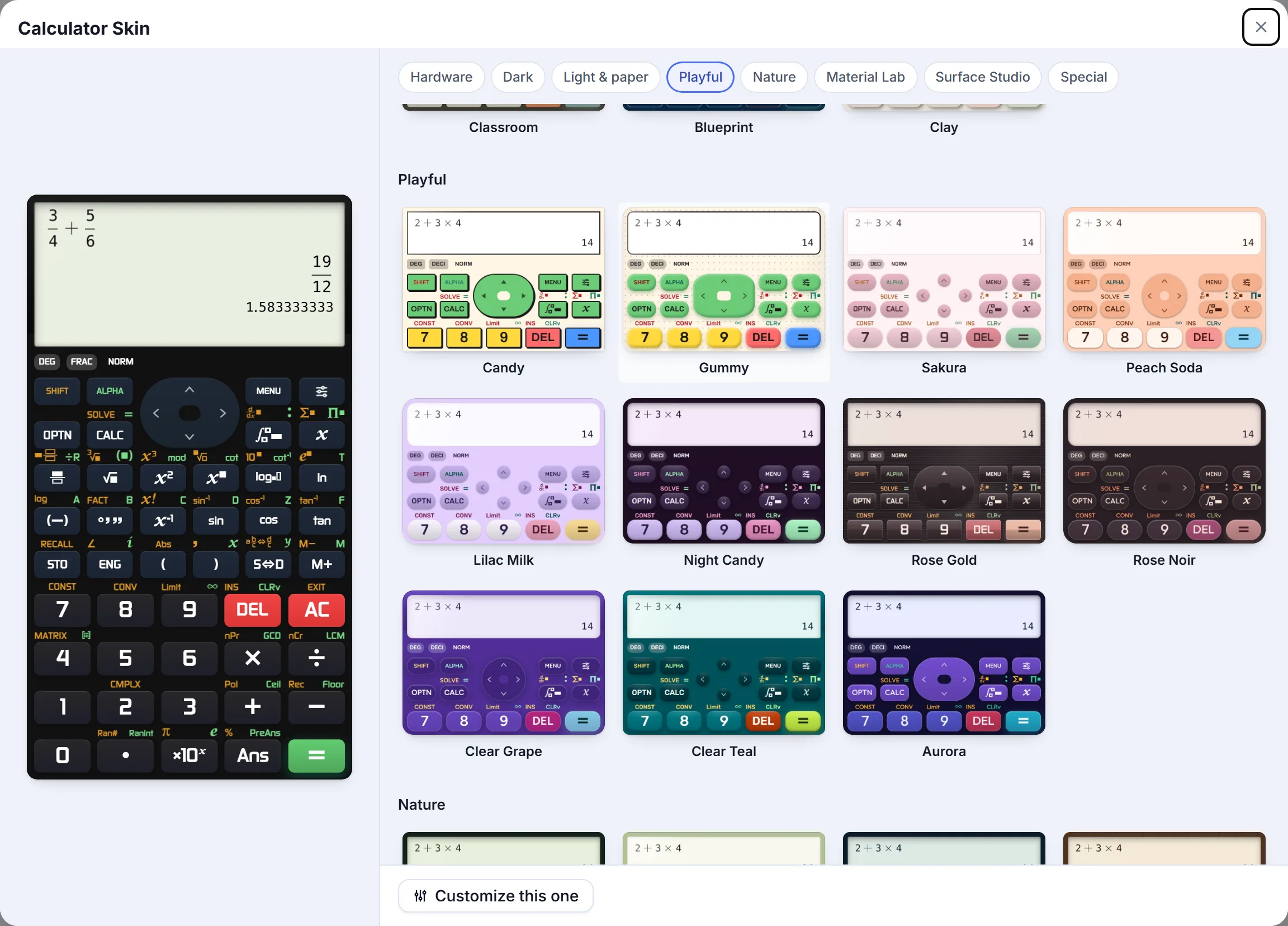 Real CalcES skin gallery: choose a look that makes the calculator comfortable to use.
Best fit: you want familiar scientific keys for daily work, with exact results, supported explanations and graphing ready when a problem grows. If you need a specialized graph-first classroom activity or a programmable math environment, the tools below deserve a look.
2. Calculator.net — best basic button grid
Calculator.net Scientific Calculator gets the basic shape right: on-screen scientific buttons for powers, roots, trigonometry, logarithms, factorials, constants, memory and DEG/RAD control. You can click the buttons or type. Its own page explicitly describes use like a physical calculator.
This is a useful option when you need a quick calculation and do not care which handheld model your keys resemble. In our fraction check, displayed as the correct decimal . It did not keep in that tested view. We did not find model-family keypad selection, worked steps or an integrated graph on this scientific calculator page.
Choose it when: a conventional scientific button grid is enough for the job at hand.
3. Desmos Scientific — best clean input
Desmos Scientific is easy to read and use from a keyboard. Its main, letter and function keypads cover fractions, roots, powers, trigonometry, lists and statistics. The official guide also documents adjustable text, reverse contrast and Braille modes.
The layout is deliberately its own: you switch keypad tabs rather than practise an ES PLUS, EX or CW-style sequence. In our check, appeared first as ; the Fraction control changed it to . Desmos's graphing calculator is a separate product, so scientific input and graph study happen in different views.
Choose it when: clear entry and accessibility matter more than matching your usual handheld keys.
4. Math is Fun — best for learning the keys
Math is Fun Scientific Calculator gives beginners a small calculator and a readable guide to powers, roots, trigonometry, inverse functions, logarithms and constants. It explains what buttons mean as you learn to use them.
Its simplicity is useful if the symbols on a scientific keypad still feel new. For a familiar model-family layout or a calculation that needs an equation solver, worked steps and graphing, you will want a fuller tool.
Choose it when: learning the functions matters more than matching a particular model.
5. GeoGebra — best when the lesson is visual
GeoGebra Calculator Suite connects algebra, graphs, geometry, CAS and other math views. Its official suite description explains that the views update together. That is valuable when a class moves between an expression and its shape, or when a teacher wants an interactive construction.
GeoGebra is a stronger visual classroom suite than a handheld substitute. Its many views also make it a different experience from following the keys of the scientific calculator you own.
Choose it when: the graph or geometry is the centre of your task.
6. Symbolab — best when you need the method
Symbolab Scientific Calculator has a broad mathematical pad for fractions, equations, derivatives and integrals. In our public-page checks, it returned with steps, differentiated as and integrated as .
That is useful when you are stuck on how to solve the exercise. The page behaves more like a solver than a model-family scientific keypad; available explanation depth may also vary by problem and service level.
Choose it when: worked algebra or calculus is your first priority.
7. Mathway — best broad school solver
Mathway offers dedicated solvers across algebra, trigonometry, calculus, statistics and more. In our free Algebra check, returned , a repeating decimal and a short cue about the common denominator. The page offered fuller steps separately.
This is a mature way to get help across subjects, but it starts from the problem to be solved, not from the scientific keypad you want to practise.
Choose it when: you need to identify a method or move between school subjects.
8. WolframAlpha — best for broad computation
WolframAlpha takes a query and returns mathematical results and relevant reference information. Its range includes equations, calculus, matrices, plots, scientific units and much more.
It is powerful when a question reaches beyond a standard calculator. That breadth is precisely why it feels less like pulling a familiar handheld from your bag. Worked detail can depend on the query and service level.
Choose it when: the question needs broad computation or scientific reference data.
9. Web2.0Calc — best for typed commands
Web2.0Calc combines buttons with a typed command language. Its help documents calculus, equations, plots, complex numbers, linear algebra and conversions. In our checks, it displayed as but returned exact symbolic results for diff(x^x), int(x^3) and a definite integral.
That makes it more mathematically capable than its modest interface might suggest. You do need to know or learn its syntax, which is a different habit from natural entry on a familiar keypad.
Choose it when: you already like typing mathematical commands.
10. SageMathCell — best for mathematical code
SageMathCell runs SageMath commands in a browser. It opens up symbolic algebra, calculus, matrices, number theory and plotting for someone comfortable writing short code.
This is an excellent specialist option for repeatable computation, but it is the furthest in this list from practising a handheld scientific calculator.
Choose it when: a programmable mathematics environment is what you actually need.
The advanced checks, in their proper place
Familiar keys should not mean giving up a reliable answer. After assessing the input and study workflow, we ran a small set of exact-math checks on 24 September 2026. These checks support specific claims about the tested pages; they are not a universal accuracy score.
| Starting point | What we checked | Why it matters |
|---|---|---|
| Fraction | A school answer is often expected as a fraction, not just a rounded decimal. | |
| Roots | Simplifying an exact root keeps useful structure. | |
| Quadratic | has roots and | The same exercise can become steps and a graph. |
| Calculus | ; | Advanced work needs a symbolic answer, not only a decimal. |
| Definite integral | Textbook input and an exact result help you check the method. |
CalcES returned the exact fraction, simplified root, symbolic derivative and exact definite integral in these checks. Symbolab returned the exact fraction and symbolic calculus results; Web2.0Calc handled the tested calculus commands. Desmos converted the fraction result using its Fraction control. Calculator.net showed a correct decimal for that fraction in the view we tested. A blank here would mean not checked, not “wrong.” These results explain why we trust CalcES beyond its familiar keys, without making a difficult integral the reason a student chooses an everyday calculator.
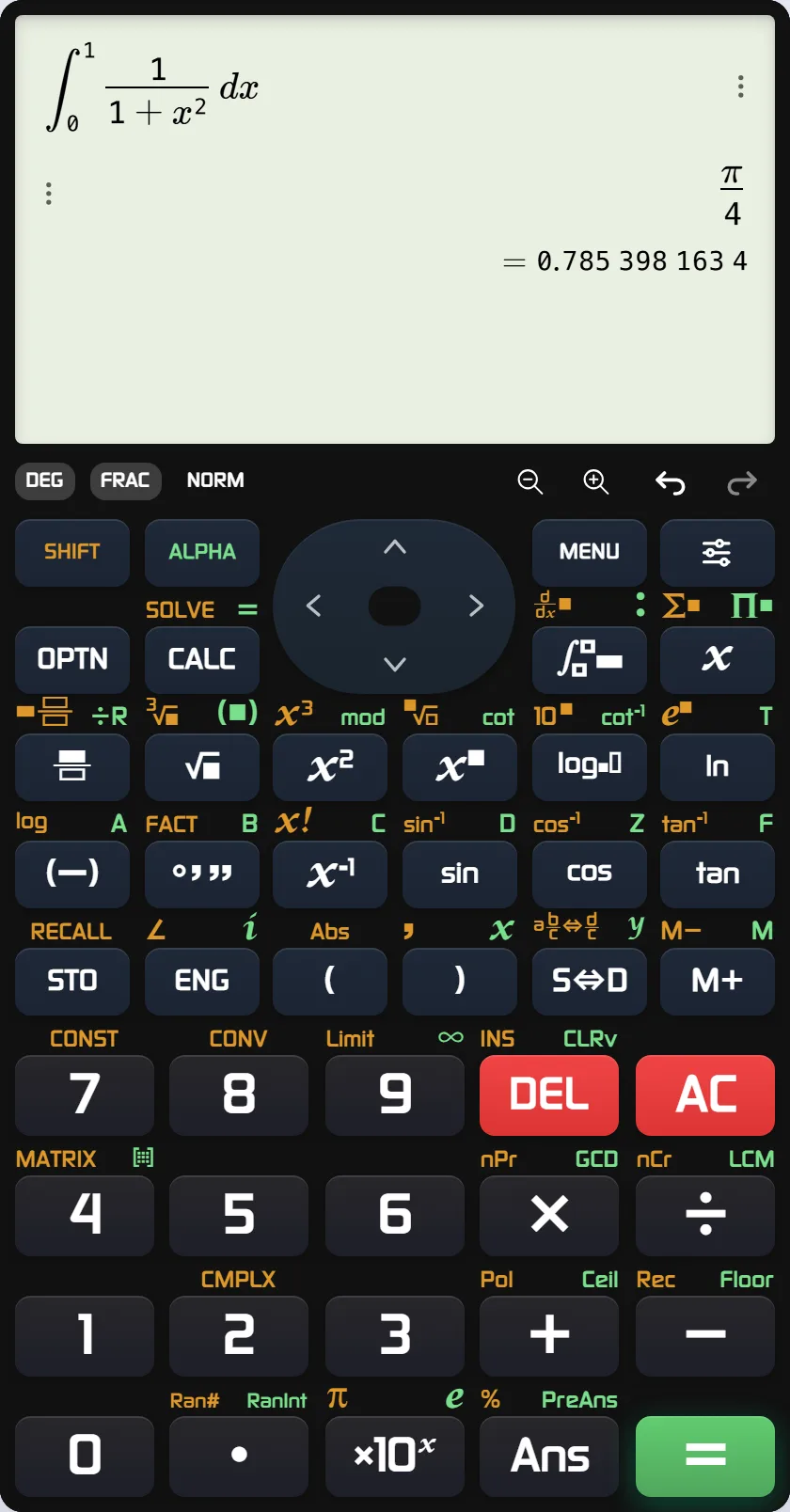 Real CalcES EX-style board: natural integral input, exact π/4 and a decimal approximation.
View the integral screenshot at full size. The result is evidence for this expression, not a promise that every expression has a closed-form answer.
Which one should you open?
| What you need now | Start with |
|---|---|
| The closest fit here to your familiar ES PLUS, EX or CW-family study routine | CalcES |
| Familiar keys plus supported worked steps and a graph of the same problem | CalcES |
| A simple grid for a quick numerical calculation | Calculator.net |
| Clear scientific input with strong accessibility | Desmos Scientific |
| Help learning what common scientific functions mean | Math is Fun |
| Interactive graph and geometry lessons | GeoGebra |
| A worked solution as the main event | Symbolab or Mathway |
| Broad scientific information or a programmable environment | WolframAlpha or SageMathCell |
For the same equation with actual steps and graph captures, read the quadratic Guide. If your usual calculator is missing, try CalcES with a fraction or an equation you recognize. Choose a familiar board, get the answer, and open the supported steps or graph only when they help. Its natural entry, selectable skins and connected study tools add convenience to the handheld-style starting point; they do not require you to give up that starting point.
CalcES is an independent MathDa product. It is not affiliated with or endorsed by Casio. Casio, ClassWiz and the model names mentioned are trademarks of their respective owners.
Frequently asked questions
What is the best free online scientific calculator for Casio users?
CalcES is our overall pick if you want a familiar handheld-style workflow. It offers ES PLUS, EX and CW-style keypad families, natural math entry and, for supported problems, a handoff from the result to worked steps or a graph. It is an independent MathDa product, not a Casio calculator.
Is CalcES the same as a Casio fx-991ES PLUS or fx-991EX?
No. CalcES has keypad layouts and natural input styles designed for people familiar with supported ES PLUS, EX and CW-family models. It is not made or endorsed by Casio, and you should not assume every menu or operation exactly matches a particular handheld.
Which online scientific calculator feels most like a physical calculator?
CalcES is the closest fit in this list for practising on a model-family keypad. Calculator.net offers a simpler conventional button grid. Desmos Scientific has an accessible on-screen keypad, but its tabbed layout is not a model-family replica.
Can I practise with an online calculator for an exam?
You can use an online calculator while studying, but the website is not exam equipment. Check your exam's current device rules and practise with the physical calculator you will take into the room.
Which calculators show steps and graphs?
CalcES can pass a supported calculation to Tales Math Solver or its integrated graph panel without retyping the problem. Symbolab and Mathway focus on worked solutions; Desmos and GeoGebra are especially strong when the graph is the main task. Availability of steps can depend on the problem and service.
Do I need to give up advanced math to get familiar calculator keys?
No. CalcES pairs its handheld-style keypads with exact fractions and roots, equations, symbolic calculus, matrices, complex numbers and graphing. In this article, the advanced checks support that claim; keypad familiarity and day-to-day study use drive the ranking.
More in Reviews & comparisons
- Calculator Simulator or Online Calculator: Which Do You Need?
A model emulator, a familiar keypad and an online math tool solve different problems. We compare the choices with a real CalcES calculation and Casio's published emulator options.
- NCalc vs CalcES: fx-991EX and fx-991ES PLUS Alternatives
Want your fx-991EX or fx-991ES PLUS on a phone or laptop? Compare NCalc and CalcES for familiar keys, modes, worked steps, graphs, themes and history.