NCalc vs CalcES: fx-991EX and fx-991ES PLUS Alternatives
Want your fx-991EX or fx-991ES PLUS on a phone or laptop? Compare NCalc and CalcES for familiar keys, modes, worked steps, graphs, themes and history.
You already own an fx-991EX, fx-991ES PLUS or fx-991CW, and you want something familiar on your phone or laptop. It should do everything your handheld does, and a few things it can't.
- Pick NCalc if you want a full Casio-style calculator in your pocket, with familiar keys, scientific modes, graph analysis, formula sheets and skins.
- Pick CalcES if you want your model's keypad, worked steps, room on a laptop screen and more control over its appearance.
- Best: use both. Keep the app handy and open the web calculator when you want its extra explanations or space.
Does it look and work like my calculator?
Both use Casio-style keypads, though neither is a Casio product.
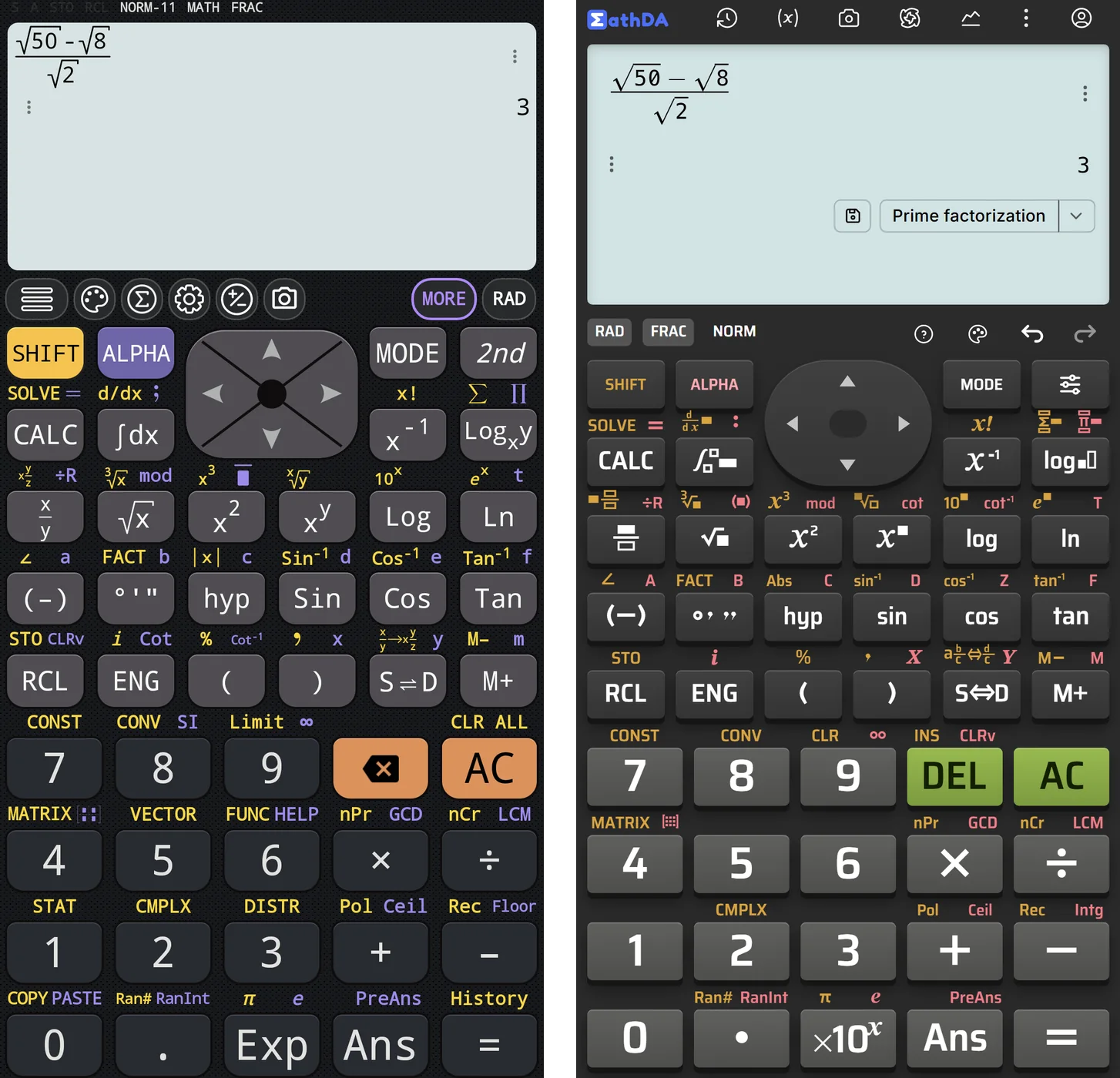 Left NCalc, right CalcES, both giving 3 on ES PLUS-style keypads.
NCalc has one fx-570ES PLUS-style keypad with SHIFT, ALPHA, MODE and a D-pad. It stays the same across skins, so changing colours does not rearrange your keys. There is also a simpler Pocket keypad with a phone-style layout.
CalcES lets you choose your calculator model. Its US English list includes fx-300ES PLUS, fx-115ES PLUS, fx-991ES PLUS, fx-991EX and fx-991CW, with dozens of models across the ES PLUS, ClassWiz EX and ClassWiz CW families. The keys, menus and wording follow your choice. NCalc's single main layout is ES PLUS, so an fx-991EX or fx-991CW owner gets their own keys on CalcES, which follows the chosen model.
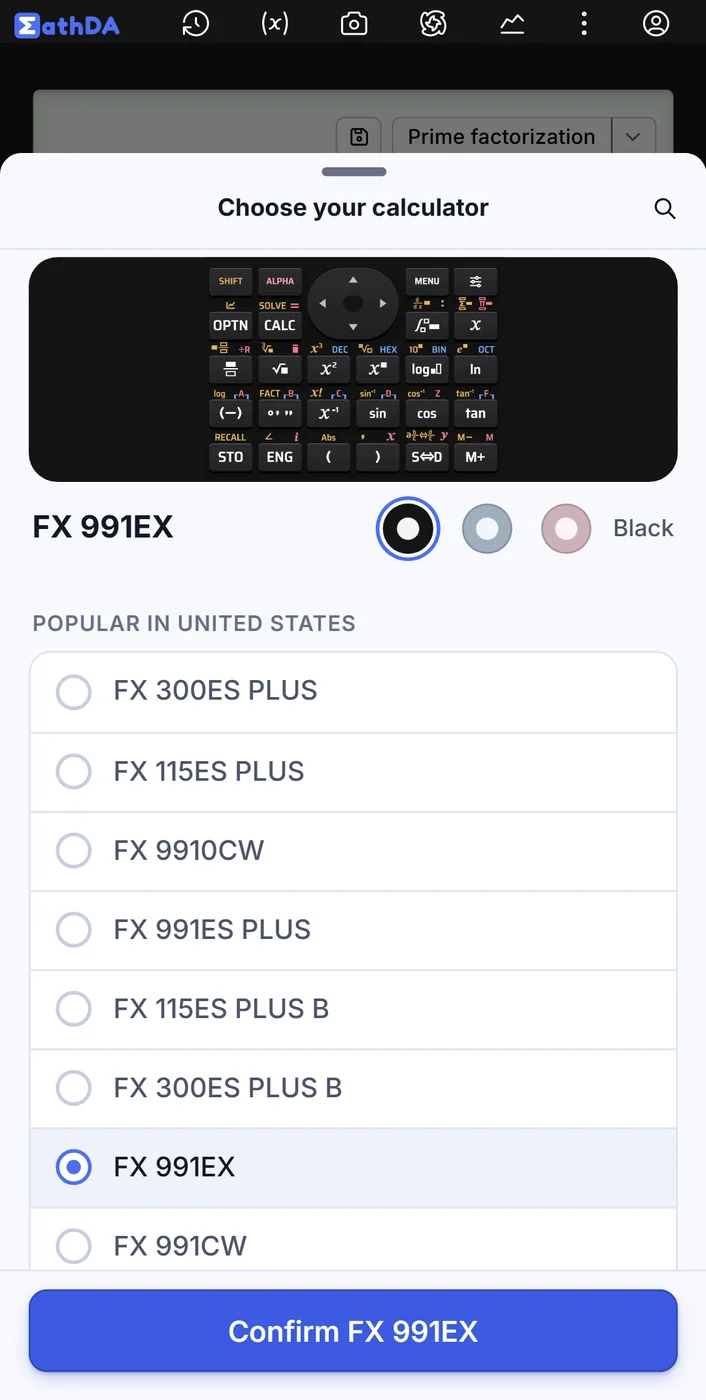 CalcES's English model chooser offers several calculator families.
Are all my modes there?
Both cover much more than ordinary arithmetic. Their shared modes include:
- Complex numbers, matrices and vectors.
- Statistics and distributions.
- Base-N for binary, decimal and hexadecimal numbers, plus function tables.
- Polynomial equations of degrees 2–5, systems of equations and inequalities.
NCalc offers systems with 2–4 unknowns and inequalities of degrees 2–4, alongside its MATH mode.
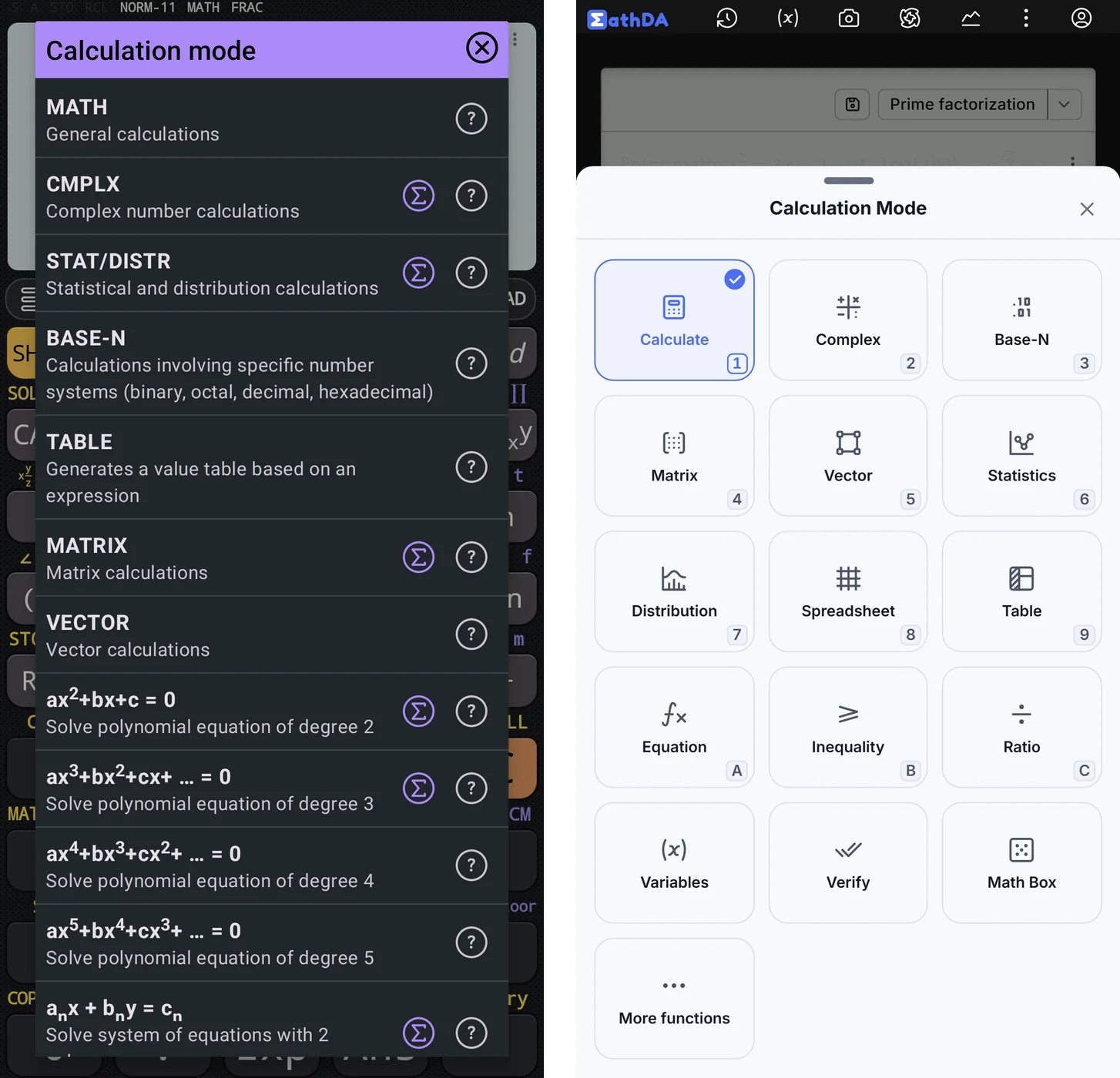 Left NCalc, right CalcES with the fx-580VN X menu in English.
On CalcES's fx-580VN X menu (a ClassWiz EX model), you also get Ratio, Spreadsheet and Verify. Ratio gives X = 9 for 3 : 4 = X : 12; Spreadsheet supports a column of numbers and SUM; Verify checks statements such as 2/4 = 1/2. Equation mode handles systems with up to six unknowns. Other models show their own menus.
For familiar examples, both give 1, 2 and 3 for x³ − 6x² + 11x − 6 = 0, and x < 2 or x > 3 for x² − 5x + 6 > 0. A table of x² from 1 to 5 gives 1, 4, 9, 16 and 25 on either.
Do CALC, SOLVE, STO and the other keys work the same?
The core functions give the same results, with a few differences around them:
- CALC: X² + 3X gives 10 at X = 2 and 40 at X = 5.
- SOLVE: X³ − 2X − 5 = 0 gives 2.0945514815.
- STO and Ans: storing 7 in A makes A² + 1 return 50. Both support Ans × 2; CalcES also has PreAns.
- Several calculations: 2 + 3 followed by 2 × 3 gives 5, then 6. CalcES separates them with a colon, like the handheld; NCalc uses a semicolon.
- Constants and conversions: both include the speed of light, c = 299792458, and convert 5 inches to 12.7 cm. NCalc has 40 constants; CalcES has 47.
- Number forms: both turn 7/3 into 2 1/3 and factor 360 into 2³ × 3² × 5.
- Other familiar functions: GCD(12, 18) = 6, LCM(4, 6) = 12, and 1.5° becomes 1°30′ on both.
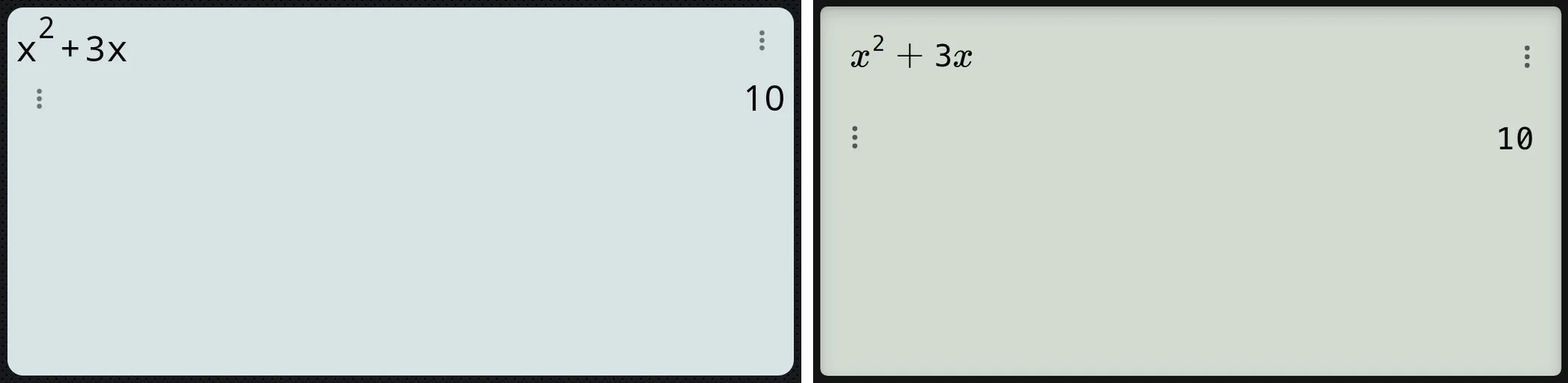 Left NCalc, right CalcES, both giving 10 for X = 2.
What can they do that my calculator can't?
Worked steps and the Details page
For x² − 5x + 6 = 0, both give x = 2 and x = 3. CalcES opens a step-by-step explanation from the answer: factor to (x − 2)(x − 3) = 0, then set each factor equal to zero.
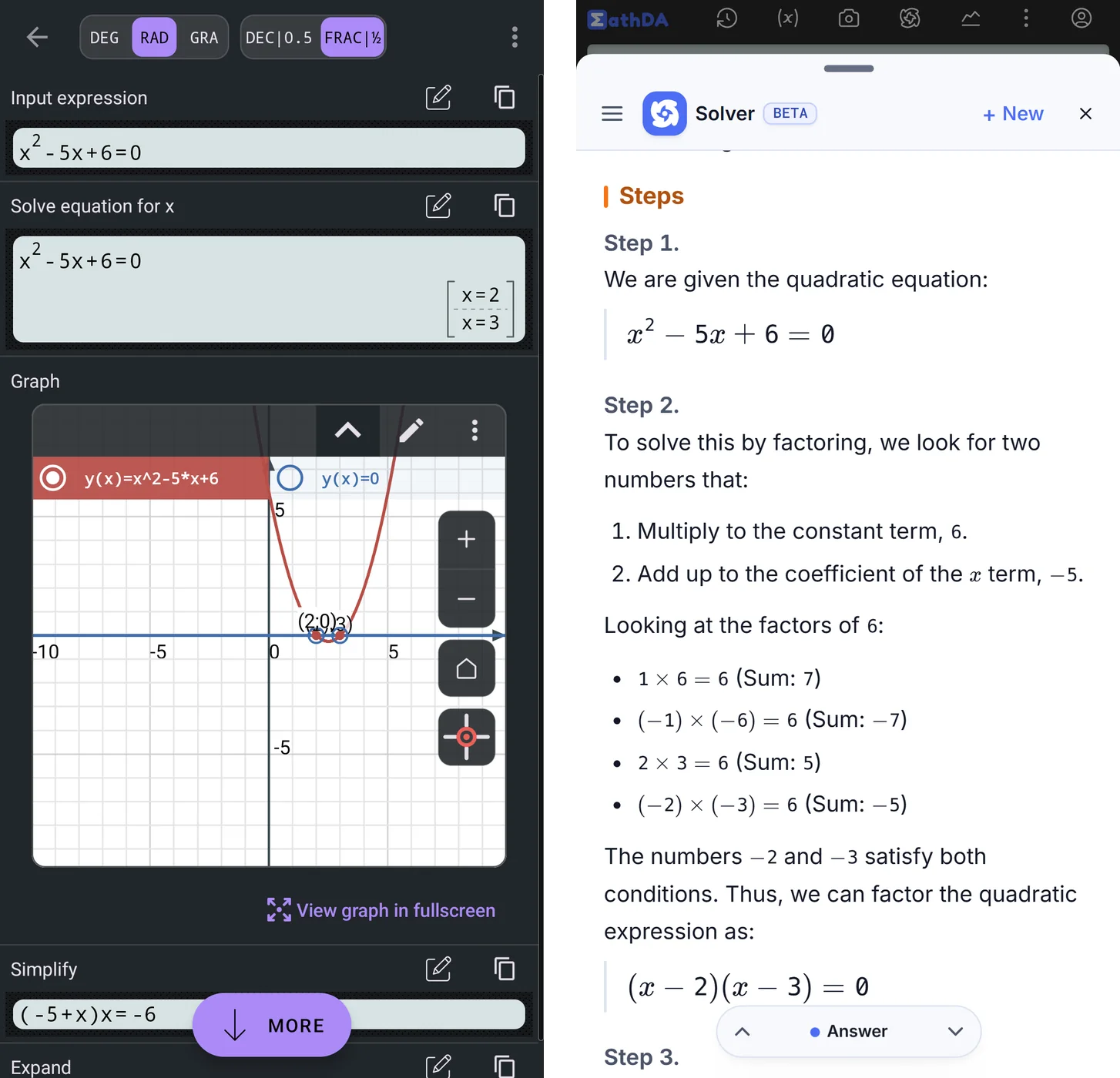 Left NCalc's Details page, right CalcES's step-by-step factoring explanation.
NCalc has no worked steps. Its Details page brings together the roots, a graph, Simplify and Expand. Its quadratic mode also gives the minimum, x = 5/2 and y = −1/4.
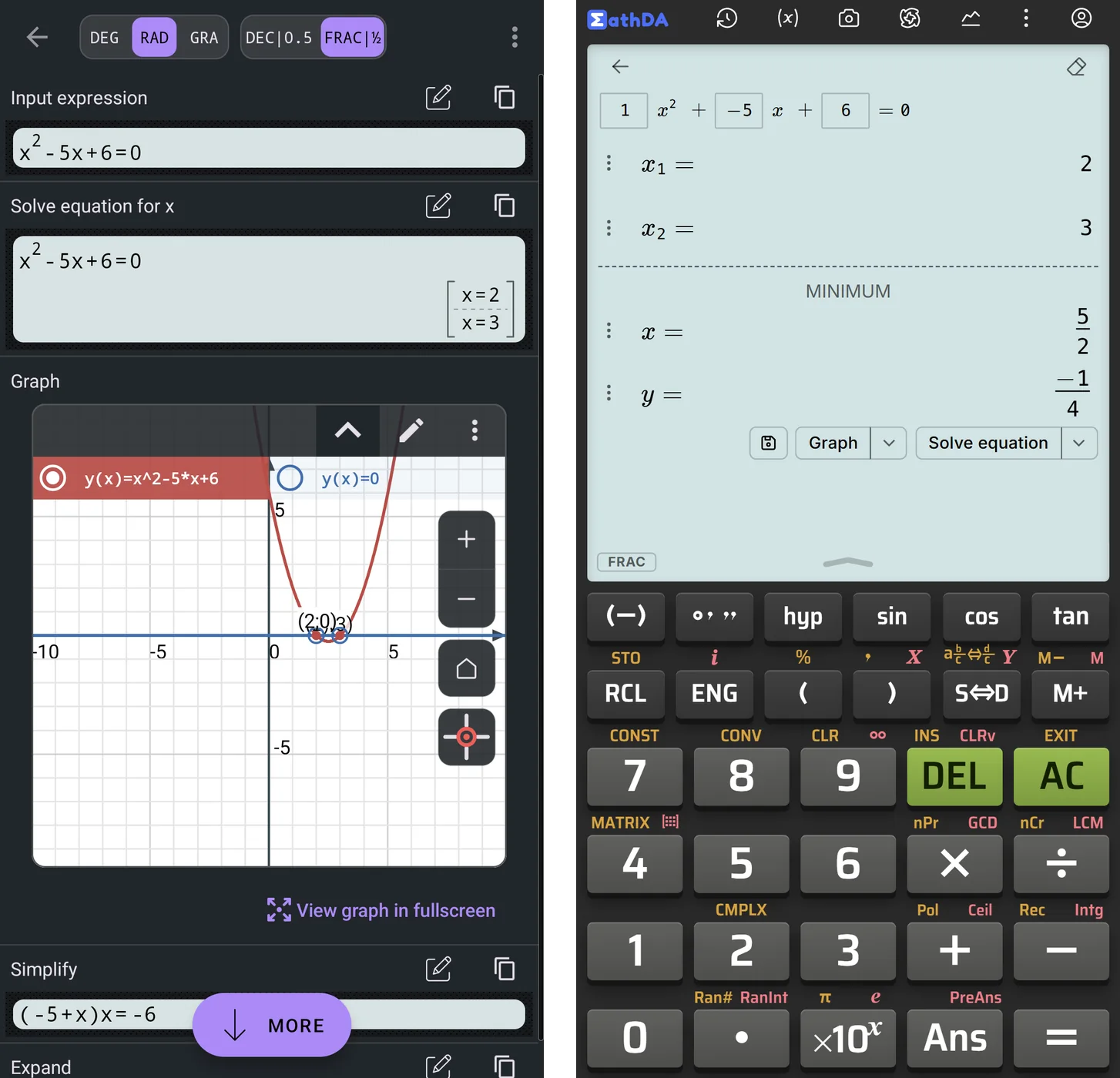 Left NCalc's Details page, right CalcES's roots x = 2 and x = 3.
Graphs
NCalc offers a full-screen graph with tools for roots, intersections, tangents, derivatives, highest and lowest points, and inflection points. Choose it when you want to investigate the graph further.
CalcES draws a graph straight from the equation's answer, with the zeros 2 and 3 marked.
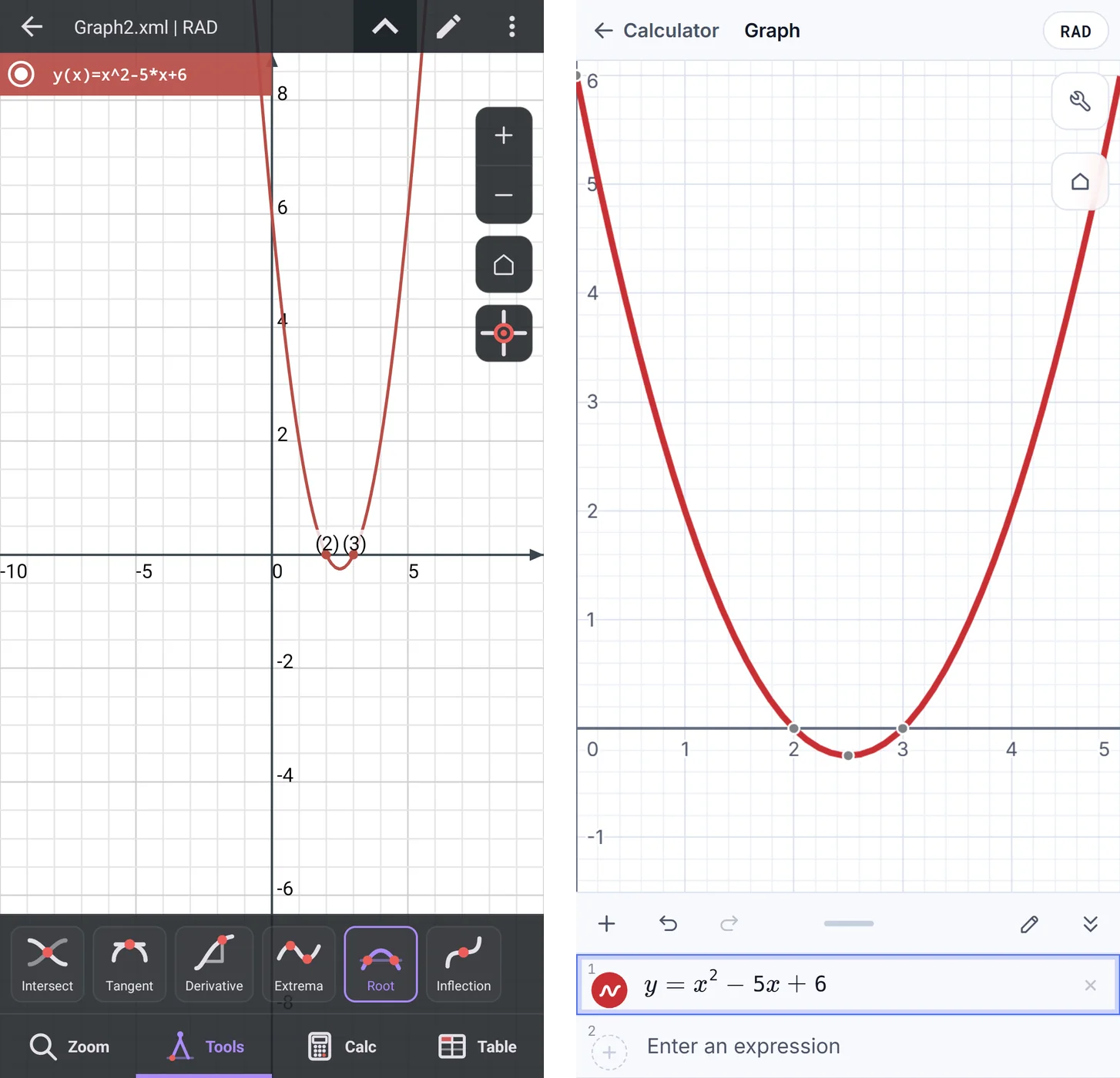 Left NCalc's graph tools, right CalcES's graph opened from the answer.
Formula sheets
NCalc includes formula reference pages for math, physics and chemistry, plus a catalogue of functions. Topics include complex numbers, statistics, matrices, and quadratic and cubic equations.
A bigger screen
CalcES shows a system's x, y and z together; NCalc shows one unknown per screen.
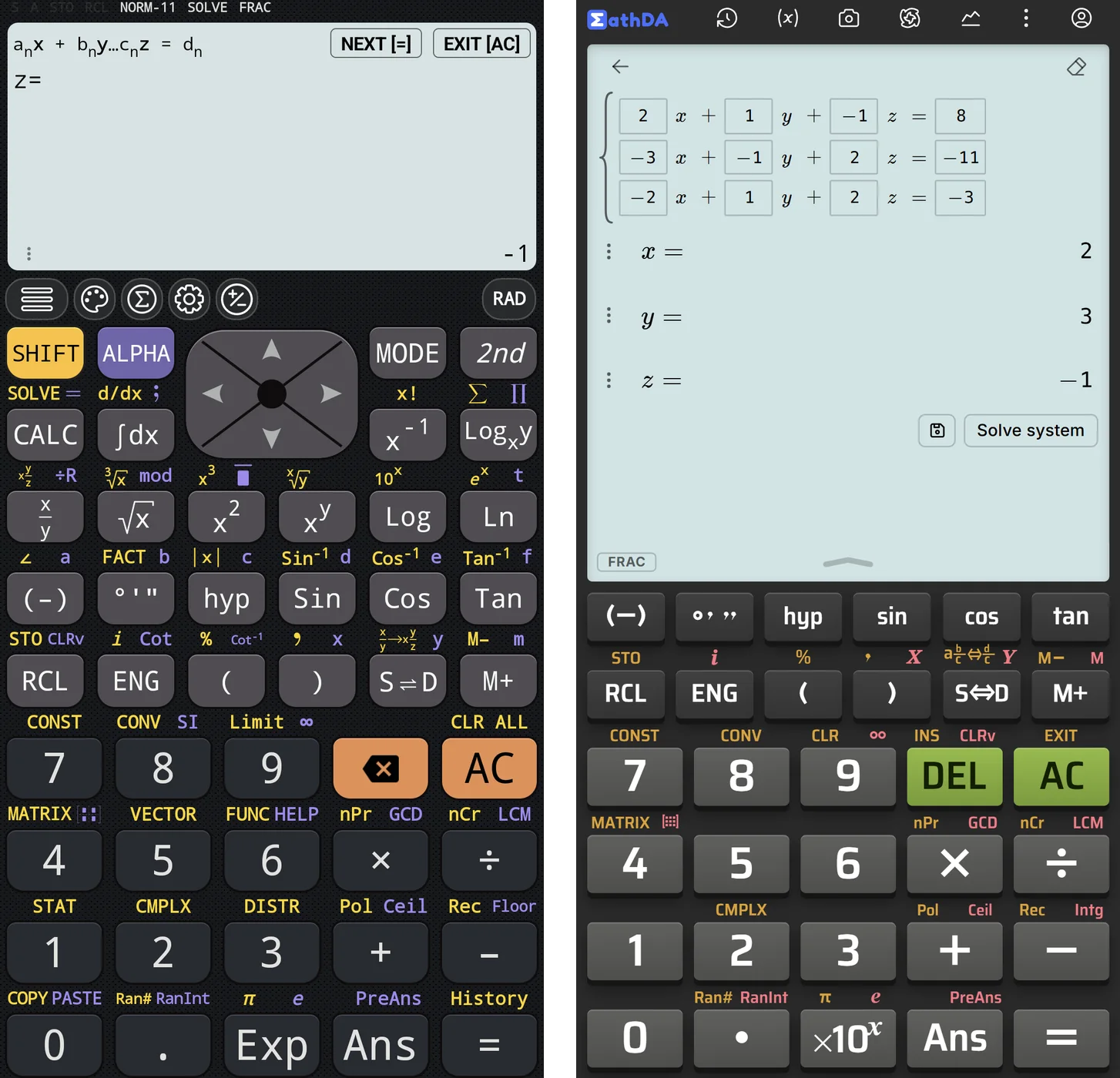 Left NCalc showing z = −1, right CalcES showing the system and all three answers.
CalcES shows all 13 statistics results together as decimals: mean, sums, standard deviations, count, minimum, quartiles, median and maximum. NCalc, by contrast, keeps exact forms such as σx = √1365/3 and sx = √182, with decimals on request.
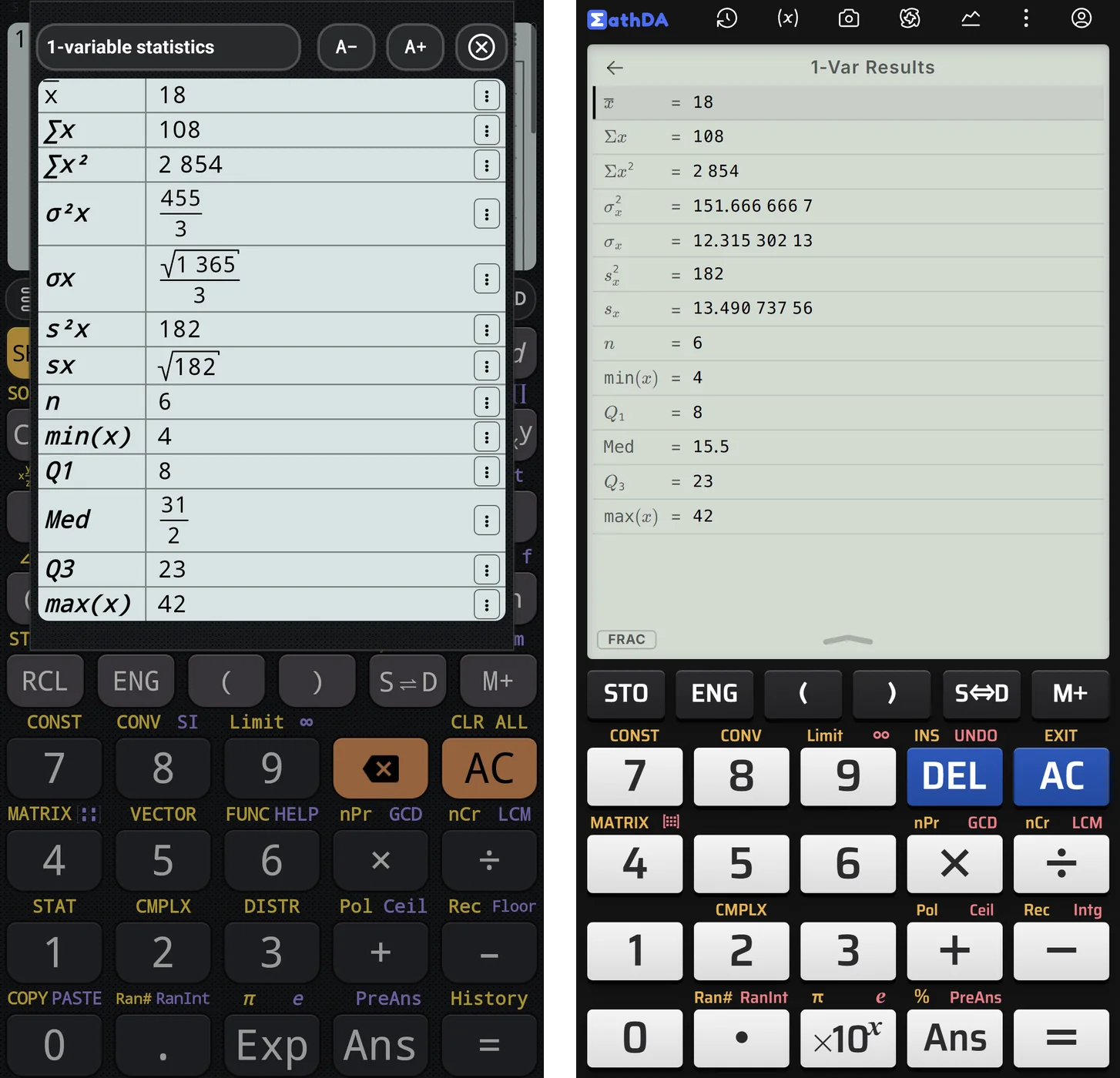 Left NCalc's exact statistics, right CalcES's results on one screen.
CalcES also displays Base-N results in decimal, hexadecimal, binary and octal together. Its Variables panel shows all twelve variables, and a Save button stores a result in a variable. Those views make good use of the extra room on a laptop or PC.
History
Both keep a history list. NCalc lets you copy, edit or delete entries, and import or export the list. CalcES's history panel shows each expression with its answer.
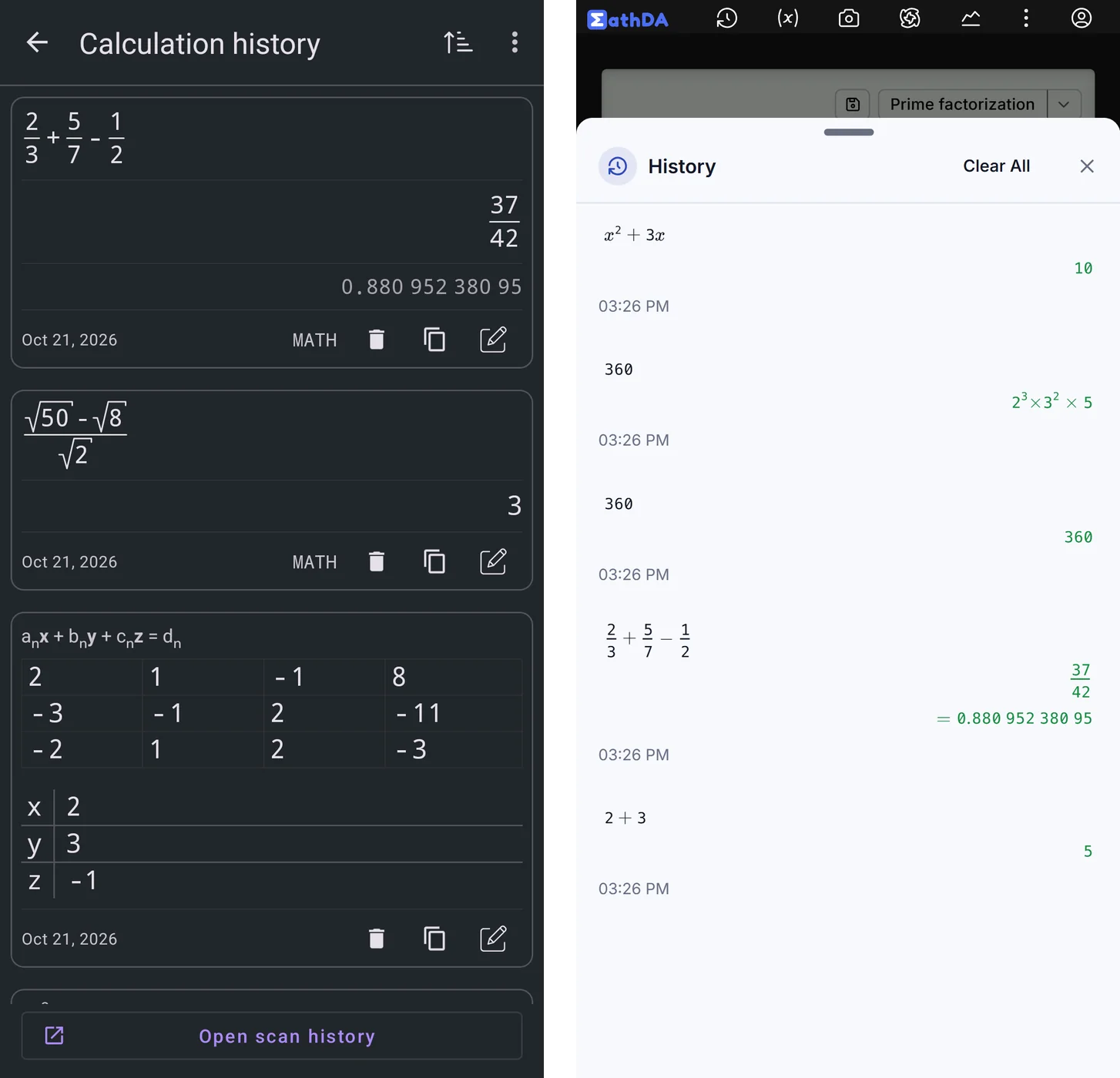 Left NCalc, right CalcES, each keeping earlier calculations.
Can I make it look the way I like?
Yes. NCalc offers 40 skins, including Paper, Material Dark and Synthwave, plus a random skin button. You can choose from about 400 key fonts, change the display font size, and adjust key sounds and vibration.
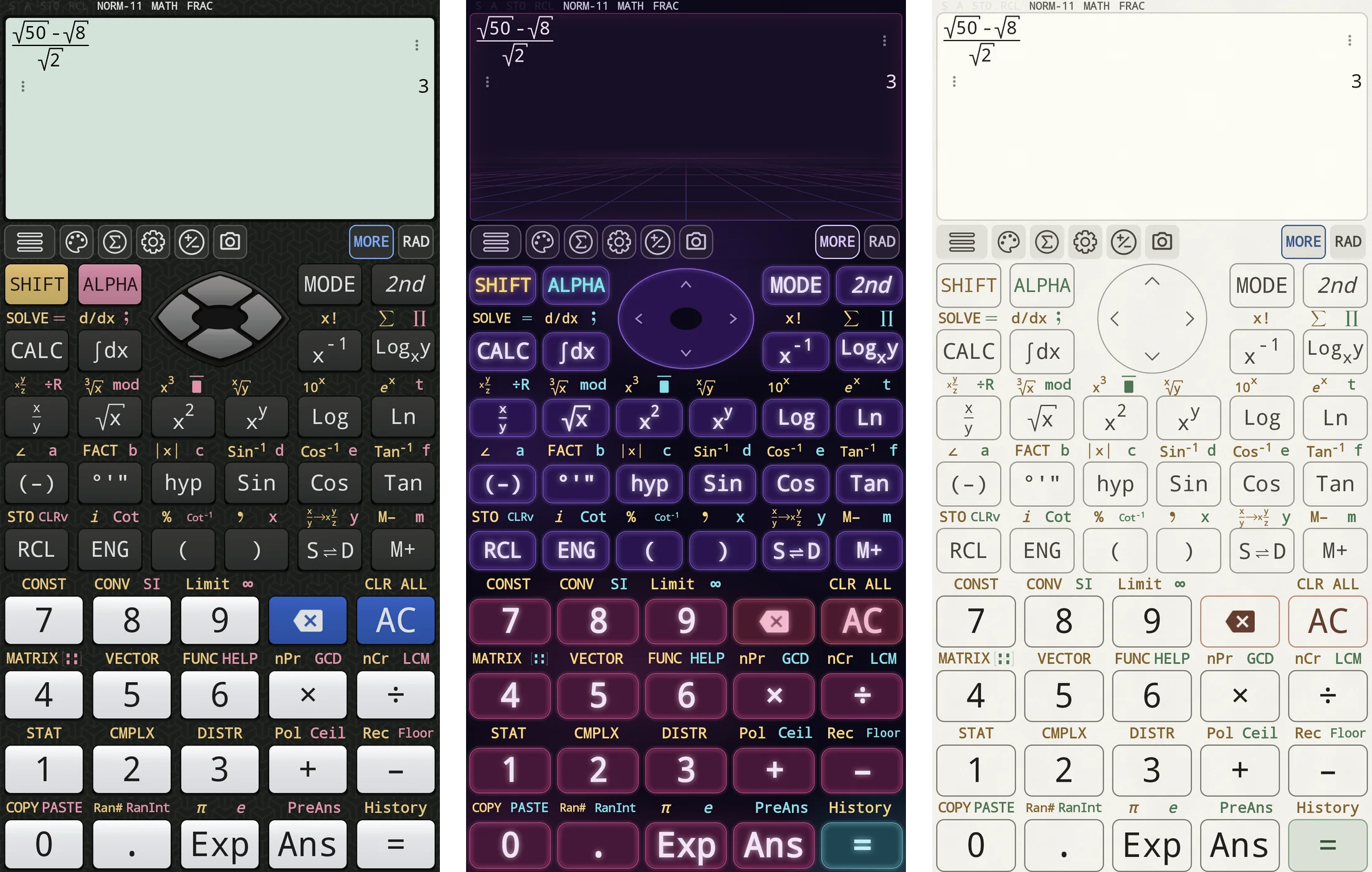 Three NCalc skins, same key layout.
CalcES goes further with 97 themes in 11 groups, including colours based on EX, CW and ES PLUS cases. Its builder lets you adjust colours, key style, surface finish, key font, D-pad shape, background picture, and the roundness of keys and screen. “Surprise me” mixes a new theme.
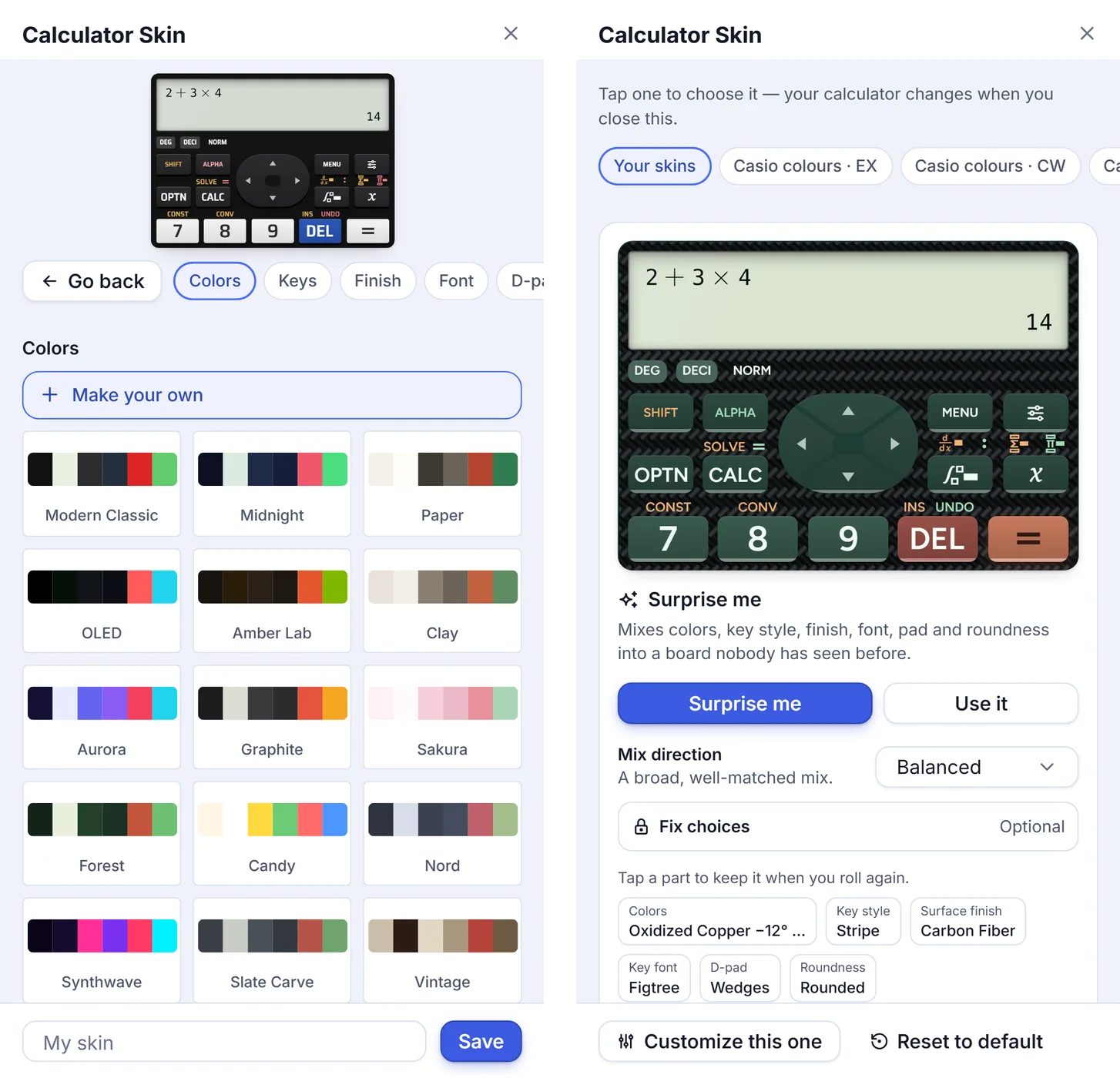 CalcES's builder lets you mix your own calculator theme.
What if there's no internet?
NCalc works without internet once installed. CalcES needs a connection in your browser.
How do they compare at a glance?
| Feature | NCalc | CalcES |
|---|---|---|
| Where it runs | Android and iPhone/iPad app | Any phone, tablet, laptop or PC browser |
| Keypad | fx-570ES PLUS style; also Pocket | Follows your chosen model |
| Model choice | One main layout | Dozens across ES PLUS, EX and CW |
| Modes | Scientific modes | Model menus; adds Ratio, Spreadsheet, Verify |
| Systems up to | 4 unknowns | 6 unknowns |
| Worked steps | No; Details page | Step-by-step explanation from an equation's answer |
| Graph | Full-screen analysis tools | Opens from an equation's answer |
| Statistics display | Exact forms; decimals on request | All 13 results as decimals together |
| Themes | 40 skins; about 400 key fonts | 97 themes; detailed builder |
| History | Copy, edit, delete, import, export | Expressions and answers |
| Without internet | Works once installed | Needs a connection |
Use both
Install NCalc, listed as Scientific Calculator Plus 991, for familiar pocket calculations, graph analysis and formula sheets on Android or iPhone/iPad.


Open CalcES for your model's layout, worked steps and more room to see your results. Use whichever helps with the task in front of you; both have a place beside your notebook.
CalcES
Try the same problem on the web
Keep the article’s example or enter your own expression. CalcES opens with that problem, ready for a result and supported steps or graphs.
Frequently asked questions
Is NCalc on iPhone as well as Android?
Yes. NCalc is listed as Scientific Calculator Plus 991 on Google Play and the App Store. It is the same app for Android and iPhone/iPad.
Which calculator models does CalcES offer?
CalcES offers dozens of models across the ES PLUS, ClassWiz EX and ClassWiz CW families. Its US English model list includes fx-300ES PLUS, fx-115ES PLUS, fx-991ES PLUS, fx-991EX and fx-991CW, with keys and menus that follow the chosen model.
Do NCalc and CalcES show worked steps?
CalcES offers a step-by-step explanation from an equation's answer, such as factoring x² − 5x + 6 = 0. NCalc has no worked steps; its Details page shows roots, a graph, Simplify and Expand.
Can I change how the calculators look?
NCalc offers 40 skins, about 400 key fonts and a display font size setting. CalcES offers 97 themes and a builder for colours, keys, surface finishes, fonts, the D-pad, a background picture and roundness.
Can I use CalcES on a laptop?
Yes. CalcES runs in any browser on a laptop or PC, with nothing to install. It also works in phone and tablet browsers.
More in Reviews & comparisons
- Calculator Simulator or Online Calculator: Which Do You Need?
A model emulator, a familiar keypad and an online math tool solve different problems. We compare the choices with a real CalcES calculation and Casio's published emulator options.
- 10 Best Online Scientific Calculators for Casio Users
Compare 10 free scientific calculators by familiar fx-991ES PLUS, fx-991EX and fx-991CW-style keys, natural input, worked steps and graphs.