Calculator Simulator or Online Calculator: Which Do You Need?
A model emulator, a familiar keypad and an online math tool solve different problems. We compare the choices with a real CalcES calculation and Casio's published emulator options.
A teacher demonstrates a key sequence on an fx-991EX. At home you search for a calculator simulator and find three very different things: software that reproduces a particular handheld, a web calculator with keys that look familiar, and a math solver with no handheld layout at all. All three may return the same number. Only one may follow the teacher's sequence precisely.
This distinction matters more than a long feature list. We checked CalcES on 25 September 2026 with the calculation pictured below, and checked Casio's published model and emulator pages. We did not activate a licensed Casio emulator for a side-by-side operation test. CalcES is made by MathDa, the publisher of this Journal.
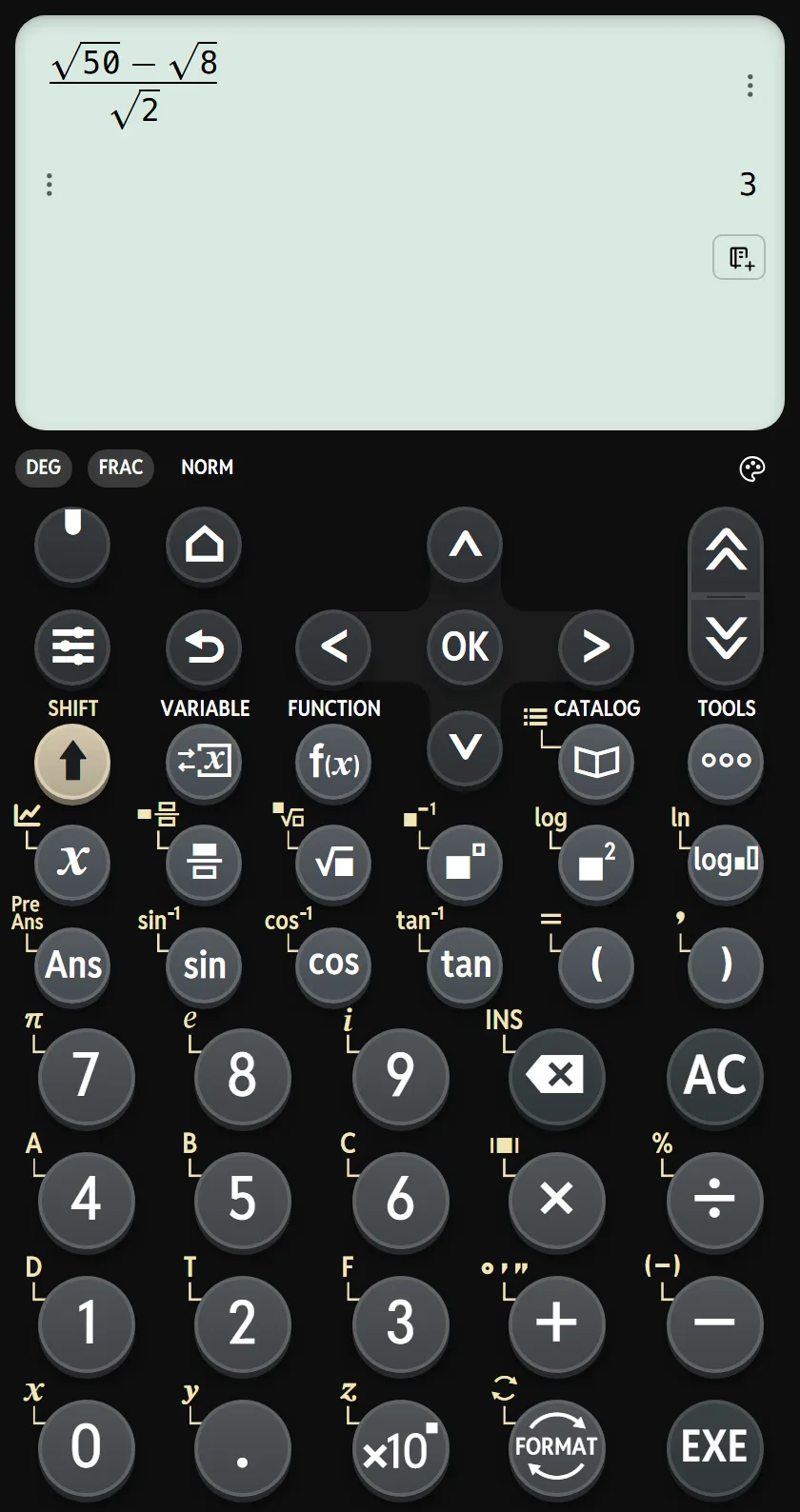 CalcES CW-style screen and full keypad, captured from a real calculation. The style is for users familiar with supported ClassWiz CW models.
Three promises hidden inside one search
| What you found | The promise that matters | Good reason to choose it |
|---|---|---|
| Model emulator | Reproduce a named manufacturer's calculator, subject to the supported model and licence | A lesson or demonstration depends on the same menus and key order |
| Handheld-style online calculator | Offer a familiar family of keys and natural math entry | You want to practise ordinary work across phone and computer, then go beyond the handheld when useful |
| Math solver or graphing tool | Solve or visualise the problem; keypad resemblance is secondary | You need a method, graph or algebraic exploration more than a particular key sequence |
“Simulator” is common shorthand for all three. It is too imprecise to decide with. Ask what must match: the exact model, the way you enter mathematics, or the kind of answer you need.
When exact model behaviour is the assignment
Casio lists a ClassWiz Emulator on ClassPad.net for supported EX and CW models, including the fx-991EX and fx-991CW families. The page describes account and licence access. Casio also lists a separate Windows fx-ES PLUS emulator for supported second-edition ES PLUS models. Check the exact model and current terms before assuming that any “Casio emulator” covers your machine.
That official route has a clear purpose: a class can discuss the same manufacturer's interface. If the teacher says “open this menu, then choose this item,” a near-looking keypad is not enough. We have not tested the paid ClassWiz service, so we cannot compare its speed, mobile usability or full interaction with CalcES.
The handheld remains the practical reference for its own keys. It also works away from a network. An exam is a separate decision governed by the exam provider's device rules; a browser tab should never be assumed to be permitted equipment.
What a familiar keypad can do without claiming to be the original
CalcES offers keypad layouts for supported ES PLUS, EX and CW families. The fx-991EX-style and fx-991CW-style choices do not turn CalcES into a Casio product or an exact firmware emulator. They let someone who recognises those layouts start with keys rather than learn an unrelated command box.
We used the same expression on two CalcES layouts:
The value is simple to verify by hand: and , so the numerator is . What matters visually is that the fraction and radicals remain stacked on screen while the full keypad is visible. The CW-style capture above shows round keys and its own control arrangement; the EX-style capture shows a different family with the same result. These are actual CalcES sessions, not renderings of Casio hardware.
A matching answer tells you the mathematics agrees on this example. It does not establish that every mode, menu, secondary key or rounding choice matches a physical model. If exact replication is essential, use the official emulator or the handheld.
A result can match while the lesson still goes wrong
Imagine an instructor asks you to enter a fraction using the fx-991EX's specific key sequence, switch the answer to decimal, then recall it from history. Getting for our radical fraction is only the first checkpoint. If the lesson is about finding the conversion key or navigating the model's history, a different keypad can give the right number while teaching the wrong sequence. An official model emulator has the stronger claim in that situation.
For homework that asks only for the mathematical value, the keypad sequence matters less. The same fraction can be checked by simplifying the radicals on paper and by reading the structured input on screen. CalcES is useful here because you can start with a familiar keypad, then move from a supported result to a fuller explanation when the question changes. The source of the value and the explanation remain visible together.
One more difference often gets missed: a skin changes the appearance of CalcES, while a keypad family changes the arrangement you practise with. Picking a dark or colourful skin does not make an EX-style layout into a CW-style layout. Check the selected family before deciding whether an online calculator is close enough to your handheld routine.
CalcES adds a different benefit after the answer. For supported expressions, controls under a result can open worked steps or a graph in the same session. That is useful when a calculation becomes a learning question, though it is not a promise of steps for every input. Our separate report on steps and graphs shows that handoff with a quadratic.
A short decision before you open another tab
- Rehearsing a model-specific classroom sequence: check Casio's supported emulator models or use the physical machine. Choose this when exact controls, rather than a similar appearance, are the point.
- Working with familiar keys on a phone or laptop: open CalcES and select the supported family you know. Treat it as an independent scientific calculator with model-inspired layouts.
- Exploring a curve or a solution method: a solver or graphing tool may be the better starting point. Our online scientific calculator comparison weighs these experiences separately.
- Working without reliable internet: a physical calculator or an installed app is the safer choice. The app versus web comparison explains that trade-off.
The best search result is the one that answers the job you actually have. “Looks like my calculator” can be enough for everyday practice. “Operates exactly like my calculator” is a stronger claim and deserves stronger evidence.
Frequently asked questions
Is a calculator simulator the same thing as an emulator?
People use the terms loosely. A manufacturer's emulator aims to reproduce a specified model's operation. A calculator with a familiar keypad style can be useful for practice without promising identical menus or every key sequence.
Does CalcES emulate a Casio fx-991EX or fx-991CW exactly?
No. CalcES is an independent MathDa calculator with EX and CW-style keypad families. It is not made or endorsed by Casio and does not promise exact model-by-model operation.
Can an online simulator replace my physical calculator in an exam?
Use web tools for preparation. Device rules belong to the exam provider; practise with the permitted physical calculator you intend to take.
Related articles
- 10 Best Online Scientific Calculators for Casio Users
Compare 10 free scientific calculators by familiar fx-991ES PLUS, fx-991EX and fx-991CW-style keys, natural input, worked steps and graphs.
- NCalc vs CalcES: fx-991EX and fx-991ES PLUS Alternatives
Want your fx-991EX or fx-991ES PLUS on a phone or laptop? Compare NCalc and CalcES for familiar keys, modes, worked steps, graphs, themes and history.