Check whether an equation or inequality is true
Turn Verify on, enter an equation or inequality, and read True or False to check whether it holds.
This article is not available in your language yet, so the English version is shown.
Is an equation or inequality true? For example, check whether these two sides are equal:
Verify is a switch on the calculation screen. It checks a statement with two sides joined by , , , , or , which the buttons call a relation, and gives True or False.
Enter the relation and check it
Below each step is the screen you should see after pressing.
Next to each step is the screen you should see after pressing.
-
Step 1
Open the mode menu and tap the Verify tile. A VERIFY chip appears in the function bar (a check mark on a narrow phone), with six relation buttons at the bottom of the screen.Press: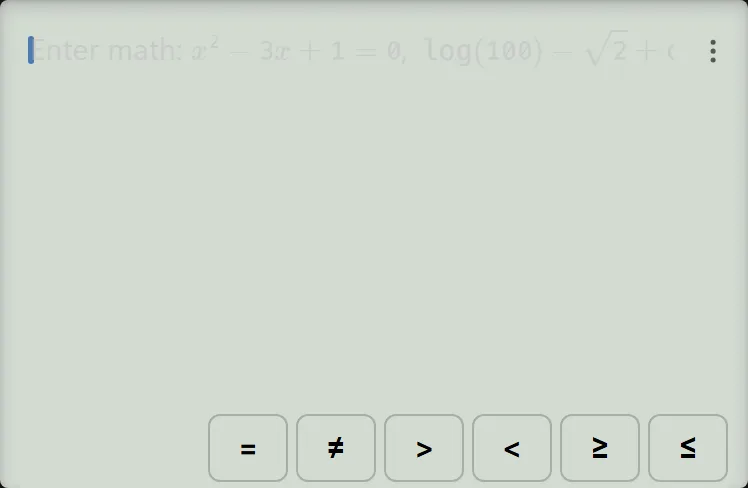
-
Step 2
Enter using the square key for each power.Press: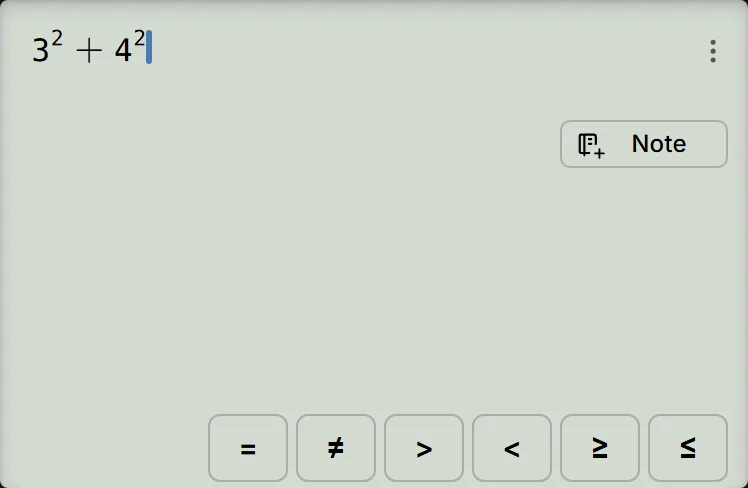
-
Step 3
Tap the = relation button at the bottom of the screen, then enter . The complete line is , and True already appears as a preview.Press: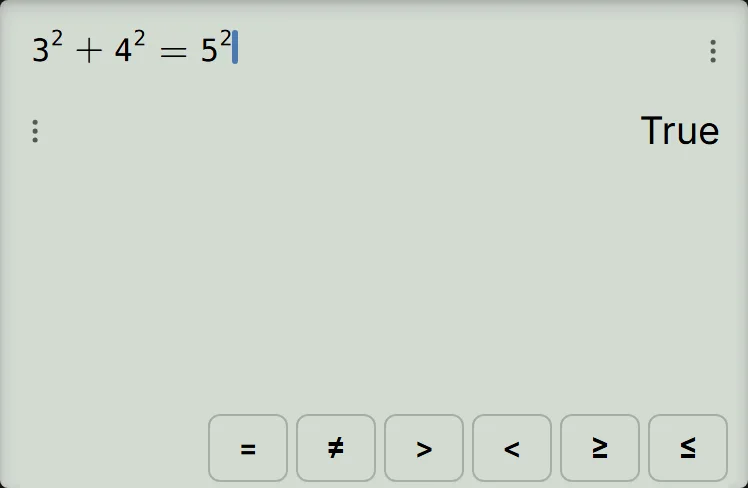
-
Step 4
Press the equals key. The result line shows True.Press: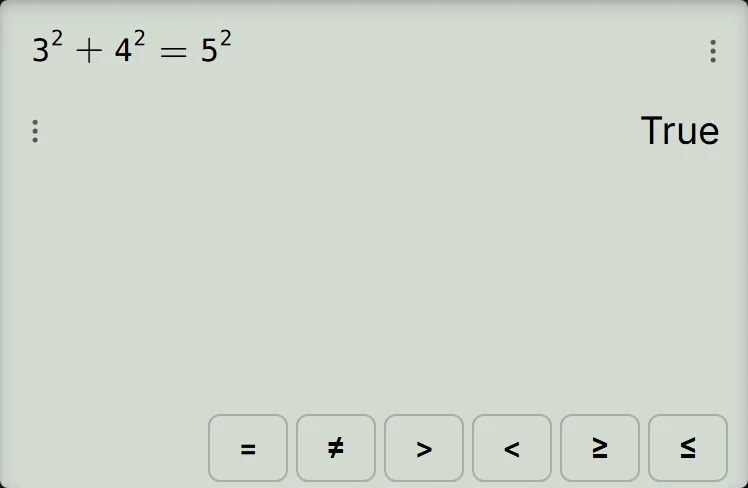
Read and check the result
True means the relation holds. Here, and . To see False, clear the line, enter , tap =, enter and press the equals key. , so the result is False.
The on-screen = button inserts the equality sign between the sides. The equals key records the completed check in history, together with its verdict.
For an inequality, choose a different relation button: , , , or . Each checks the comparison you wrote.
If something goes wrong
- No Operator: you pressed the equals key on a line with no relation sign, so nothing was checked. Tap a relation button, then enter the right side. The button adds the sign at the end of the line. For , tap = and enter .
- Syntax ERROR after entering a power: a relation button inserts its sign inside the exponent if the cursor is still there. To enter , press , the power key, then and ; press the right-arrow key once to leave the exponent, then tap > and enter . This relation gives True. The square key used above already leaves the cursor outside the exponent.
- You want an ordinary calculation: tap the VERIFY chip in the function bar (the check mark on a narrow phone) to turn Verify off. If No Operator is showing, its Turn Verify off button also calculates the line. The switch keeps its setting when you reload the page.
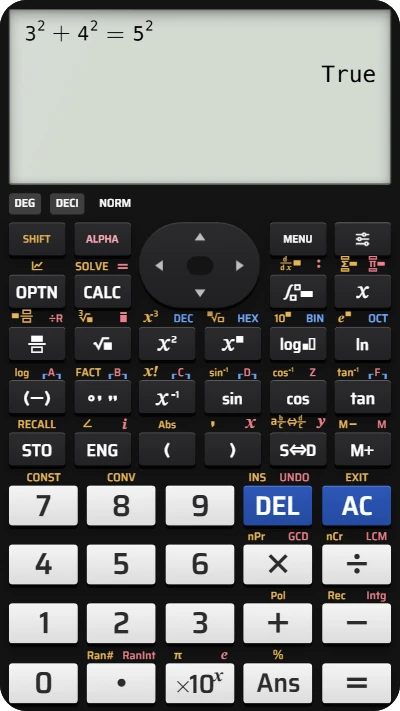
Check an equation or inequality in CalcES
Turn Verify on and enter 3² + 4² = 5² to check whether the equation is true.