Solve an equation directly in the calculator
Enter a complete equation and let the calculator isolate x automatically, without opening a separate mode.
Este artículo aún no está disponible en español. Se muestra la versión completa en inglés.
Solve one equation directly in Calculate, without opening a special equation mode. As soon as the equation is complete, its answer appears below it; pressing the equals key confirms it.
This example solves:
Enter the equation
Below each step is the screen you should see after pressing.
Next to each step is the screen you should see after pressing.
-
Step 1
Enter the left-hand side .Press: -
Step 2
Insert the equation equals sign, then enter . The calculator recognises the complete equation and shows automatically.Press: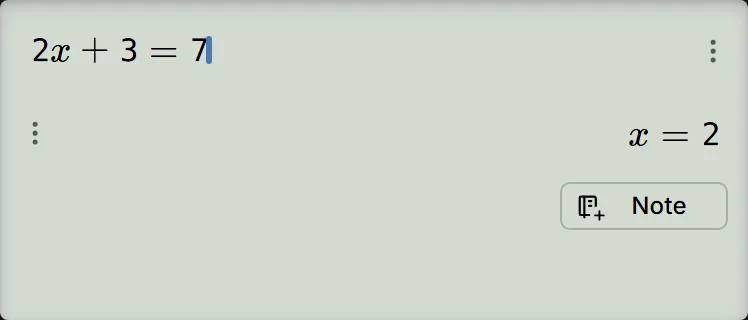
Check the result by substituting into the original equation:
If the answer is True or False instead of , Verify is on, and a check-mark icon shows in the function bar. Tap that icon to turn Verify off.
It can also rearrange a symbolic equation
The equation does not need to contain only numbers. For example, entering
with , , and unset and pressing the equals key shows:
If , , and are stored first, pressing the equals key uses those values and gives . Either way, the equation is solved for .
Use the answer in the next calculation
When the equation has one answer, pressing the equals key also stores it in and in Ans. After , Ans holds , and entering then pressing the equals key gives .
An equation with several answers, such as , stores none of them. To keep one, tap the Save icon under the answer and pick it, as in save an answer without STO.
When to use SOLVE instead
Solving directly starts when the input is a complete equation containing an equals sign. If you have an expression and want to solve where it equals zero, enter the expression and press for SOLVE. For example, applying SOLVE to needs no starting value and finds:
Choose the shortest route
| What you have | Use |
|---|---|
| One complete equation such as | Enter it directly and read the automatic result. |
| An expression such as that should equal zero | Use SOLVE (). |
| Several equations that must be solved together | Use simultaneous equations, with two or three unknowns. |
| A quadratic where you also need the minimum or maximum point | Use the polynomial solver. |
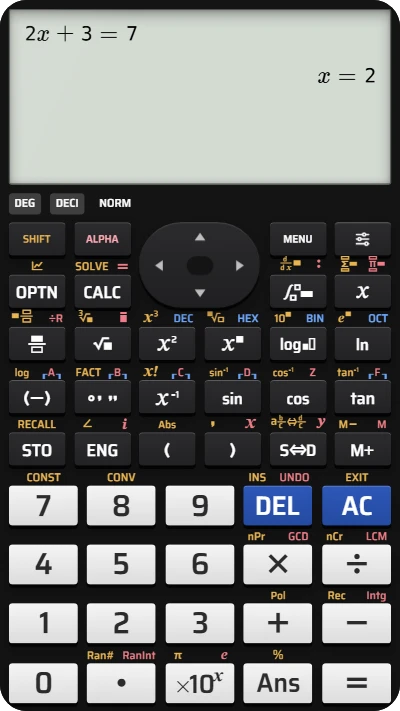
Solve an equation directly on your fx-991EX calculator
Type 2x + 3 = 7 and watch the calculator isolate x automatically — free, right in your browser.