Fill a formula down a spreadsheet column
Enter four side lengths, fill a column with their squares, and change a length to check that its area updates.
Artikel ini belum tersedia dalam bahasa Melayu. Versi bahasa Inggeris yang lengkap dipaparkan.
You have several side lengths and need the area of a square for each one. In CalcES, use Spreadsheet to fill a formula down a column instead of entering it separately in every row.
Put the lengths in A1:A4 and the area formulas in B1:B4. Then change the third length from to to check that its area becomes . Selecting the cells and tapping a cell to use it in a formula need a mouse or a touch screen; the calculator keys cannot do that.
Fill the squares down column B
Below each step is the screen you should see after pressing.
Next to each step is the screen you should see after pressing.
-
Step 1
Open the mode menu and tap Spreadsheet. The cursor starts on A1.Press: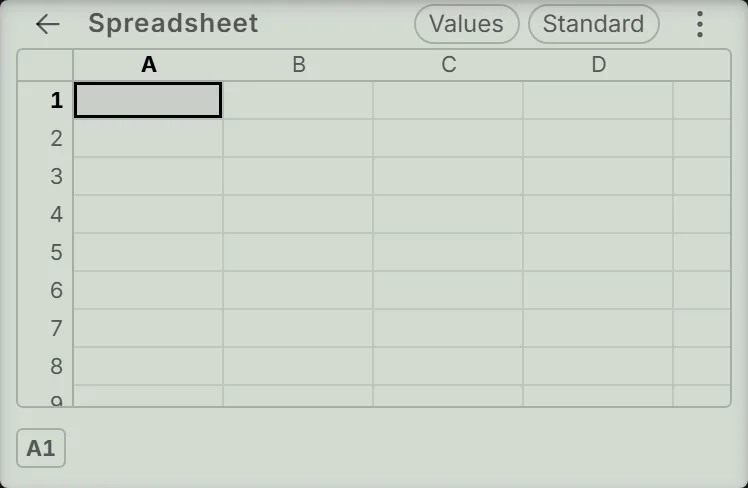
-
Step 2
Enter , , , then , pressing the equals key after each number. They fill A1:A4; the cursor moves down to A5.Press: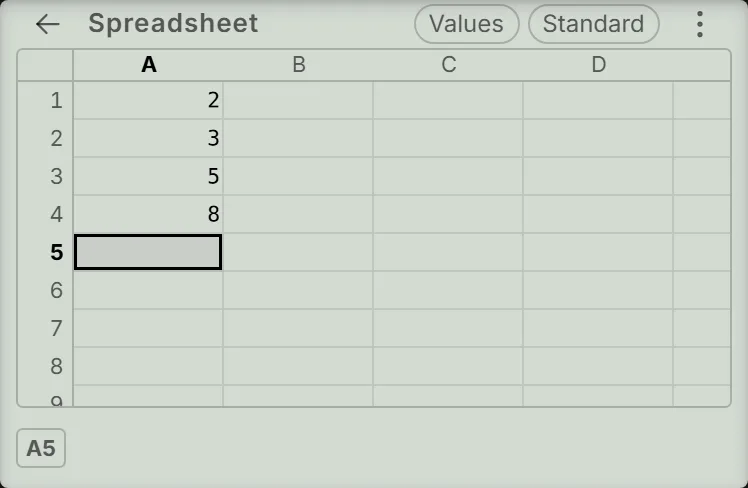
-
Step 3
With a mouse, drag from B1 down to B4. On a touch screen, press and hold B1 for about half a second, then drag to B4. Check that B1:B4 is highlighted.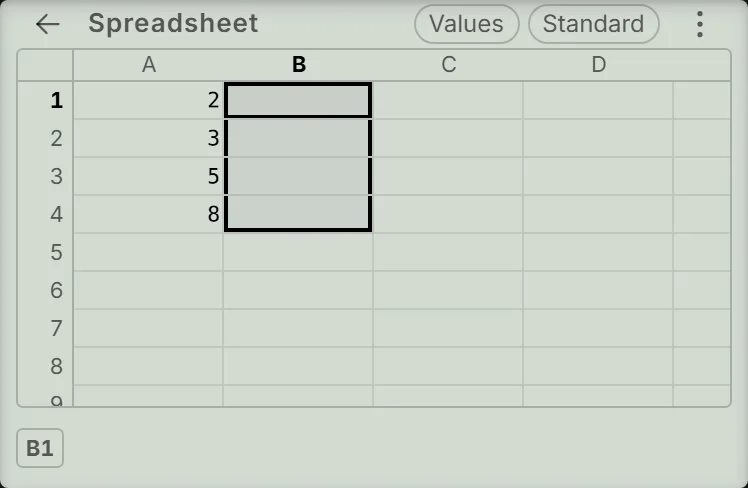
-
Step 4
Tap the ⋮ in the Spreadsheet header, at the right of the Values and Standard chips, scroll if needed, then tap Fill Formula. Check that the Range box reads B1:B4. The grid highlight disappears, but the range is kept in the box.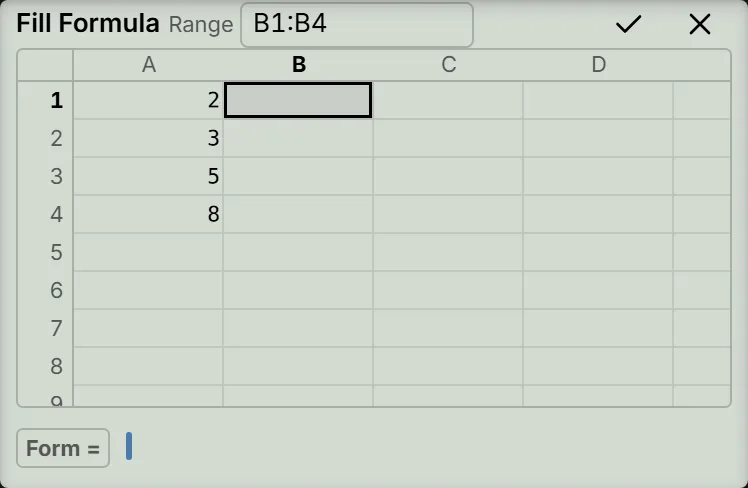
-
Step 5
The Form = line already supplies the equals sign. Tap A1 to insert its cell reference, then press the square key. The line reads Form = . Press the equals key to fill B1:B4 with .Press: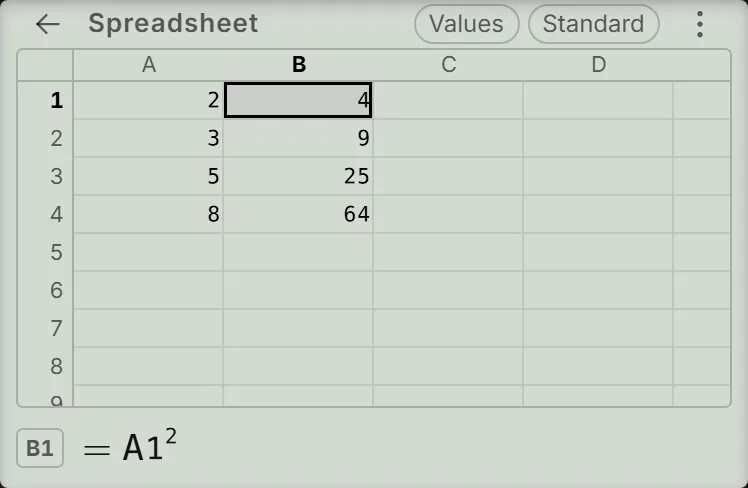
-
Step 6
Tap A3, type , and press the equals key. This replaces with ; B3 changes from to .Press: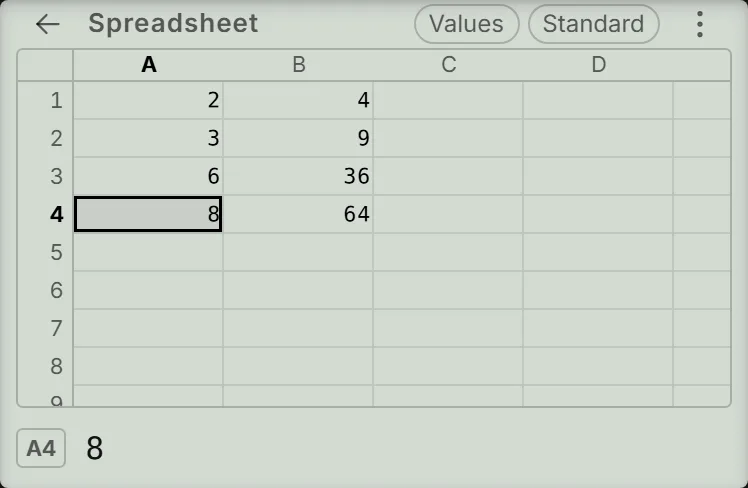
Check the formulas and areas
The reference moves down with each row: B1 uses , B2 uses , and so on. Tap B3 to see on the entry line. To see the formulas throughout the grid, tap the Values chip to switch to Formulas.
After the last step, the areas are . Only B3 changes because it refers to A3:
If something goes wrong
- Only B1 would be filled: if the Range box reads B1:B1, tap ✕ to cancel. Select B1:B4 before opening Fill Formula again.
- The formula gives 0: typing the letter A and then multiplies the variable by instead of pointing at cell A1, and an unset variable is . While the fill row is open, tap A1 to insert the reference. If the fill already ran, select B1:B4, open Fill Formula again and tap A1 in the formula.
- A swipe scrolls the sheet: hold B1 for about half a second before dragging. A quick swipe scrolls instead of selecting a range.
- Old numbers are still there: the sheet keeps its contents when you leave or reload. Tap a cell and type the replacement number; typing on a filled cell starts a fresh entry.
- The header is covered by a hint: it clears on the next key or tap, or by itself after about four seconds.
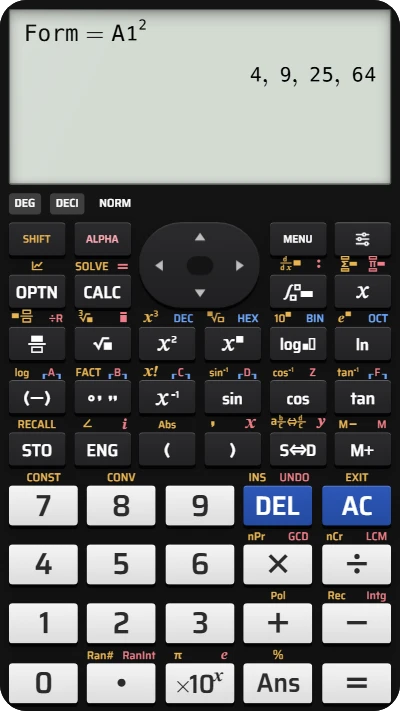
Fill a formula down a spreadsheet column in CalcES
Fill B1:B4 with squares in CalcES's Spreadsheet, then change a side length and watch its area follow.