Recalculate one formula for different values with CALC
Enter a formula once, then change its variable to obtain several results.
This article is not available in your language yet, so the English version is shown.
Suppose you need the areas of two circles with radii and . Instead of typing the calculation twice, enter the formula once and change the radius using CALC:
The calculator will ask for the variable ; do not type or the equals sign into the calculation line.
Calculate both areas
Below each step is the screen you should see after pressing.
Next to each step is the screen you should see after pressing.
-
Step 1
In the ordinary calculation mode, enter . Use for the radius; do not substitute or yet.Press: -
Step 2
Open CALC with the keys shown. The formula stays above a prompt for .Press: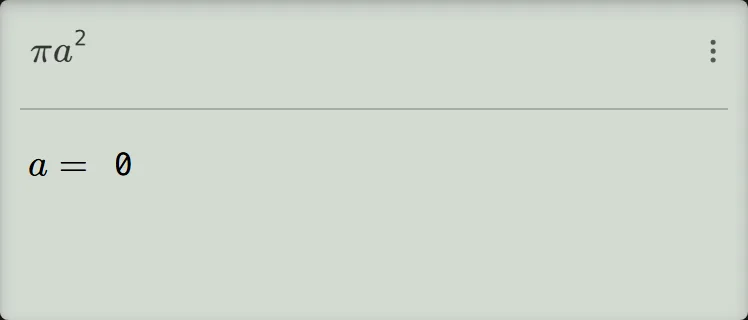
-
Step 3
Enter and press the equals key. The screen shows the exact result and, on the line below, its decimal value . The calculator adds that line by itself, so you can write or about without converting.Press: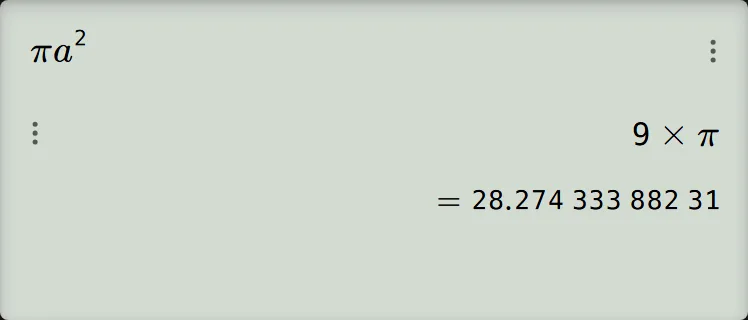
-
Step 4
Press the equals key again to return to . Enter to replace the previous value and press the equals key. The screen shows with below it: , or about .Press: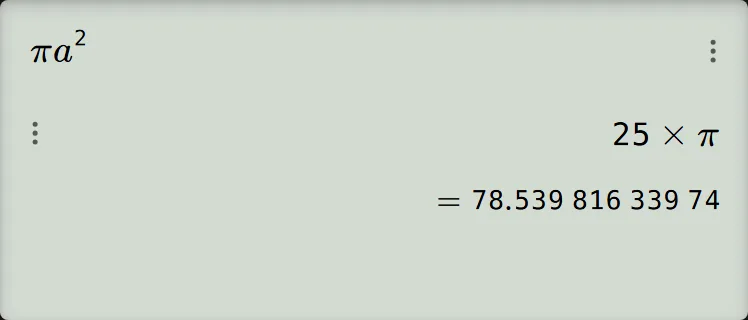
Check the results
For , , so ; for , , so . The unit comes from the problem: the calculator displays numbers, not an automatically attached unit. If you need a whole sequence of consecutive values as rows, the function-table task is a better fit than CALC.
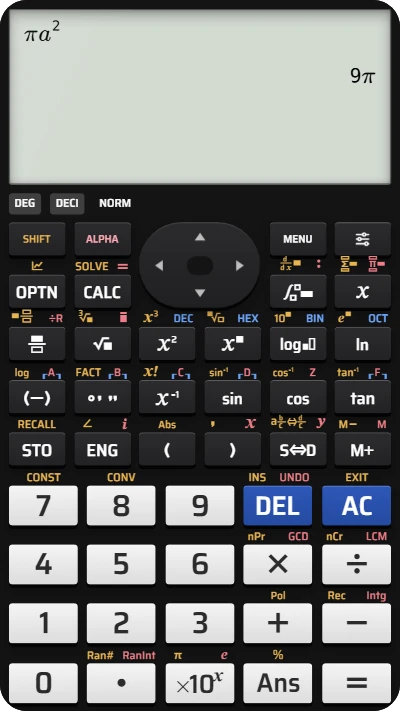
Recalculate a formula fast on your fx-991EX calculator
Enter S = πa² once, then use CALC to get areas for radius 3 and 5 without retyping — no download required.