Fit a curve to data: quadratic and other regressions
Enter paired data, choose a curved regression, read its coefficients, and estimate a value from the fitted equation.
Your paired data rises and then falls, so a straight line cannot follow its shape. Fit a quadratic curve to these five pairs, then estimate when :
The quadratic form is . The same results list also offers logarithmic, exponential, power and inverse fits; see below for choosing those instead.
Enter the pairs, fit the quadratic, and estimate y
Below each step is the screen you should see after pressing.
Next to each step is the screen you should see after pressing.
-
Step 1
Open the mode menu and tap Statistics, then choose y=a+bx+cx². Start with an empty table; see below if old data is still there.Press: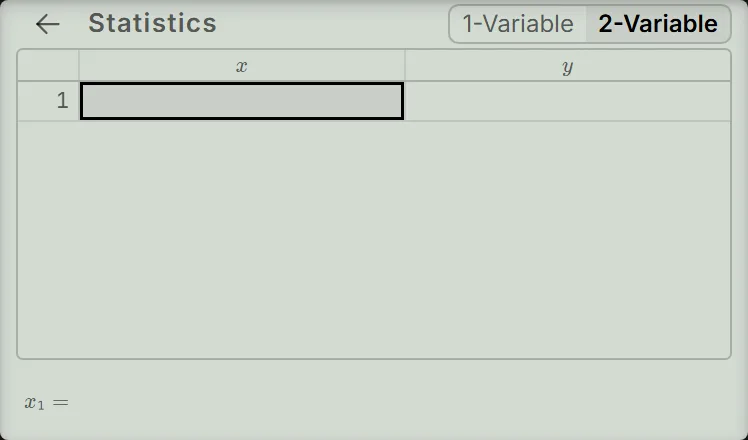
-
Step 2
In the first cell, enter , pressing the equals key after each value. The cells stay empty until you fill them.Press: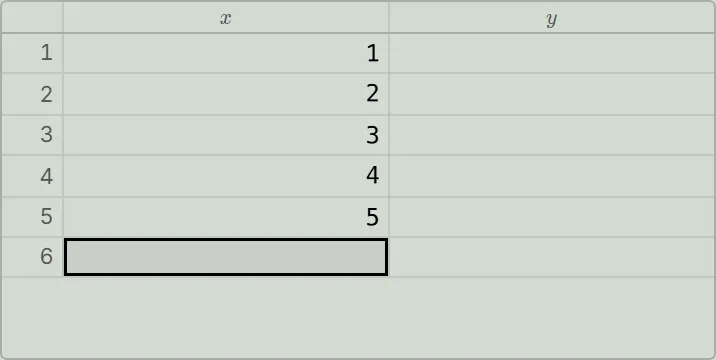
-
Step 3
Tap the first cell. Enter , pressing the equals key after each value. The empty cell in row 6 is selected when you finish.Press: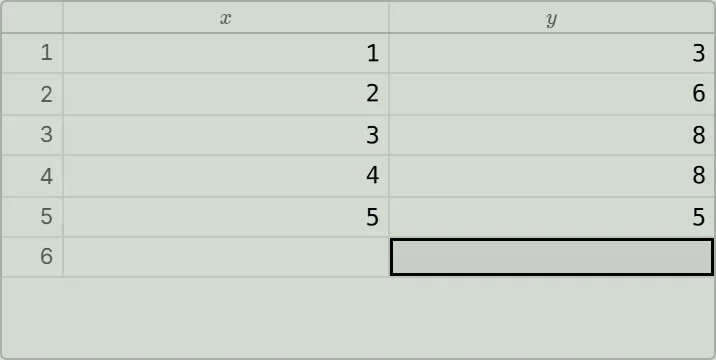
-
Step 4
Press the equals key on that empty cell, then tap Reg Results. In the block, read , and . Check that it is marked In use.Press:
-
Step 5
Tap the top-left arrow of the results list to return to the table. Press the equals key on the empty row, then tap Statistics Calc. Its header should show .Press: -
Step 6
Enter , then open Statistics variables with the key shown. It opens at Regression, at the end of the sheet; tap . Press the equals key: the input is and the answer is .Press: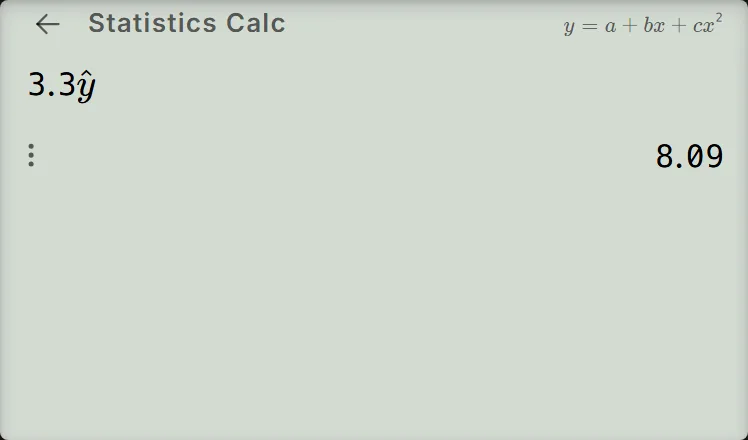
Read and check the curve
Substitute the coefficients into :
Here means the estimated for the typed before it. At the original values , this curve gives : each is within of the entered .
Reg Results shows seven fits side by side and does not choose one for you. The quadratic has no or . Check predictions against your data before choosing a curve: the block, for example, predicts about at , where your data has . The In use badge tells you which fit the estimates use.
To find when , enter in Statistics Calc, open the same variables list as in step 6, tap and press the equals key; then repeat with . For this curve the answers are approximately and ; the parabola reaches twice. The screen groups long decimals in threes, so is .
Other ways to estimate y
Under the seven blocks of Reg Results, the Estimate buttons (, and for the quadratic) open Statistics Calc with that estimate already typed after an empty box: tap , enter in the box and press the equals key to get .
Choose another curved fit
To use another fit, choose its equation row when opening Statistics, or tap its block in Reg Results.
Each of these five fits shows , and . These are their data restrictions:
| Fit | Equation | Required values |
|---|---|---|
| Logarithmic | Every | |
| Exponential | Every | |
| Exponential, another form | Every | |
| Power | Every and | |
| Inverse | Every |
For example, clear the table, then enter and as in steps 2 and 3. The values roughly double each step, which suggests an exponential curve. Choose as in step 1 (on the fx-991CW, tap its block in Reg Results); it gives , and . The form gives the same curve with . In Statistics Calc, entering as in step 6 gives for both.
For curved fits, describes the data after transformation, such as taking logarithms. A value closer to in size means the transformed data lies closer to a straight line. Predictions beyond the entered range can differ greatly between fits. If your data follows a straight line, find a line of best fit instead.
If your result is different
- Old numbers remain: tap the trash button on the function bar under the screen, then confirm with Delete All. This deletes the old data.
- A cell is still empty: tap it and enter its value, as in step 3. A row without a is left out of every fit, so the coefficients change.
- A block shows Math ERROR: the line under it says what the data needs; see the restrictions above. A of , for example, stops both exponential fits and the power fit. Two pairs are also insufficient for the quadratic: with just and , its block shows Math ERROR.
- An estimate uses the wrong curve or shows Math ERROR: check the fit named in the Statistics Calc header; when that fit no longer works with your data, a line under it says what the data needs. Return to Reg Results and tap a block that shows coefficients. A block showing Math ERROR cannot be selected.
- The results list covers the keys: tap its top-left arrow to return to the table.
- A cell shows Syntax ERROR: press AC to clear the error.
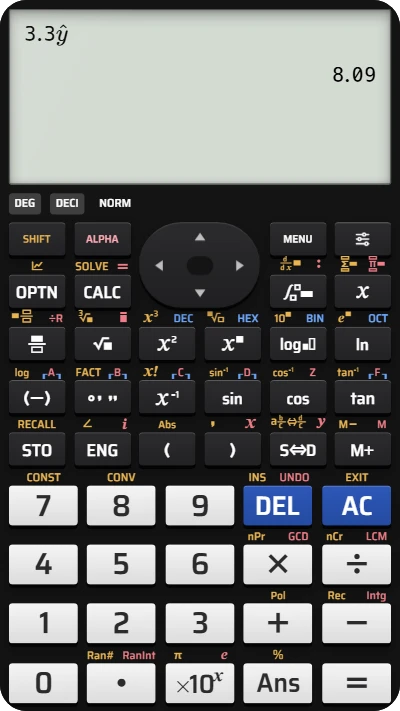
Fit a curve to data on your fx-991EX calculator
Enter five pairs, fit y = −2.8 + 6.6x − x², and estimate y when x = 3.3.