How to solve a system of two equations
Enter two rows of coefficients to solve a system of two linear equations for x and y.
Dieser Artikel ist noch nicht auf Deutsch verfügbar. Du siehst die vollständige englische Fassung.
Two linear equations that must hold at the same time form a system of equations, also called simultaneous equations. To solve one, first write each equation in the form:
This example solves:
The calculator reads each row as the coefficient of , the coefficient of , then the right-hand side. The two rows are therefore and . You do not enter the variables , , or the equals sign.
Enter both equations and solve the system
Below each step is the screen you should see after pressing.
Next to each step is the screen you should see after pressing.
-
Step 1
Open the mode menu and choose Equation, then, under Simultaneous, Solve system of equations with 2 unknowns. The first coefficient is selected in the two-equation grid.Press: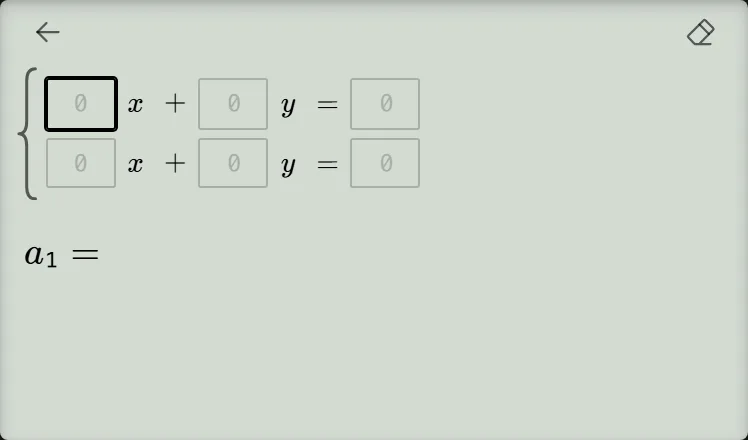
-
Step 2
Enter , , and for the equation . Press the equals key after each number to confirm the cell and move to the next one.Press: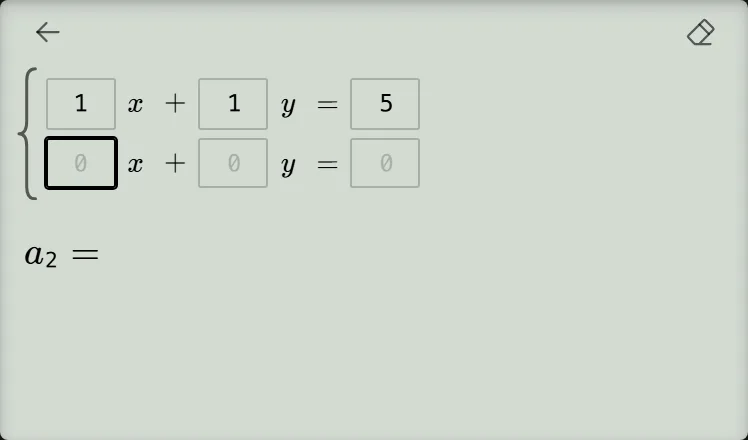
-
Step 3
Enter , , and for the equation . Confirming the final cell with the equals key solves the system and shows , .Press: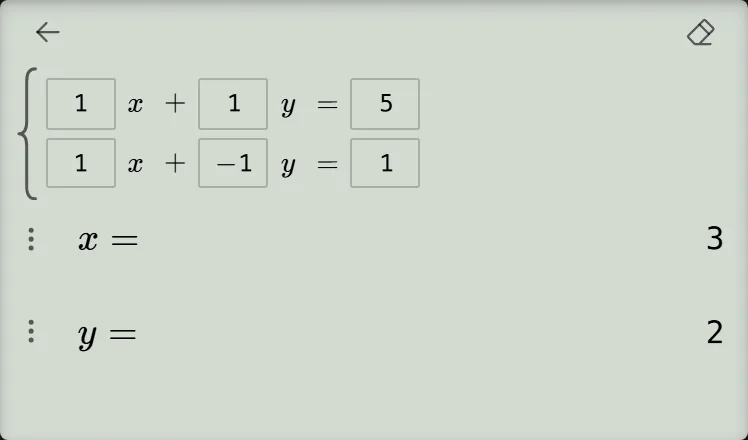
Check the solution
Substitute and into the original equations:
Both equations are true, so the solution is:
The calculator treats an untouched coefficient cell as , so you do not need to enter zero for a missing term. For a negative coefficient, both the subtraction key and the negative-sign key are supported; this example uses the negative-sign key to enter .
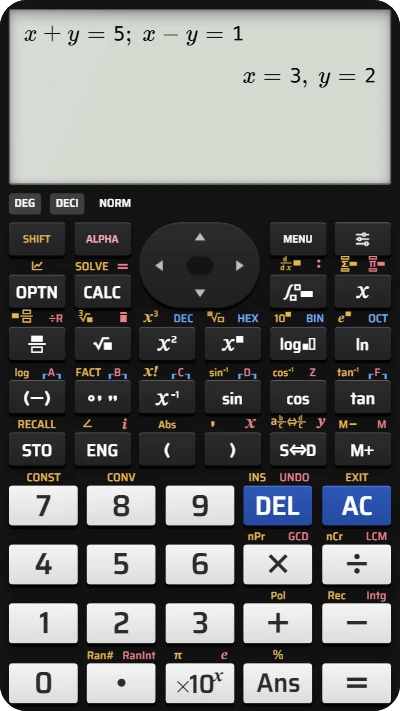
Solve a system of two equations on your fx-991EX
Enter x + y = 5 and x − y = 1 and get x and y together — the keypad is laid out like a Casio calculator.