Get exact answers with fractions, square roots and pi
Calculate fractions, square roots and pi in exact form, read their decimal values, and switch between the two.
This article is not available in your language yet, so the English version is shown.
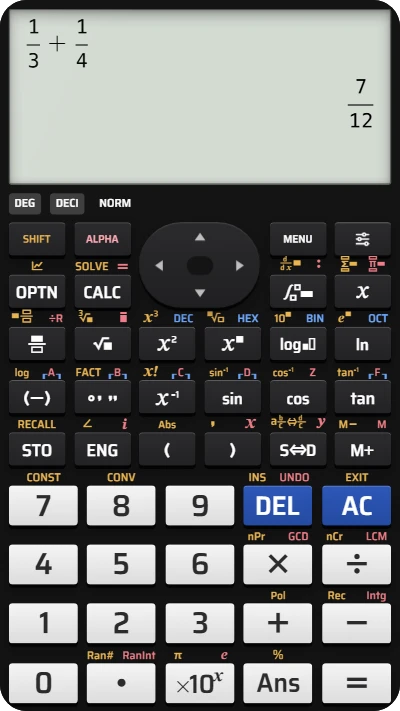
Need an answer as a fraction or a square root instead of a rounded decimal? Try these two calculations:
The calculator shows the exact answer with its decimal value underneath for both examples. Nothing needs converting: both forms are on the screen.
Calculate a fraction sum and a square root
Below each step is the screen you should see after pressing.
Next to each step is the screen you should see after pressing.
-
Step 1
Insert a fraction and enter . Press the right cursor key to reach the denominator, enter , then press the right cursor key again to leave the fraction. Press plus and insert another fraction: enter , press the right cursor key, and enter . Do not press the right cursor key again: moving the cursor hides the live answer. The live answer is already , with about below it.Press: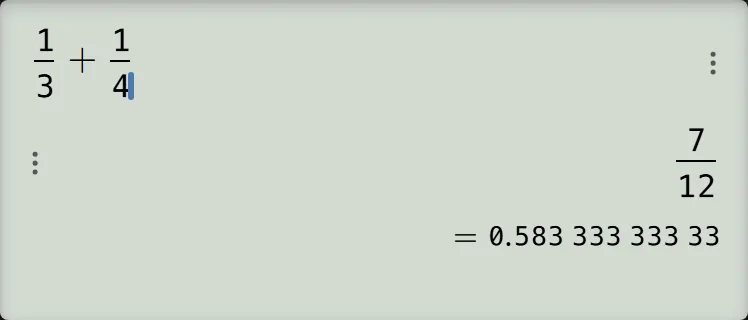
-
Step 2
Press the equals key to confirm the calculation. The exact answer and its decimal value stay on screen.Press: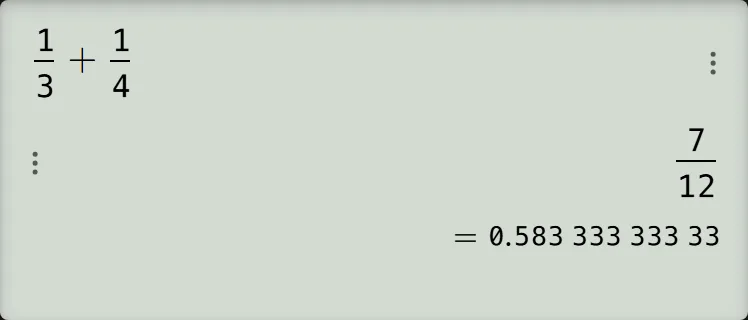
-
Step 3
Press the square-root key to start a new calculation. Enter and press the equals key. The answer is , with about underneath.Press: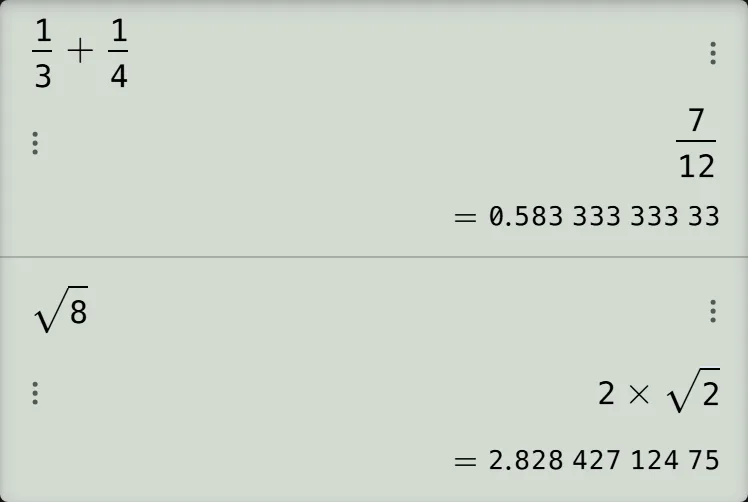
-
Step 4
Press the key shown to switch to the decimal alone, . The indicator below the screen changes to DECI.Press: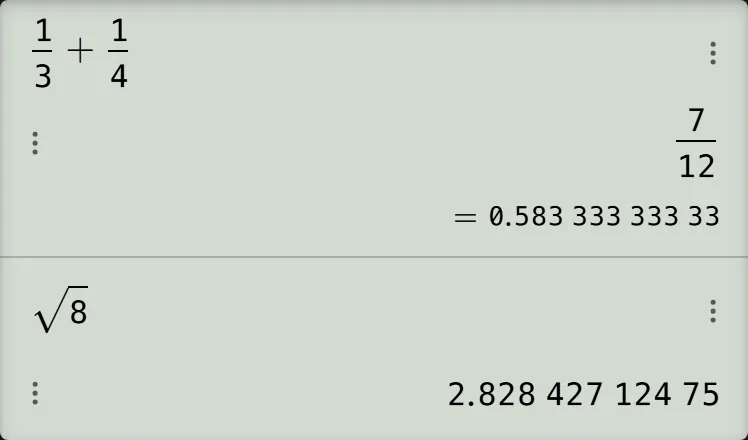
Press again to bring back and its decimal line, with FRAC showing below the screen.
Read and check the answer
Use the fraction or root when the question asks for an exact answer. The decimal underneath is rounded; the spaces simply group its digits. Check the examples by adding with a common denominator and taking a square factor out of the root:
After you press the equals key, the answer is stored in Ans. With FRAC showing, pressing plus after the root example, entering and pressing the equals key calculates and gives . Each new confirmed answer replaces Ans; to keep one for later, store the result in a variable.
Pi works the same way. For the area of a circle of radius , enter , using for pi and to square , then press the equals key. The screen keeps as the exact result and shows about below it.
If the display looks different
- Only a decimal appears: check for DECI below the screen and tap it to restore FRAC. Your choice carries over to the next calculation and survives a reload.
- A bar appears over a digit: a repeating fraction has an extra display form. For , the cycle is the fraction, , the rounded decimal, then the fraction again. The bar means that the repeats forever.
- The live answer disappears: an empty fraction box has no live answer. Fill both boxes; if you moved the cursor after completing the expression, press the equals key to show the answer again.
- There is no decimal line under an integer: this is normal for an answer such as .
Calculate fractions and roots exactly on your fx-991EX
Try one third plus one quarter, read the exact answer and its decimal value, then calculate a square root.