Make a table of values for a function
Calculate a sequence of f(x) values over a chosen range without re-entering the expression.
Cet article n’est pas encore disponible en français. La version anglaise complète est affichée.
When you need values for sketching a graph or checking a few points, re-entering the entire expression for each is slow. For example, find the values at the integers from through of:
Generate the table
Below each step is the screen you should see after pressing.
Next to each step is the screen you should see after pressing.
-
Step 1
Open the mode menu and choose Table. The setup screen opens directly. On a first visit, and are empty, is marked optional, and Start, End, Step show , , .Press: -
Step 2
Enter in and press the equals key. This problem needs no . A filled would add a third column, so if it still holds an earlier function, type any key in its slot first, then press AC once: that clears only . AC pressed before you type clears all five boxes. Press the equals key to move to Start.Press: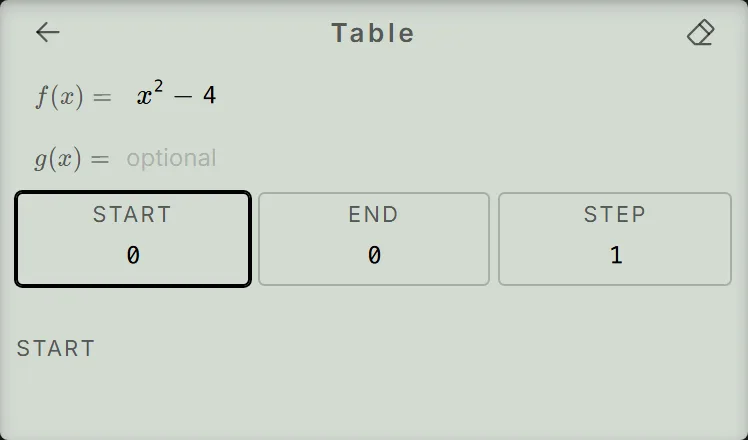
-
Step 3
Set Start = 0, End = 3, Step = 1, pressing the equals key after each value. The final press generates four rows.Press: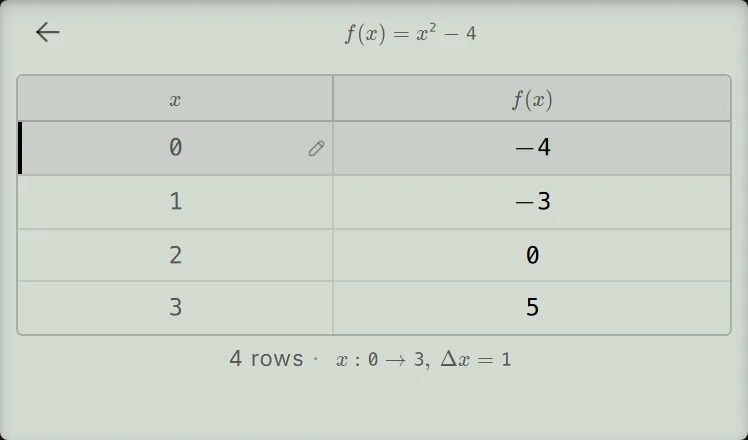
, , Start, End and Step are kept when you leave the mode or reload the page; the generated rows are not.
Read the table
Read each row across the and columns:
The row confirms , while the row gives . Check the latter by substitution: . The table shows only the selected inputs, not every value between its rows. To find an inequality's full solution intervals, use the inequality task instead of inferring them from this sample.
Compare two functions in one table
While setting up the table in step 2, after you enter and press , the selection moves to . Type there and press to move to Start, then set Start = 0, End = 3, Step = 1 as before. The table now has three columns, with both function values on the same row for each .
To go back to two columns, clear as step 2 describes, then press the equals key through Start, End and Step again.

Build a function table on your fx-991EX calculator
Enter f(x) = x² − 4 once and see every value from x = 0 to 3 appear in one table.