See an answer as a mixed number, repeating decimal or DMS
Read the different forms of an answer, then show it in degrees, minutes and seconds and switch back to the fraction.
Cet article n’est pas encore disponible en français. La version anglaise complète est affichée.
You have a fraction answer, but need a mixed number, a repeating decimal or hours and minutes. For example, a km walk at km/h takes:
Open the answer's list of forms to compare them, then try the degrees-minutes-seconds key.
Open the list and show degrees, minutes and seconds
Below each step is the screen you should see after pressing.
Next to each step is the screen you should see after pressing.
-
Step 1
Enter and press the equals key. The answer is , with underneath.Press: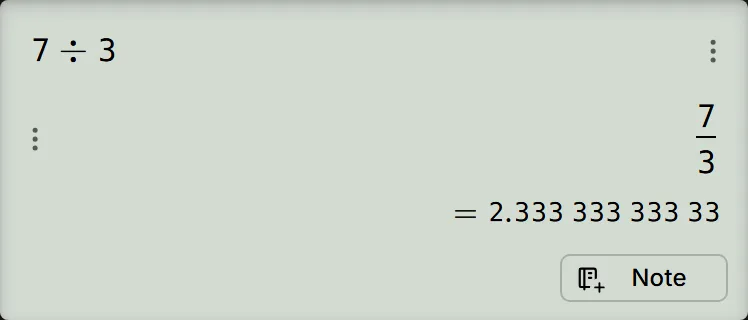
-
Step 2
Tap the answer to open Result format. Read the rows Fraction, Numeric, Repeated Decimal, Mixed Fraction, DMS and Prime Factor. The mixed number is and the repeating decimal is .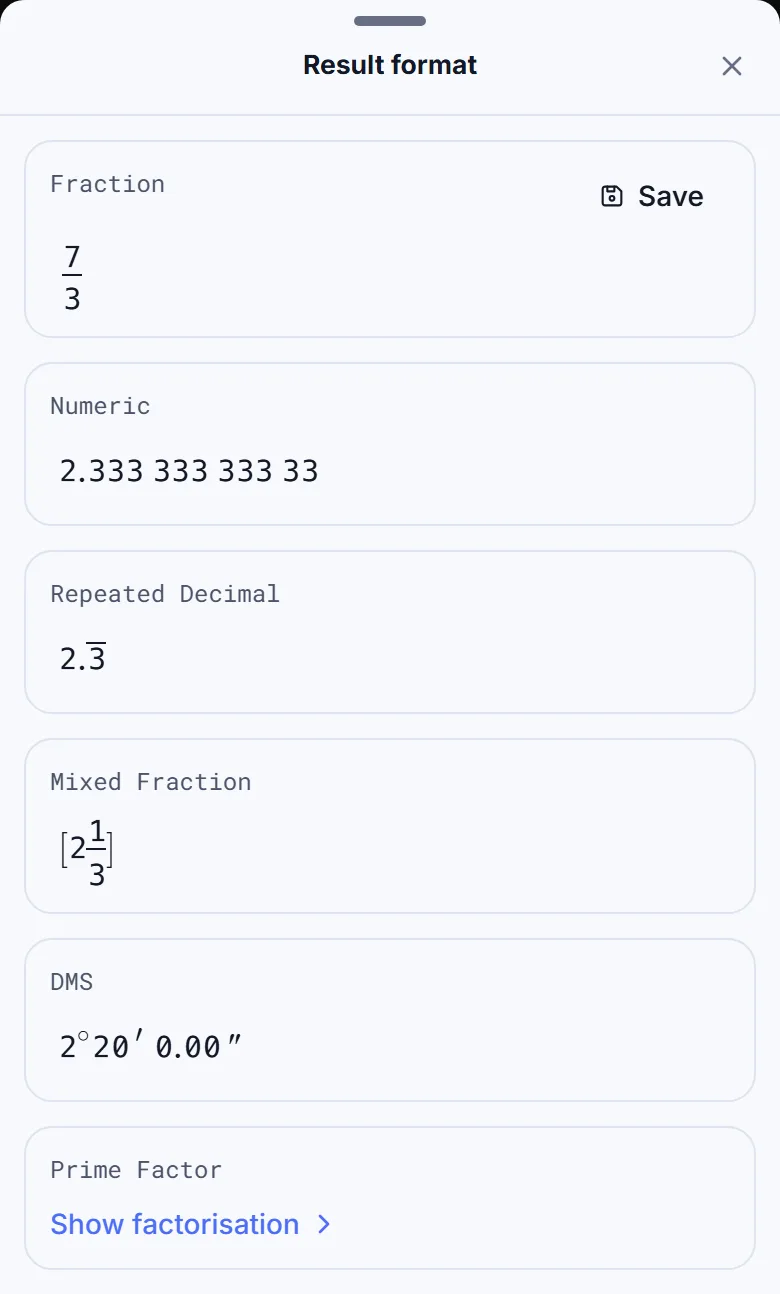
-
Step 3
Tap ✕ at the top right of the list. The screen still shows and its decimal line. -
Step 4
Press the key shown to display degrees, minutes and seconds. The answer becomes .Press: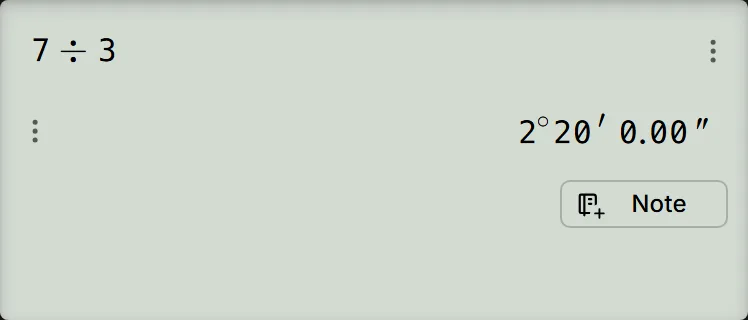
-
Step 5
Press the same key again. The answer returns to , with underneath.Press:
To put the mixed number on the screen instead, press ; press it again to return to the fraction.
Read and check the forms
The Fraction, Mixed Fraction and Repeated Decimal rows give the same exact value:
The bar means that the repeats forever. The Numeric row shows the decimal, .
The DMS form prints degree, minute and second signs, with two decimal places for seconds. For this time example, read as hours, minutes and seconds: of an hour is minutes.
The first row always matches the form currently on the screen. Integers and roots use Exact form in place of Fraction. The form values are for reading; tapping one leaves the calculator screen unchanged. Showing a form never changes Ans, which stays .
To keep an answer using the first row's Save button, see save an answer in a variable.
Other ways to see a form
Tap the answer, or click it with a mouse, to open Result format. Tapping the decimal line underneath opens the same list.
Tap the ⋮ button to the left of the answer (the ⋮ beside the expression has no such row), then choose View Result Format. You can also right-click the answer with a mouse, or press and hold it for about half a second with a finger, then choose that row. This menu also offers copying and Save to a variable.
For an older answer on the calculator screen, tap that answer. In the History panel, right-click the answer or press and hold it with a finger, then choose View Result Format; a plain tap there does nothing.
To put a form on the screen, press for degrees-minutes-seconds, or for a mixed number. Repeat the same key combination to return to the fraction. Holding S⇔D also gives its mixed-number function. For an integer's prime factors, use FACT, . For S⇔D and the FRAC/DECI chip, see calculate with exact answers.
In the list's Prime Factor row, tap Show factorisation to reveal the factors. For it gives ; for an integer such as , the row already shows .
To change decimal notation, press ENG or tap the NORM chip to open Decimal Number Format, then choose Normal, Fixed, Scientific, Engineering or Engineering SI. This setting affects how decimals are printed for later answers too; choose Normal to set it back.
For the working, tap Convert to mixed number under the answer. It opens Math Solver with written steps and leaves the calculator screen unchanged.
If the form you want does not appear
The rows depend on the answer. For example, has no Repeated Decimal row, and the proper fraction has no Mixed Fraction row. Check the list first.
The a b/c mixed-number template types a mixed number to calculate with; it does not convert an answer.
If tapping a form value does nothing, read it in the list, then close the list with ✕. Use the keypad routes above to change the form on the screen.
An answer with no mixed form, such as or , stays on the screen when you press the mixed-number key, and a short message at the top of the calculator says it cannot be converted. FACT on does the same.
If returning from a mixed number leaves without its decimal line, press the equals key to restore that line.
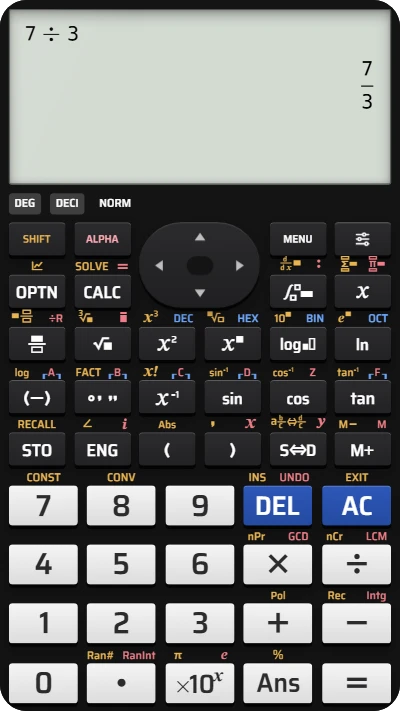
See 7 ÷ 3 as a mixed number or repeating decimal
Use your fx-991EX keypad to calculate seven divided by three and compare its fraction, mixed number, repeating decimal and DMS forms.