Find the dot product and cross product of two vectors
Enter two 3-D vectors once to calculate their dot product as a number and their cross product as a vector.
Эта статья пока не переведена на русский. Показана полная английская версия.
Need both the dot product and the cross product of two vectors? Store the vectors once in CalcES, then calculate each product separately. Use this example:
The dot product gives a single number; the cross product gives another vector. The steps below start with VctA and VctB not yet defined.
Enter the vectors and calculate both products
Below each step is the screen you should see after pressing.
Next to each step is the screen you should see after pressing.
-
Step 1
Open the mode menu and tap Vector. A blank calculation line appears.Press: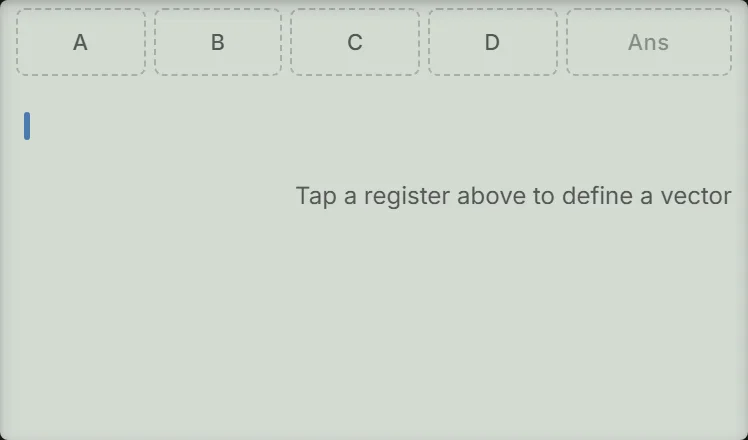
-
Step 2
Open the vector sheet using the key shown, then tap Create on the VctA row.Press: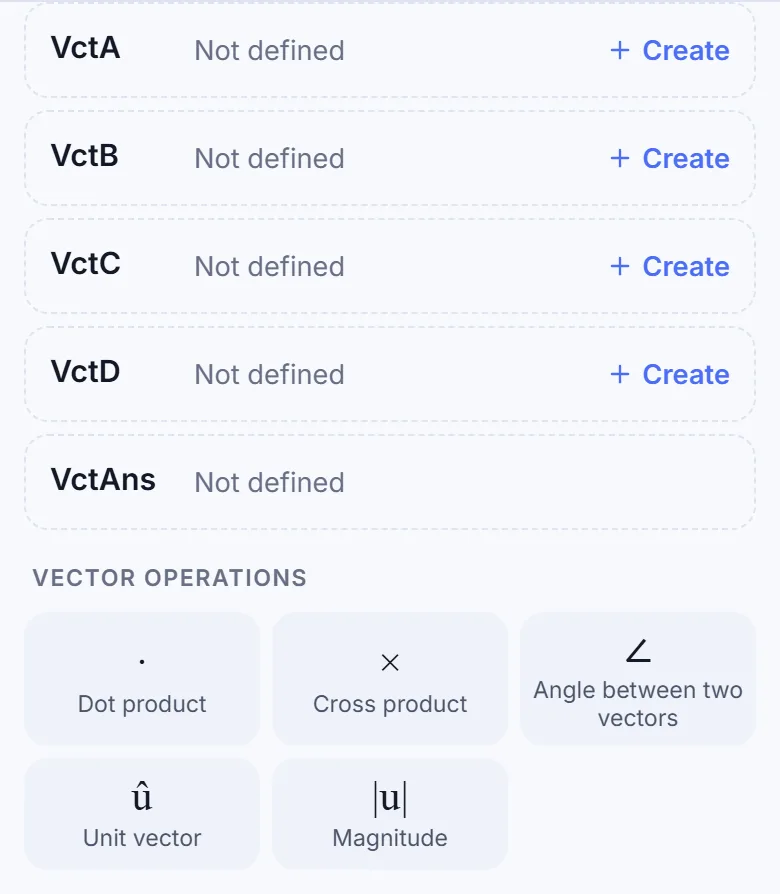
-
Step 3
Tap 3-D before entering any numbers: the editor starts in 2-D. Enter , , then , pressing the equals key after each number. Tap Done to store VctA.Press: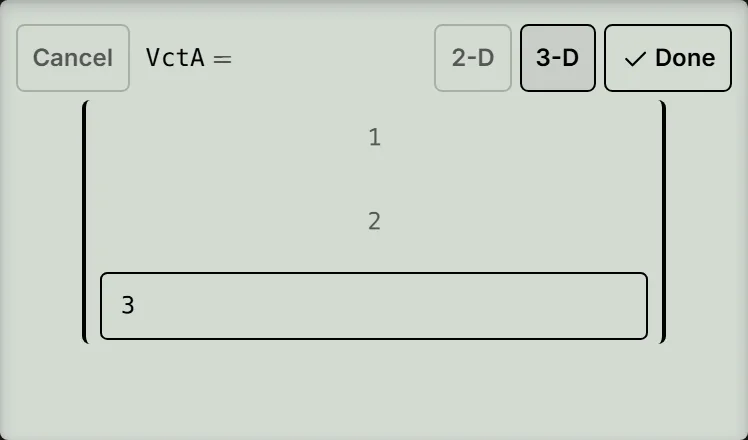
-
Step 4
Reopen the same sheet and tap Create on the VctB row. Tap 3-D, then enter , , and , pressing the equals key after each number. Tap Done to store VctB.Press: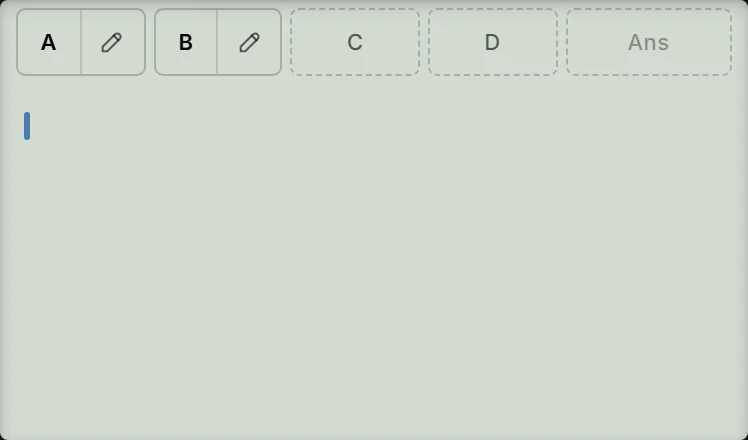
-
Step 5
Tap A to insert VctA. Open the same sheet and tap Dot product, then tap B to insert VctB. Press the equals key. The line shows and the answer is .Press: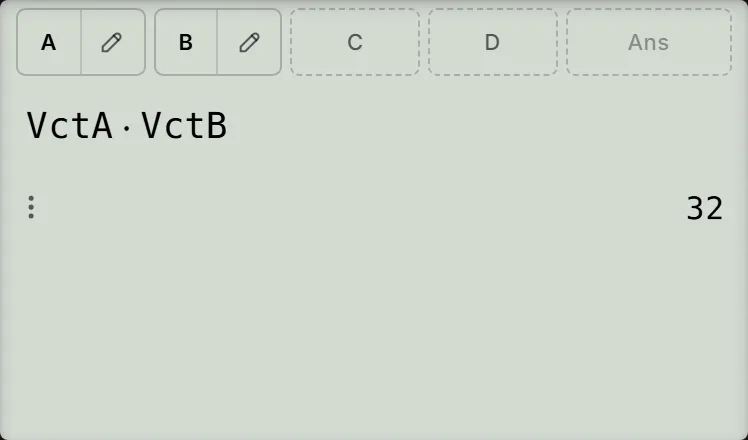
-
Step 6
Tap A again to start a new line with VctA. Press the multiplication key, tap B to insert VctB, then press the equals key. The answer is the column vector .Press: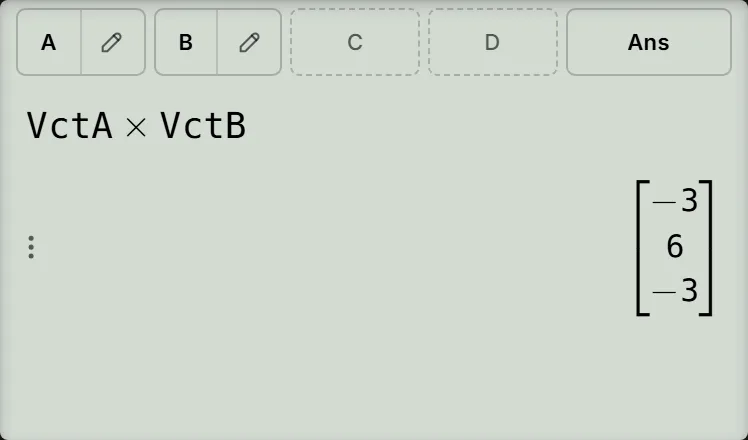
Check the two answers
For the dot product, multiply matching components and add:
For the cross product, check the three components in order:
The dot product is stored in Ans. The cross product is stored in VctAns, leaving the number in Ans unchanged. The screen's Ans chip represents VctAns, so it stays dashed after the dot product and becomes solid after the cross product.
Magnitude and angle
Reopen the vector sheet as in the steps above. Choose Magnitude, tap A, then press the equals key: . In the same way . For the angle, reopen the sheet, choose Angle between two vectors, tap A, press , then tap B. Close the bracket with before pressing the equals key. The line shows Angle(VctA; VctB); the separator appears as ; even on the English page.
The angle follows the unit shown on the function bar's chip. On a first visit it is RAD, so the answer reads (the same value as ). To see degrees, tap the chip to open Angle Unit Mode, choose DEGREE, then close the sheet with X. The chip now says DEG and the answer updates automatically to ; the full screen value is , with no degree sign printed.
If something goes wrong
- Not Defined: the calculation names an empty vector register. Check that you entered both vectors and tapped Done for each.
- The vector was not stored: pressing the equals key in the editor does not store the whole vector. Only Done stores it; Cancel, Escape, or EXIT leaves the register as it was.
- VctA or VctB already holds a vector: tap the pencil beside its chip (or on its sheet row), change the cells, then tap Done.
- Dimension ERROR: one vector is 2-D. Open its pencil, tap 3-D and enter the three components again.
- The combined expression gives an unexpected result: calculate the two products on separate lines, as above. If you combine them in one expression, the dot product is evaluated before the cross product.
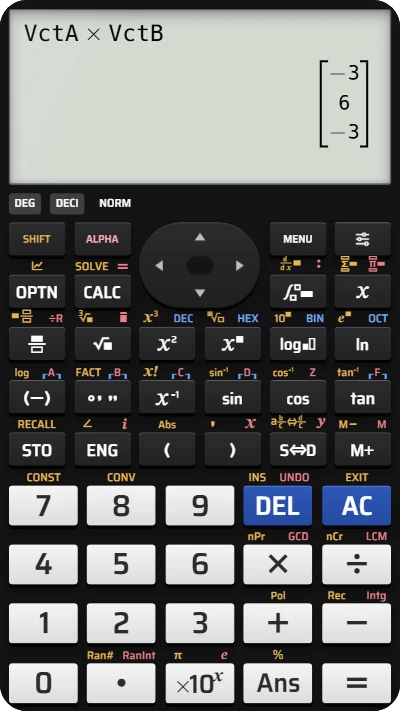
Find vector dot and cross products on your fx-991EX calculator
Enter (1, 2, 3) and (4, 5, 6), then calculate their dot product, 32, and cross product, (−3, 6, −3).